
Issue:
How do you install a post-processor for use in Inventor CAM and HSMWorks? Which folder does the post processor (CPS) file need to be placed?
Solution:
NOTE: The appropriate post processor for the machine or controller being used needs to be found before it can be installed. Autodesk provides a library of generic post processors in the Autodesk Post Library. If the desired machine or controller cannot be found in the Autodesk Post Library, contact the customization resources in the HSM Post Processor Forum or the CAM Partners in the Autodesk Partner Finder.
Installing an HSMWorks Post Processor:
- Download or locate the post processor that you would like to install and use from the Autodesk Post Processor Library The post processor will download as a CPS format file. Note where this file is saved locally when downloaded.
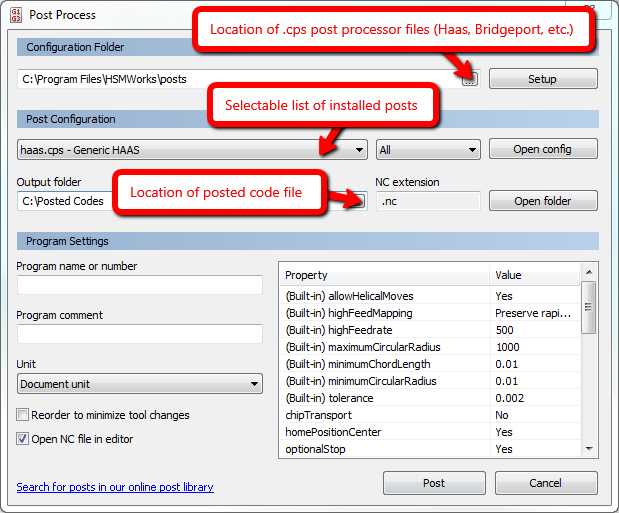
- Determine the location where the post processor files are stored. This location can be changed to any location that the user desires. Normally, the default location in HSMWorks is:
- C:\Program Files\HSMWorks\Posts
- Paste the CPS post processor file that you would like to add in this file location.
- Close the Post Process dialog and reopen to test that the new post was added. A restart of SOLIDWORKS may be necessary.
Note: The Post Process dialog is accessible by selecting Post Process from the CAM tab in SOLIDWORKS. You can also right click any Job or Operation in the Feature Manager Design Tree on the CAM tab and select Post Process.
Installing a post processor in Inventor CAM:
- Download or locate the post processor that you would like to install and use from the Autodesk Post Processor Library The post processor will download as a CPS format file. Note where this file is saved locally when downloaded.
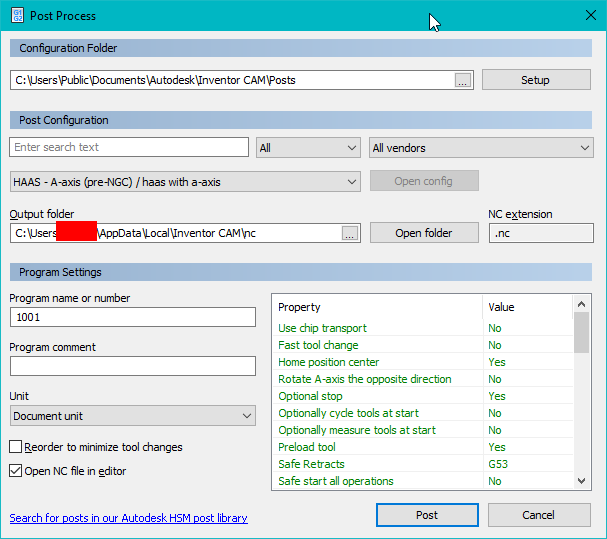
- Determine the location where the post processor files are stored. This location can be changed to any location that the user desires. Usually, the default location in Inventor CAM is:
- C:\Users\Public\Documents\Autodesk\Inventor CAM\Posts
- Paste the CPS post processor file that you would like to add in this file location.
- Close the Post Process dialog and reopen to test that the new post was added. A restart of Inventor may be necessary.
Note: The Post Process dialog is accessible by selecting Post Process from the CAM tab in Inventor or from right clicking any Setup or Operation and selecting Post Process.
See Also:
- Blog Post: A Quick Introduction to Editing Post Processors
- QUICK TIP: Find, Install, Edit, and Request Post Processor in Fusion 360
- QUICK TIP: Enable 4th and 5th Axes in your Post Processor
- Getting started with CAM and toolpaths
- How to find, edit, or request post processors for HSM, HSMWorks and Fusion 360 CAM
- How to add a Post Processor to your Personal Posts in Fusion 360
- How to install a cloud post in Fusion 360
- Error messaging in g-code programs posted by Fusion 360 or HSM CAM
- Learning resources for post processor edits in Fusion 360/HSM CAM
- Where to find the latest download of Autodesk Manufacturing Post Processor Utility software.
- Using a post processor from another CAM software in Fusion and HSM CAM
- Fusion, Inventor CAM, HSMWorks: How to find or edit Post Processors