
Issue:
This article explains how to check the status of the Autodesk Desktop Licensing Service. This service is used by Autodesk software version 2020 or higher.Solution:
Here below a short video tutorial:Option 1 - Check Windows Services
- Press Start.
- Type Services.
- In the Services list, find Autodesk Desktop Licensing Service and make sure the service is running. If not running:
- Right-click > Properties.
- Set Startup type to Automatic.
- Click Start.
- Click OK.
Option 2 - Check via Internet Browser
- Go to C:\ProgramData\Autodesk\AdskLicensingService.
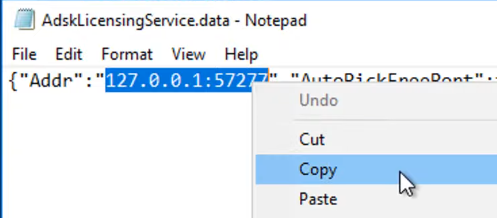
- Open the AdskLicensingService.data file in Notepad.
- Copy the IP/Port value after "Addr":
- Open an Internet Browser
- Paste the value in the address bar and press ENTER. The following is shown to confirm that the service is running.

Option 3 - Check via Command Prompt
- Open Command Prompt (press WIN+R > type cmd > press ENTER).
- Run "C:\Program Files (x86)\Common Files\Autodesk Shared\AdskLicensing\Current\helper\AdskLicensingInstHelper.exe" list.
- The resulting output should show the product(s) registered with the Licensing Service.

- If no product has been registered yet, the output would be a pair of square brackets "[ ]". Either reinstall your software or manually register it, see How to manually register and de-register an Autodesk software with the Autodesk Licensing Service.
