Issue:
How to deploy Autodesk Fusion on one or multiple machines.
Causes:
The primary installation method for Fusion is designed for single users, lowering the barriers to entry for those users and simultaneously ensuring that the client portion of Fusion is always current and compatible with the internet-based services that Fusion uses on the back end. However, certain aspects of these goals do not fit well into managed environments when large numbers of computers are to be maintained with installations of Fusion.
Solution:
The two following are alternate methods (Custom Install or --globalinstall parameter) of installation meant to meet the needs of organizations that wish to install Fusion per machine and maintain a large number of computers.
Note: Consulting with a system administrator to perform the following steps is advised.
Create a Custom Install from the Autodesk Account
As of the 7th of July 2026, depending on the entitlement, an Autodesk Fusion deployment can be created directly from the Autodesk Account through Custom Install that uses the ODIS installation framework.
Refer to: Deployments from Autodesk Account.
For Deployments using the ODIS installation framework:
- Within Fusion, users will see a "Check for Updates" option. This has the ability to notify and allow users to install available updates.
- Administrator can still deploy Fusion product updates to the users.
- To restrict the ability to install in-product updates, refer to: How to disable users ability to install updates via Autodesk Access.
For accounts that do not have the entitlement to create the Custom Install of Fusion
- The legacy Fusion Client Downloader is still used. It does not use the ODIS framework.
- This installer needs to be run with the "--globalinstall" flag. This flag only works with the legacy streaming installer version.
- This flag changes the installation location from one in the user's home/profile directory to a location that is accessible by multiple users and makes other adjustments to ensure that all users can access and execute the application.
- It is important to note that this flag must be specified for any installer invocation that is expected to change the install state of any application that is installed to an All-Users location.
- Within Fusion, users will not see a "Check for Updates" option. Administrators will need to push out updates.
New installation
Obtain the Fusion Client Downloader from the Autodesk Account. Refer to: How to download and install Autodesk Fusion.
Depending on whether you are installing per-user or per-machine, run the following commands in CMD or in the script:
To install per-user: "Fusion Client Downloader.exe"
To install per-machine: "Fusion Client Downloader.exe" --globalinstall
Update an existing installation
Obtain a new Fusion Client Downloader from the Autodesk Account. Refer to: How to download and install Autodesk Fusion.
Depending on whether it is being installed per-user or per-machine, run the following commands in CMD or in the script:
User install: "Fusion Client Downloader.exe" --process update
Machine-wide install: "Fusion Client Downloader.exe" --globalinstall --process update
Important: For machine-wide installs, it is the responsibility of the system administrator to make sure that the version of Fusion deployed is kept current:
-
- For System Account installation, the location of the .exe is found here: C:\ProgramFiles\Autodesk\webdeploy\production\<random hash based on installed version>\Fusion360.exe
- PowerShell command to pull the version number build of Fusion on a client PC regardless of the random hash on a client PC:
$Fusion = Get-ChildItem "$env:ProgramFiles\Autodesk\webdeploy\production" -Recurse -Filter Fusion360.exe -ErrorAction SilentlyContinue |Sort-Object LastWriteTime -Descending |Select-Object -First 1"Version: $($Fusion.VersionInfo.ProductVersion)""Path: $($Fusion.FullName)"
There should have an output like the following identifying the version number build of Fusion:
PS C:\Windows\System32> "Version: $($Fusion.VersionInfo.ProductVersion)"
Version: 2705.1.25
Uninstall
User install: "Fusion Client Downloader.exe" --process uninstall
Machine-wide install: "Fusion Client Downloader.exe" --globalinstall --process uninstall
Notes:
- Add --quiet to make the commands run silently. E.g. "Fusion Client Downloader.exe" --globalinstall --quiet
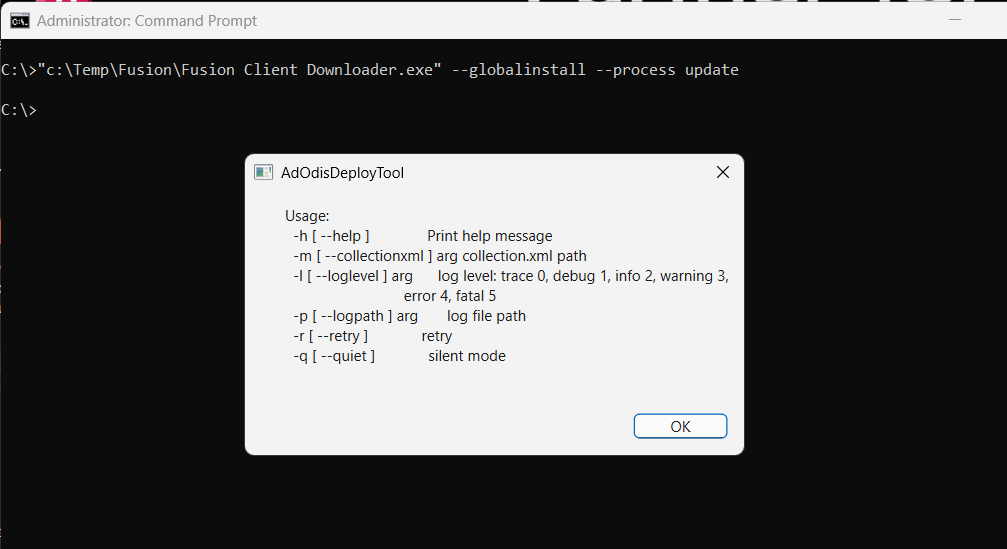
- The
--globalinstallparamenter is not to be used with the EXE file generated from the Custom Install otherwise will return an error similar to the following: