
Issue:
How to edit the default contour given by a Fusion Manufacture operation to include more or less edges. This may include selecting alternative geometry to create either an open or closed contour.
Solution:
To select open contour by default:
Hold the Alt key (Windows) or the OPTION key (Mac) while selecting the contours.
To select and edit contours:
- In the geometry tab of a CAM operation, select the drop-down icon for "Add geometry feature".
- Select Chain from the list
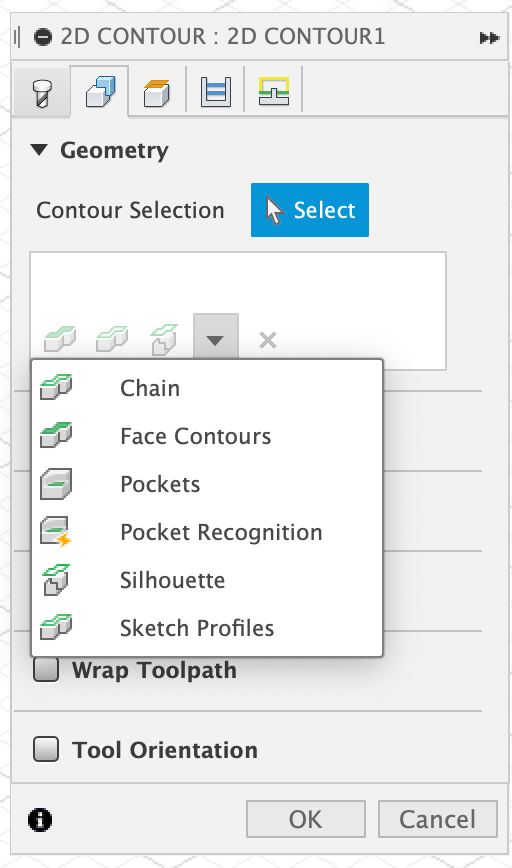
- Select a model contour containing some section of the desired final contour.

- To edit between an open and closed contour, change the Mode in the Chain dialog:
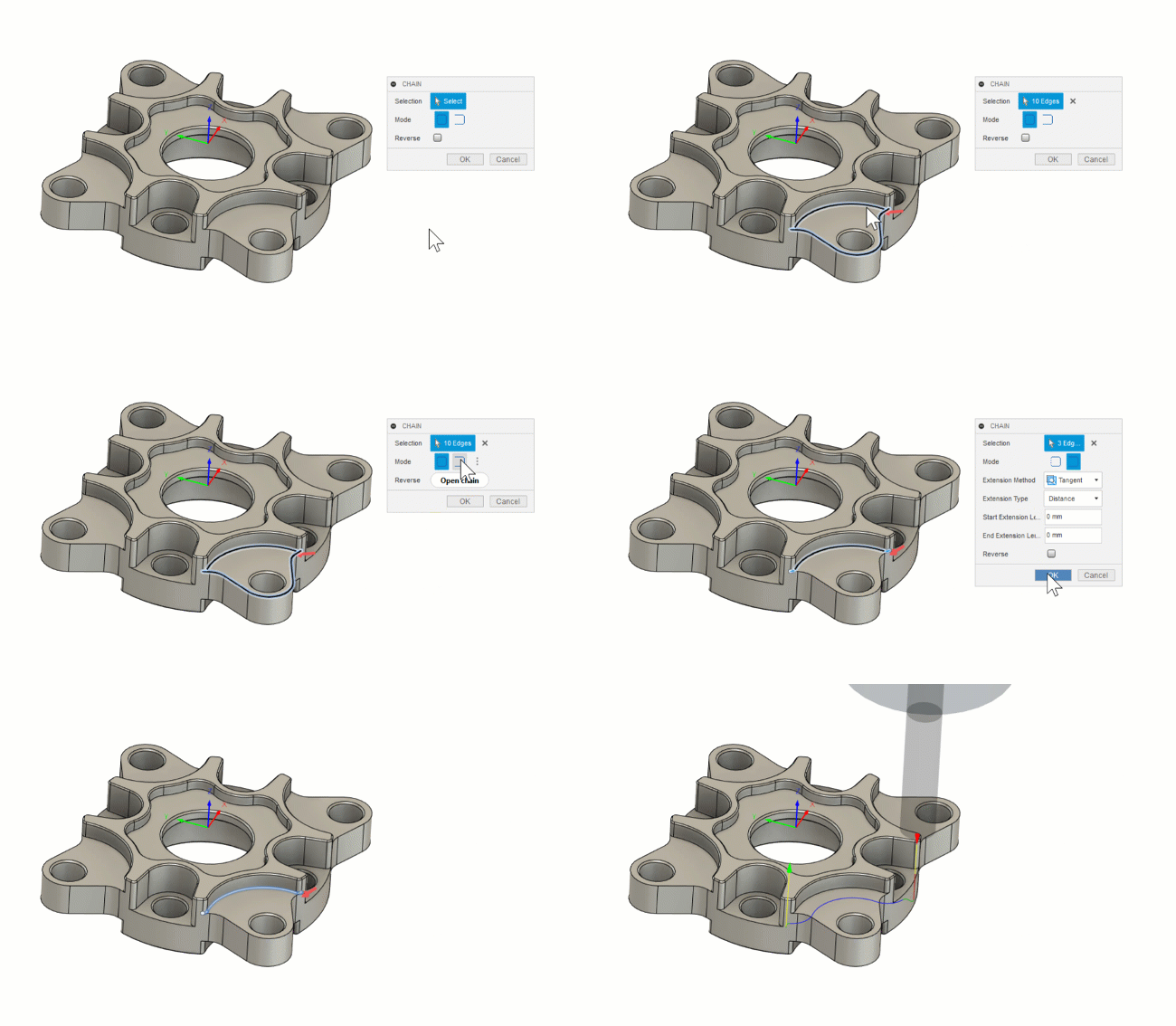

- Closed Contour: Selecting Closed Contour will define the current contour as a closed loop.
- Open Contour: Selecting Open Contour will allow an open contour to be created in the editor.