Issue:
When trying to edit sample tools and tool holders in Fusion, they cannot be edited.
Solution:
Sample holders and tools in the Fusion tool library are read only and cannot be edited.
When hovering over the pencil icon there is a notification of this.
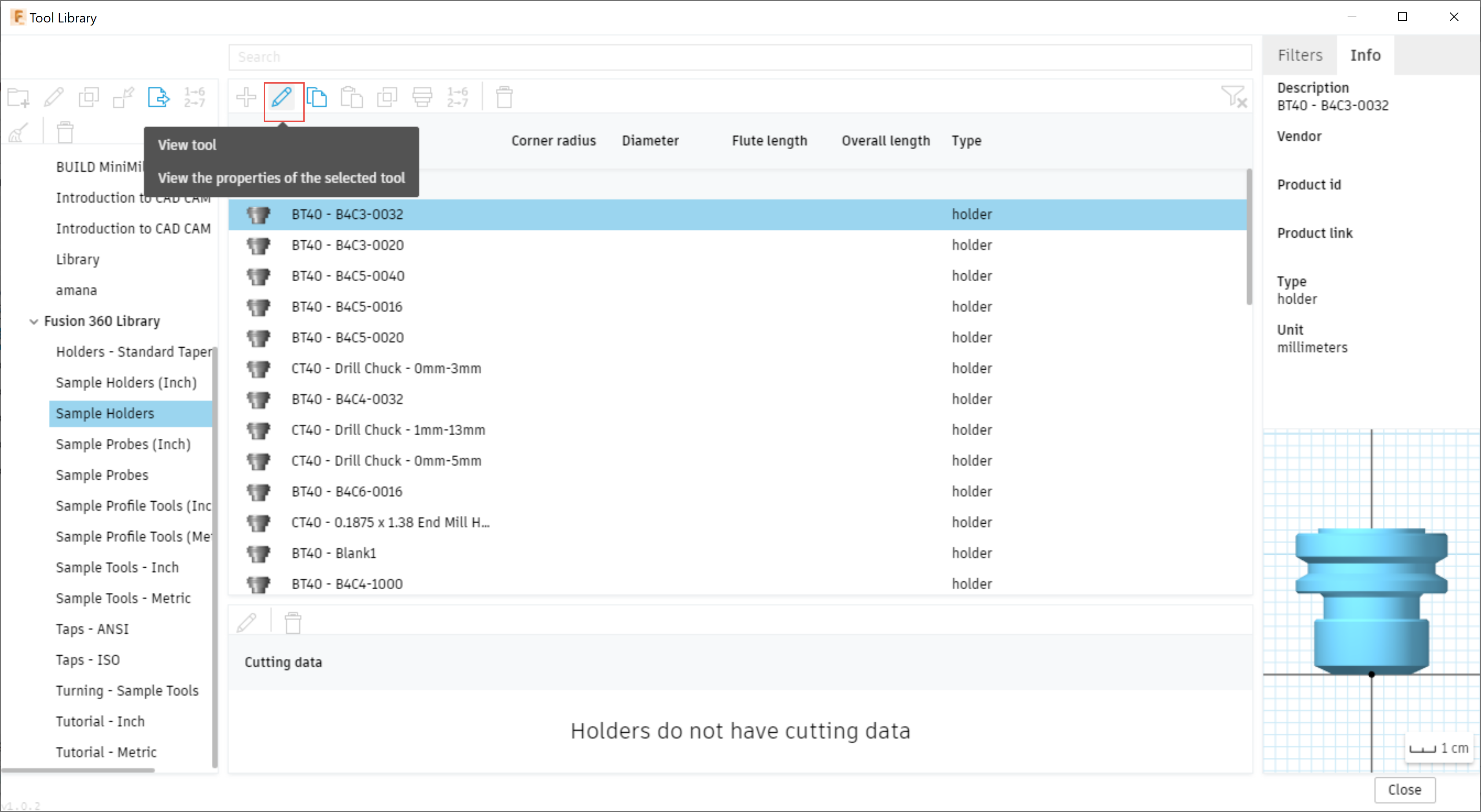
To edit any Tools or Holders from the Sample Library, they need to be copied over to one of the local or cloud libraries.
Follow these steps:
- Click on the icon next to the pencil (paper icon) to copy the tool or holder that needs to be edited.
- Navigate to one of the cloud or local libraries that this tool or holder will live in.
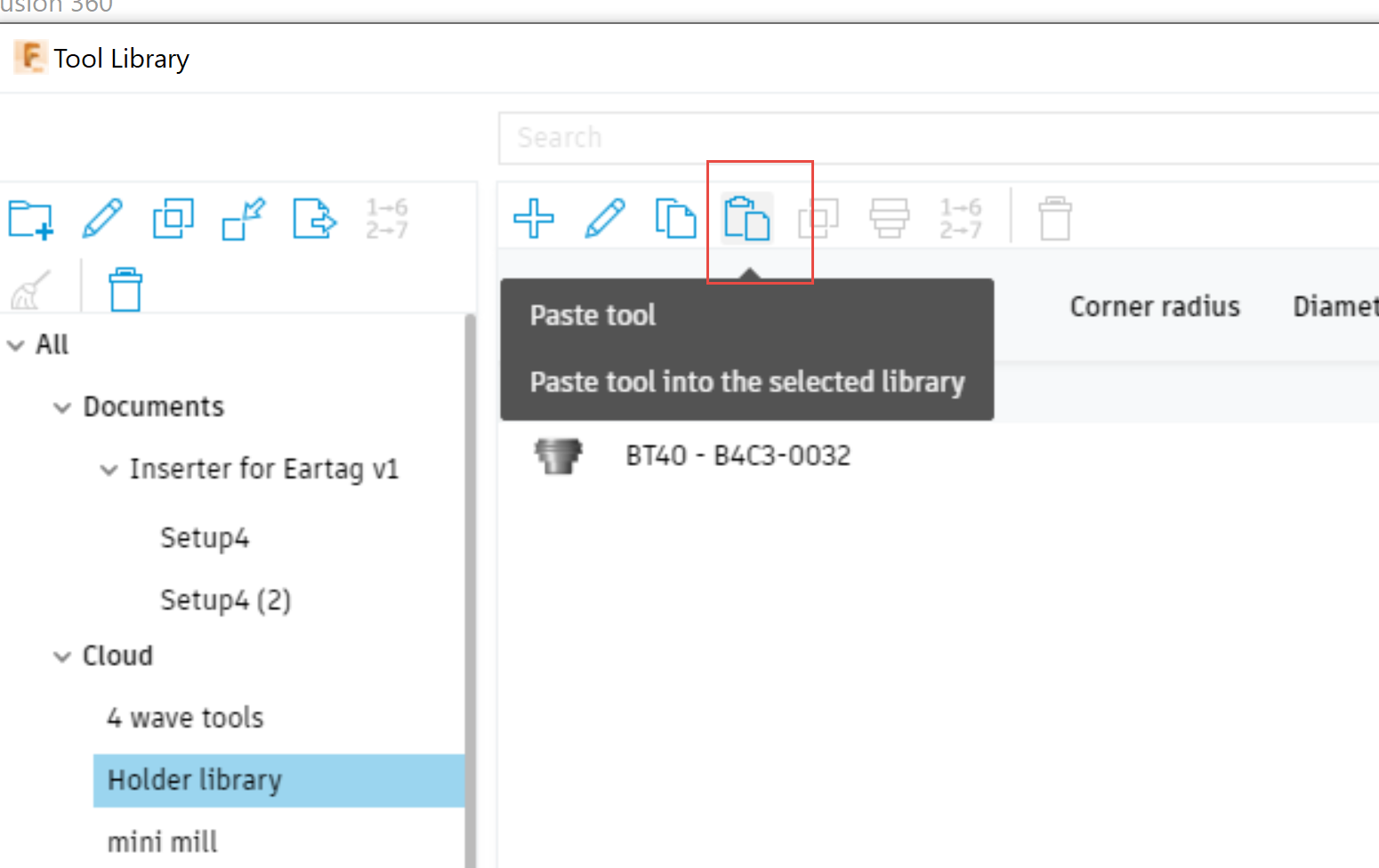
- Paste the copied tool or holder to the library by clicking on the clipboard icon.
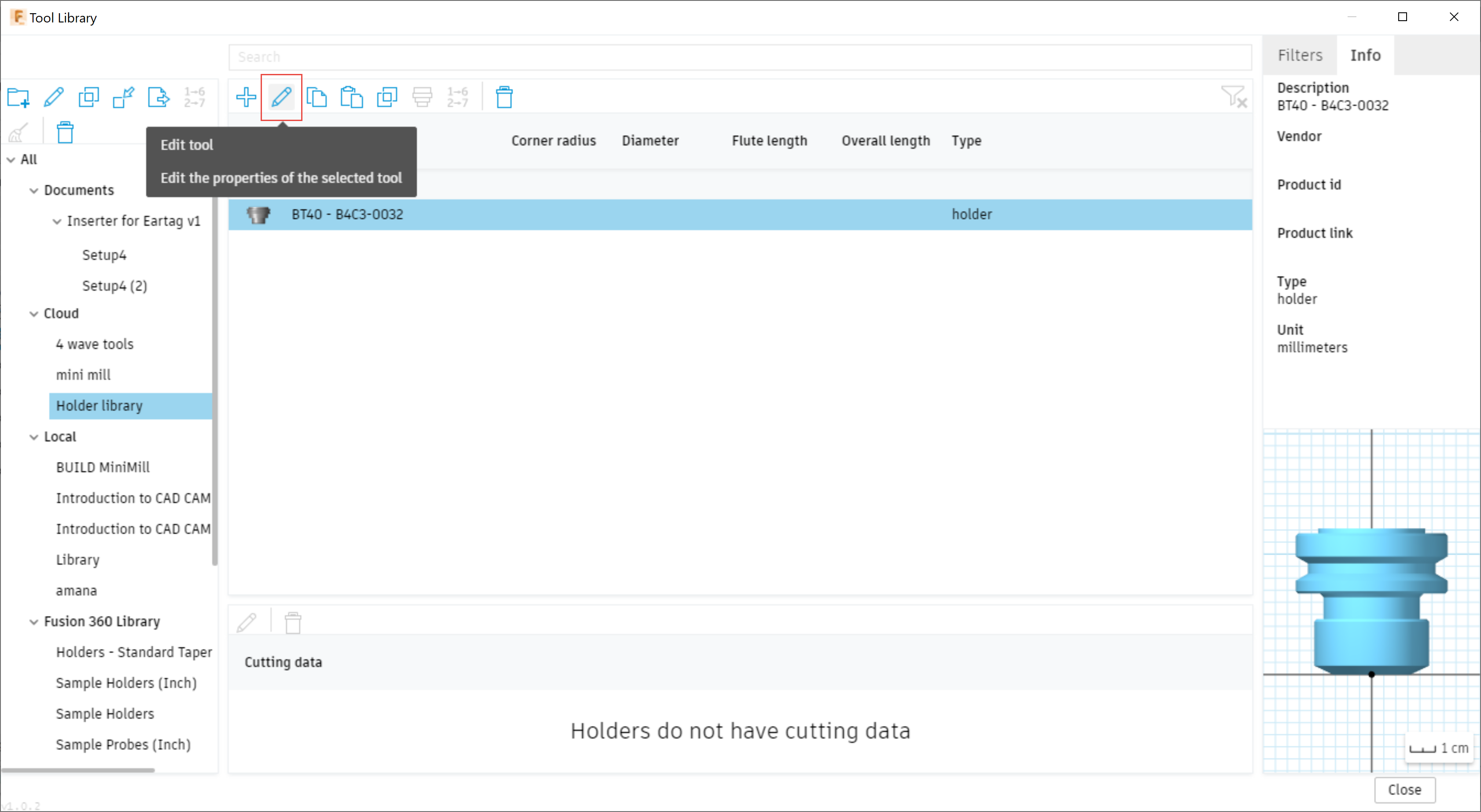
- The tool or holder should now be editable by clicking on the pencil.
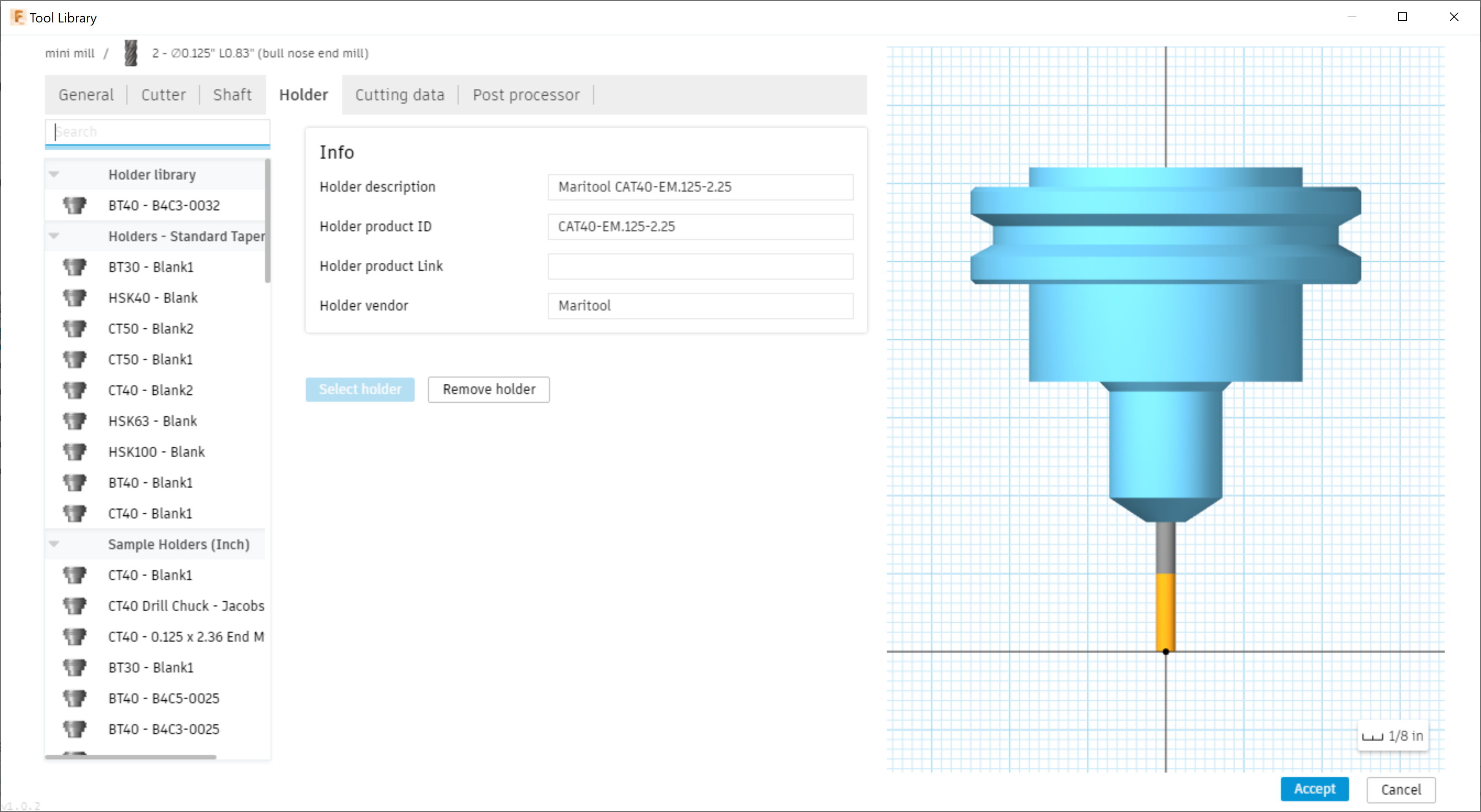
- Editing the tool or holder will open the following dialogue where all of the geometry can be edited (screenshot is of holder-specific dialog).
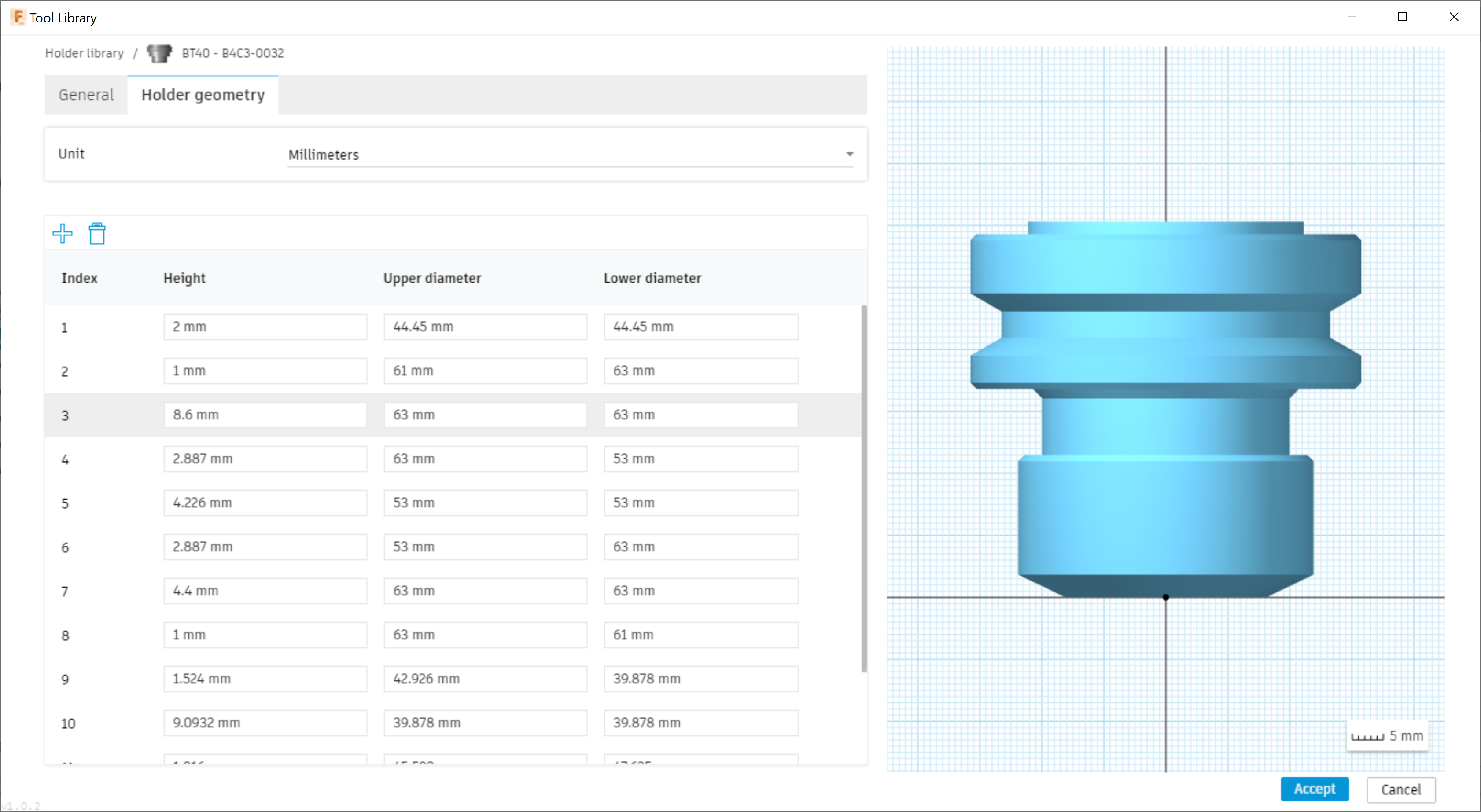
- Click Accept to save the tool when the edits are done.
Note: To use the tool holder with a tool, edit the tool in the tool library. There is a tab specifically for the holder that can be selected to use.