
Issue:
How to import or open designs or drawings in Fusion.
Solution:
Opening a file in Fusion
Use the open command to open a design from Cloud or from the local machine:
- Click File > Open.
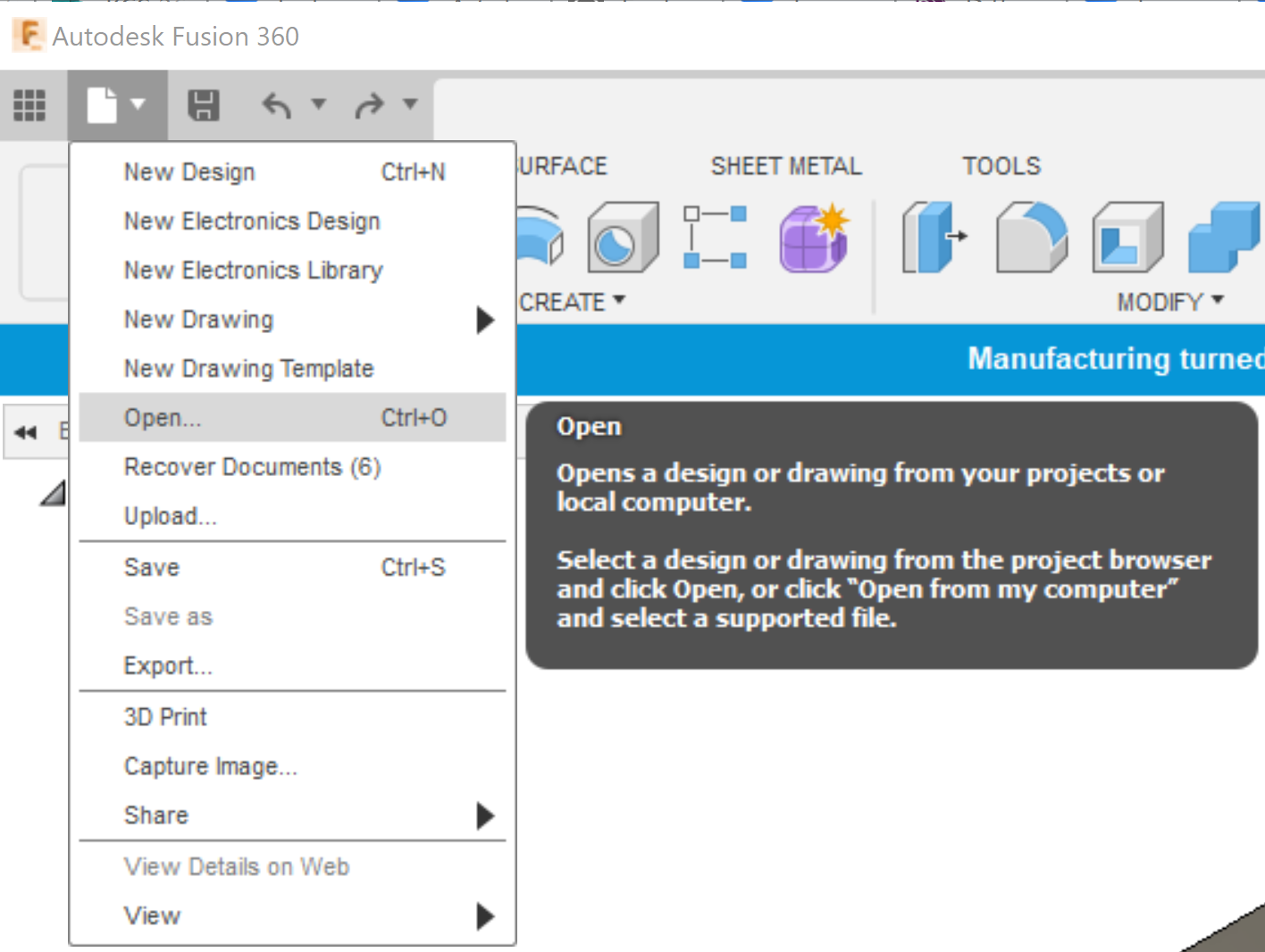
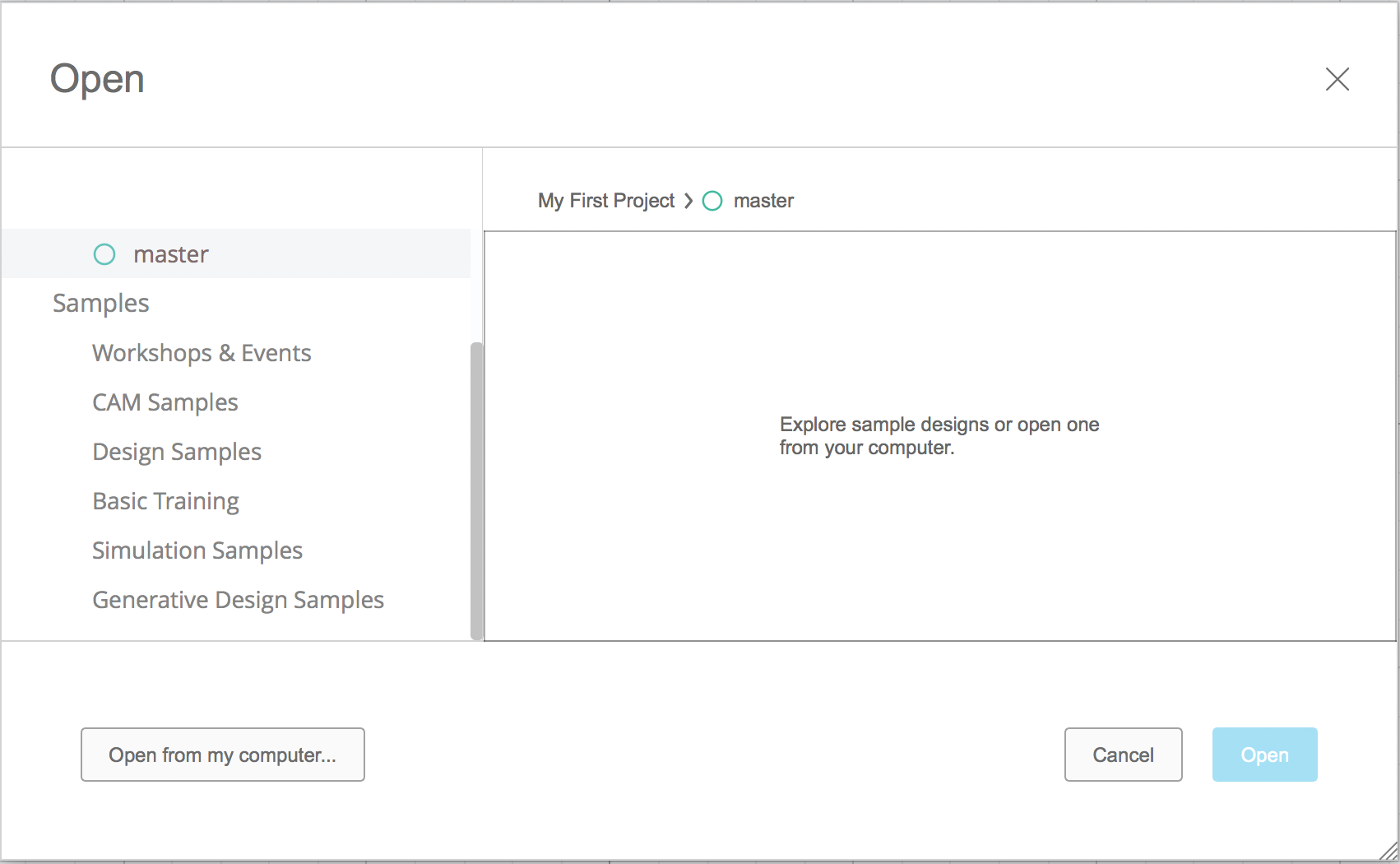
- The Open dialog box will appear showing your cloud data.
- Navigate to a file listed in your cloud data and click Open to open the file. To open a file saved locally on your computer, click "Open from my computer" and navigate to the file to open.
- For a list of file types that can be opened in Fusion, see the Fusion Supported File Formats.
- When the file has completed Cloud translation, click "Open" in the Job Status window, to start the file in Fusion.

Upload designs using the Data Panel
To upload a file into Fusion using the data panel, perform the following steps as shown in this video: How to upload a CAD file into Fusion.
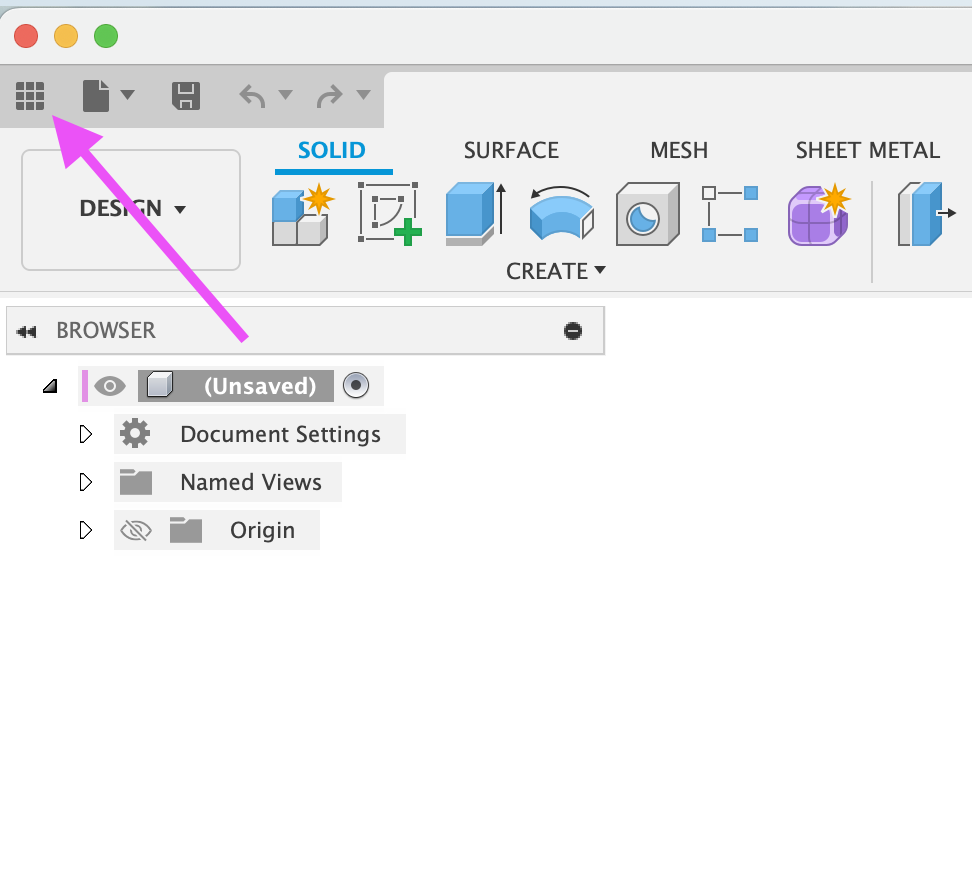
- Access the Data Panel by clicking the grid symbol at the upper left corner of Fusion.
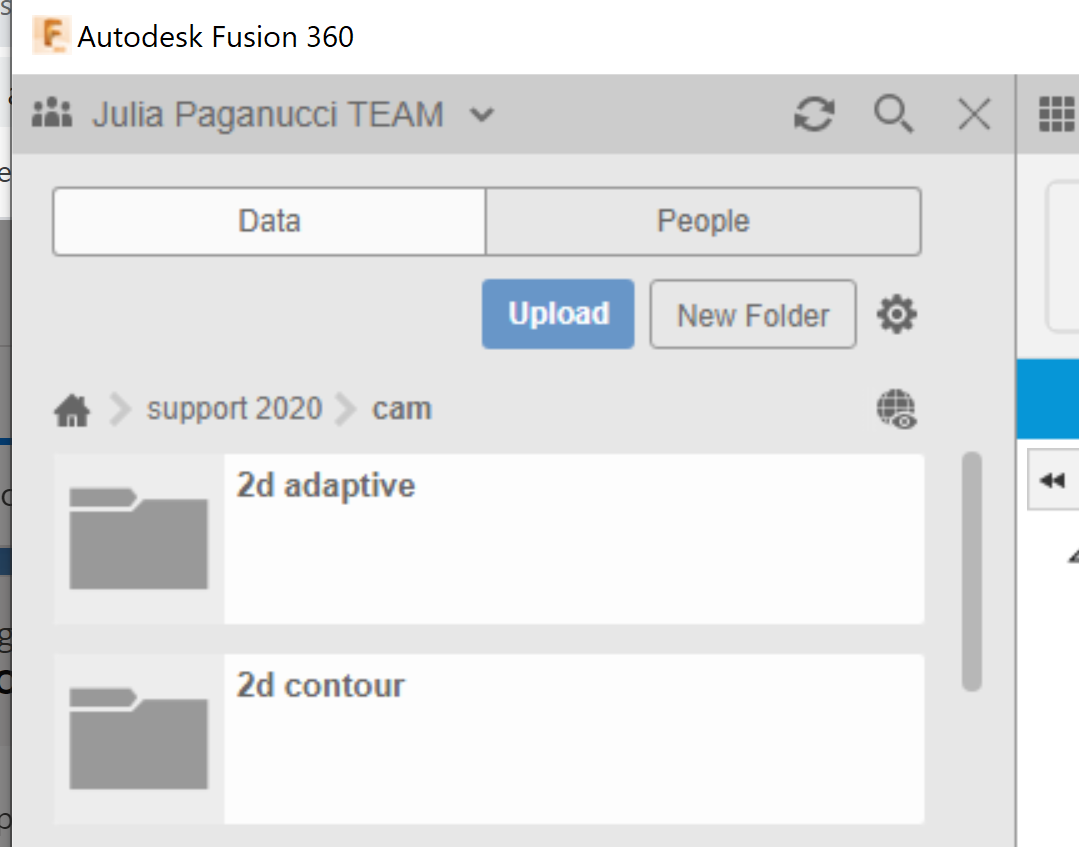
- Click Upload and select files from your computer to upload into Fusion. For a list of file types that can be uploaded into Fusion, see the Fusion Supported File Formats.
Note: Some file types require that Fusion is Online to translate to a Fusion design.
Upload designs using the Fusion Team hub
- To open a large .IGS or .STEP file, upload it to the Fusion Team Hub. See: Upload designs in Fusion Team
- Select the Overview option to view the uploaded Design file.
- Select Open in Desktop option to open the file in Fusion.
Inserting components, STL, OBJ, DXF, 3MF and SVG Files into existing files:
- To insert an STL, OBJ, DXF, 3MF or, SVG file into an existing Fusion file, use the Insert command in the toolbar.
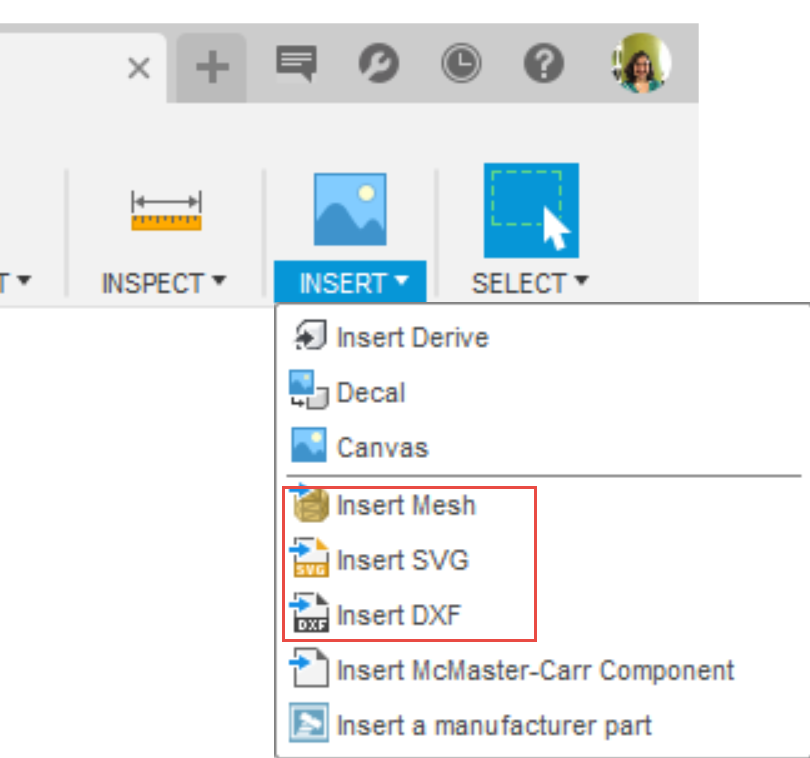
- To insert components from one Fusion file into another, see How to Insert a Component into the Current Design in Fusion.
See Also:
- How to insert a mesh body into Fusion
- How to insert DXF files in Fusion
- How to insert SVG files in Fusion
- How to upload a file to the Data Panel in Fusion
- How to export Inventor assembly files and open them in Fusion
- How to export SOLIDWORKS assembly files and open them in Fusion
- How to import DWG files into Fusion
- How to switch between a parametric or direct modeling environment in Autodesk Fusion
- How to share a Fusion design
- How to export a design in Fusion
- How to make a local archive (back-up) file in Fusion
- Data Panel does not function in Fusion
- Data Management Learning