
Issue:
How to join or add members to an Autodesk Fusion hub.
Solution:
In order to join an Autodesk Fusion hub, the hub Admin must invite a member to it and they must accept. See the following:
Invite Member to hub
Click to expand
The hub Admin only has the ability to invite members to a hub. Follow the steps:
- The hub Admin will need to go to Fusion web client.
- Select the Initials or profile picture in the upper right corner.
- Select Admin.
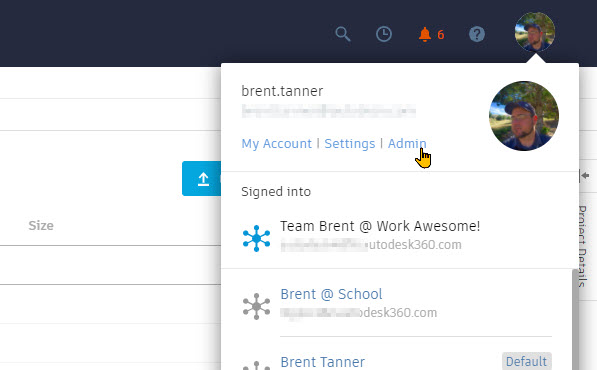
- Click on the Members tab
- Select the Invite member button.

- Enter the email of the member to be added to the hub.
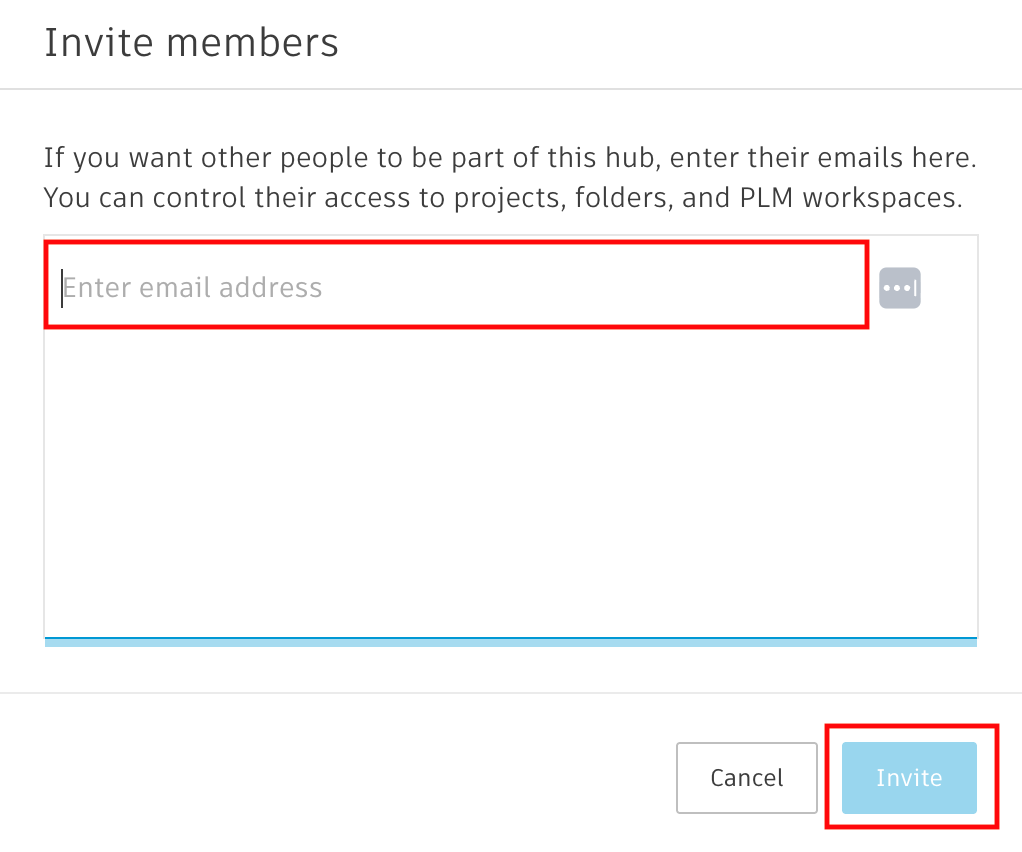
- Ask the new member to check their email to join the hub.
Note:
|
Accept hub Invitation
Click to expand
If a hub Admin has invited a member to join a hub, they should check their emails and accept the invitation.
- Invited member should check their emails for an Autodesk Fusion hub invitation.
- Once they find it they should accept.
- If the member has an Autodesk Fusion Account already they'll be prompted to sign in. Otherwise we'll need to create one.
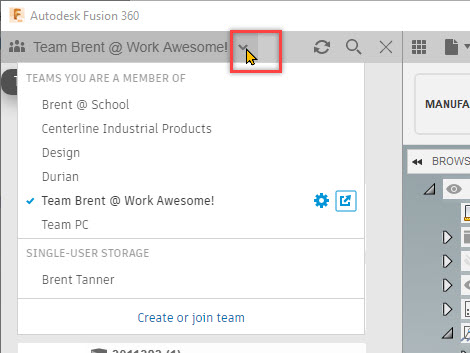
- New member can now switch hubs in Autodesk Fusion to access the new hub.
Note: If no invitation is received, see the article: No email invitation is received to join an Autodesk Fusion hub. |