
Issue:
How to share an Autodesk Fusion Design with others.
Solution:
See the following methods for sharing a Fusion design:
Export the design.
- You can create an exported Fusion archive file by exporting an F3D, F3Z (distributed design containing xref's), or F2D file. See How to make a local archive (back-up) file in Fusion and How to export a CAD design from Fusion
- To upload a shared file back into Fusion, see this article: How to import or open a file in Autodesk Fusion
Create a Share link.
- Generate a share link through one of the following methods:
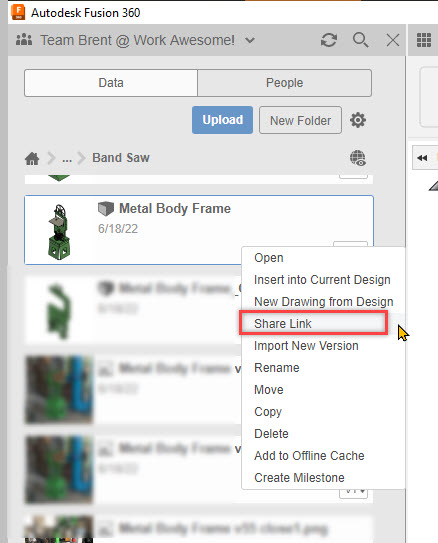
- Right-click the file in the data panel and click Share Link.
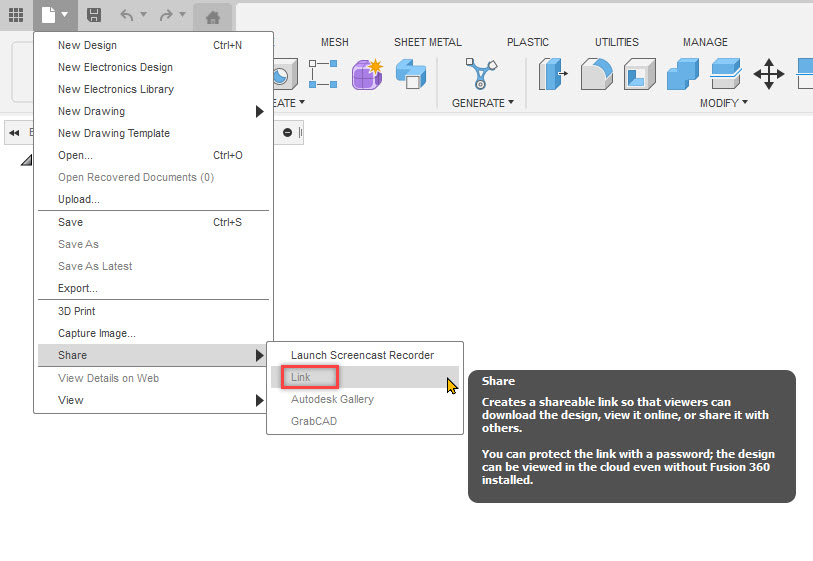
- The same option can also be found in the File>Share drop-down menu.
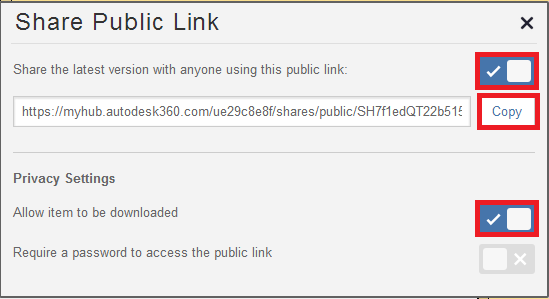
- The following dialog box will appear and provide an option to share a design, allow it to be downloaded, or enable password protection. The link can be shared with another within or outside the company domain.
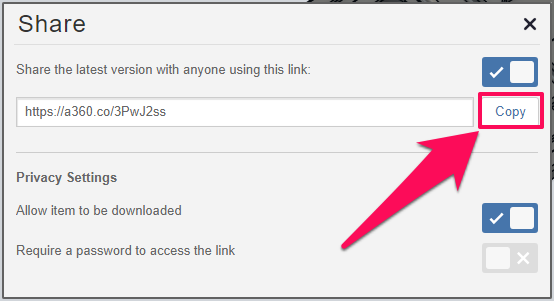
- Click "copy" and then you can send the hyperlink to anyone requesting access to the file.
Note: There is also a Share Item command in the Activity Feed in Fusion's Hub Dashboard.
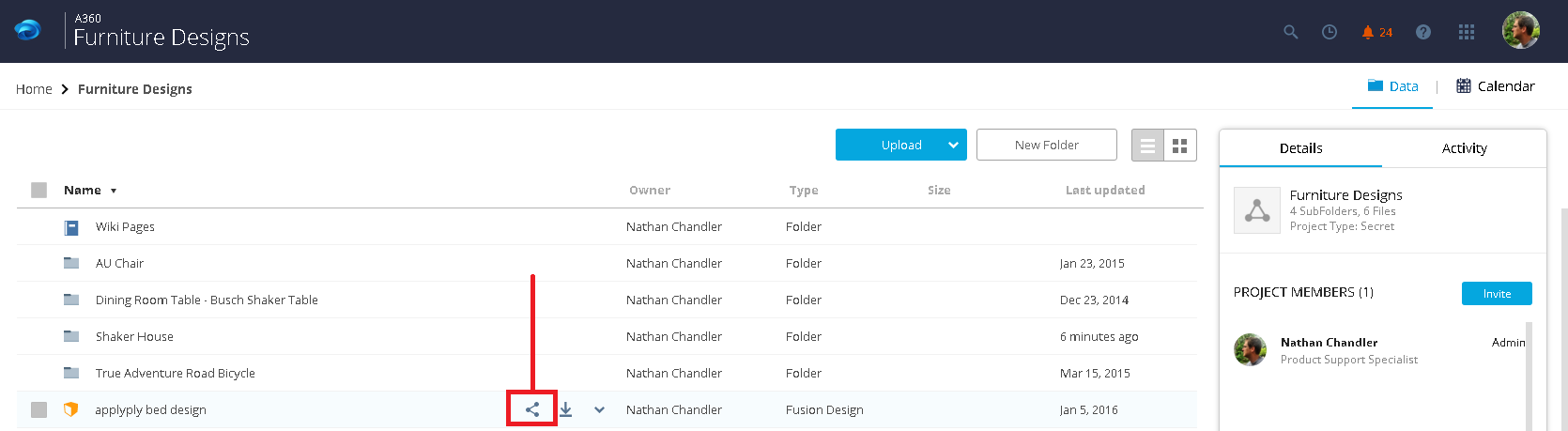
Invite another into the project.
- Another way to share a design is to invite another member to the project. Use the Invite button in the project's Dashboard. Learn more about the Invite command in the Fusion Learning Session.
- Note: The invitation includes a whole project and not just a single design. Sharing a project with others gives them access to all designs in that project.
See Also:
- How to make a local archive (back-up) file in Autodesk Fusion
- How to work in offline mode in Autodesk Fusion
- Does Autodesk Fusion require the internet?
- Can I use Autodesk Fusion on multiple computers?
- System requirements for Autodesk Fusion
- How to upload a file to the Data Panel in Autodesk Fusion.
- Upload fails when importing files into Autodesk Fusion