
Issue:
Users reported that an Uploaded DXF / DWG is not correctly scaled in Fusion.
Causes:
- DXF is a unitless file type, so when it is uploaded (using Upload) and there is no option to select the units, it will assume that the file is in centimeters.
- A DWG file is exported with unit-less settings in the units in AutoCAD
Solution:
Check the Default Units Preferences
- Click on the Account icon (in the upper right corner of Fusion) > Preferences.
- Preferences > Default Units Design.
- Change the Default Units on the drop down to the desired units.
- Use File > Open to open the file, and check the dimensions.

Insert the DXF into an existing file
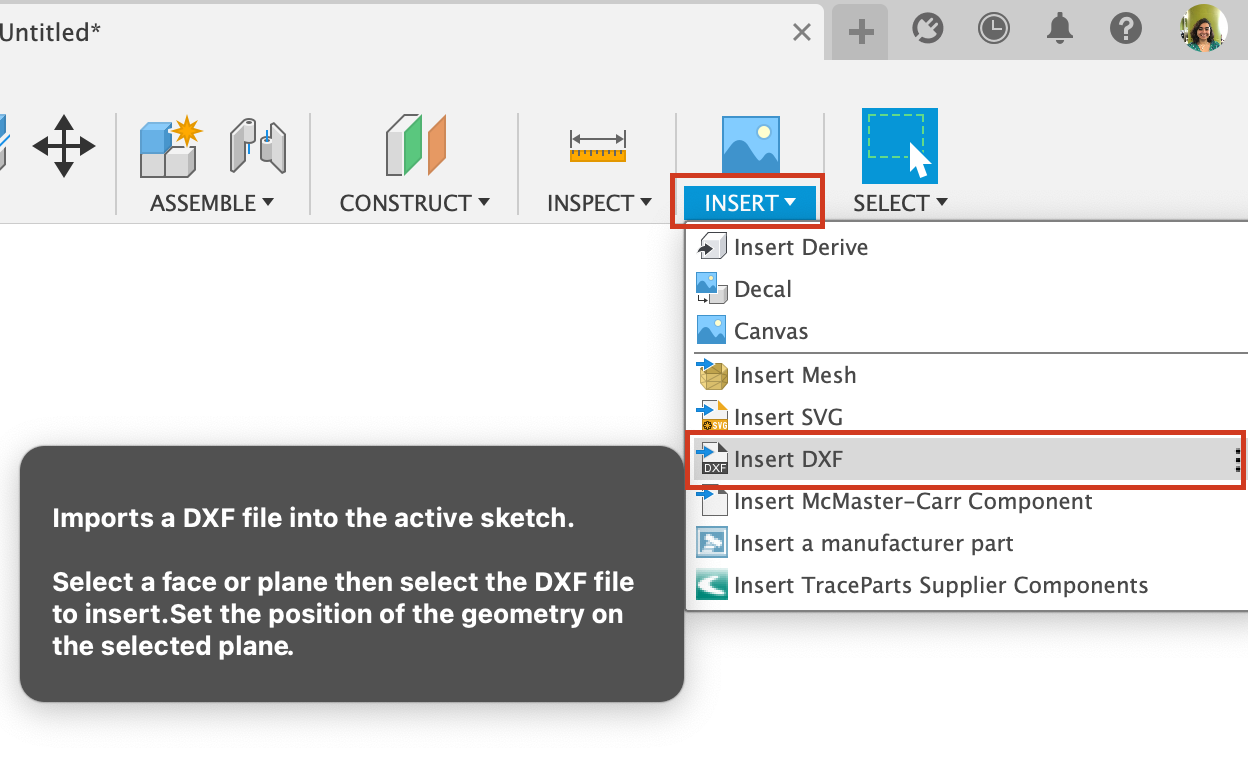
- From the Insert Menu, select Insert DXF.
- Select the plane that the DXF will be placed on.
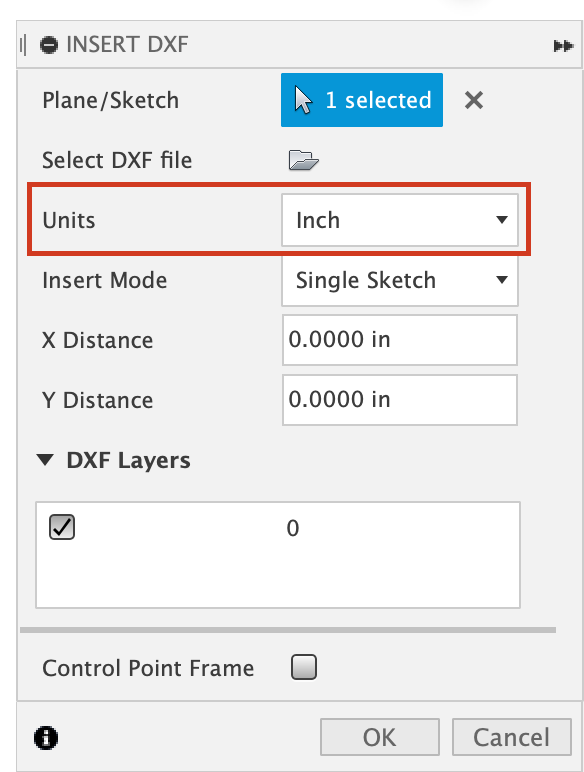
- Select the DXF file.
- From the units drop-down, specify the units that the imported DXF file uses.
- Click OK.
For DWG files
When exporting, ensure that the Drawing units settings are correct based on the type of units being used. If the scale units are set to unitless, it will export as a unitless DWG file.
