From the Autodesk Fusion Service Utility, there is a command to Reset Fusion. This article provides further detail about this command.
Note: See How to launch the Fusion Service Utility for invoking the tool.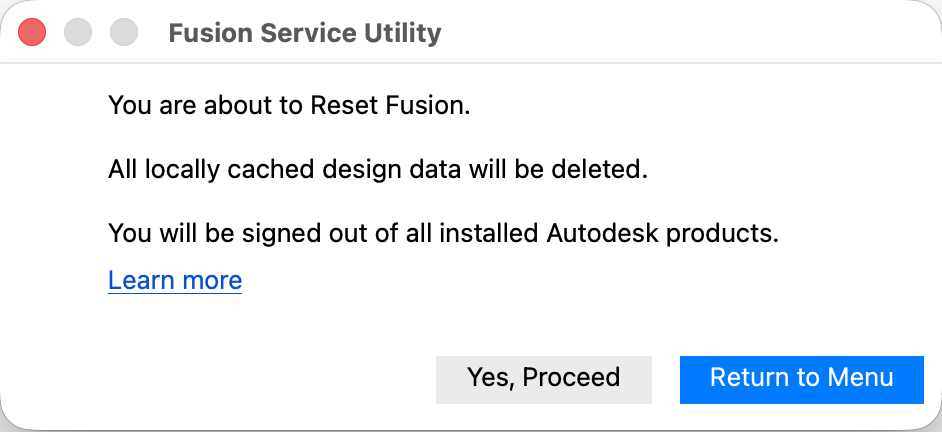
This solution is recommended for general issues related to Fusion failing to start, but can solve other product issues as well. This solution will not address problems related to hardware such as out of date drivers for graphics cards, or peripheral devices (monitors, docking stations, tablets, and 3D space mouse). See how to diagnose using the Service Utility at Overview of Fusion Service Utility.
Warnings
- This will remove files associated with the login and authentication of the Autodesk user account and may prevent the ability to work in offline mode.
- Removing the login and authentication of the Autodesk user account will sign out of all Autodesk products and services.
- This solution is not recommended if Fusion is experiencing any service outages. See the following on Checking for service outages in Autodesk Fusion.
- In this process all locally cached design data will be cleared.
To reset Fusion
- Open the Fusion Service Utility. See How to launch the Fusion Service Utility.
- Select Reset Fusion.
- Select Yes, Proceed.
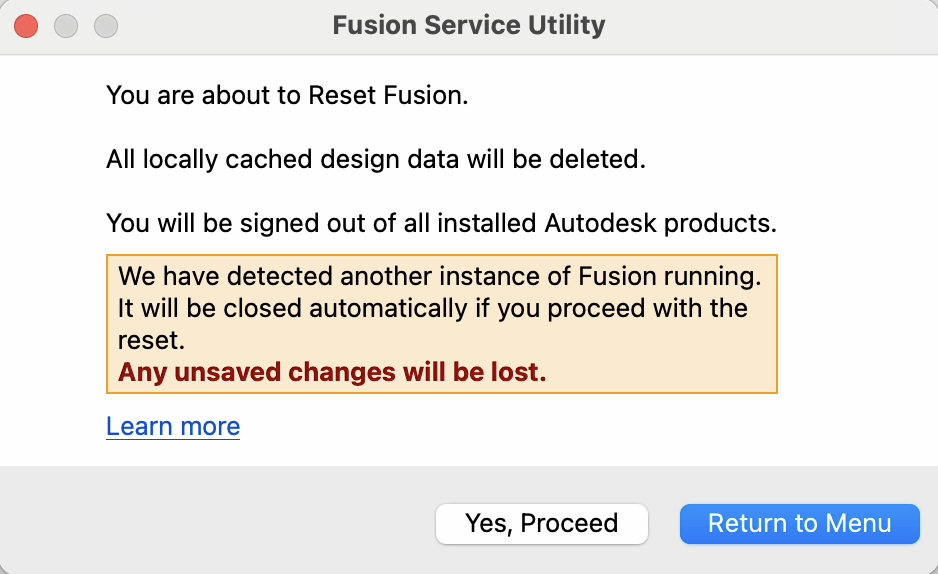
Note: A message will appear if Fusion is currently open, stating that the program will be closed before starting the reset. We recommend saving any unsaved data before running the reset.
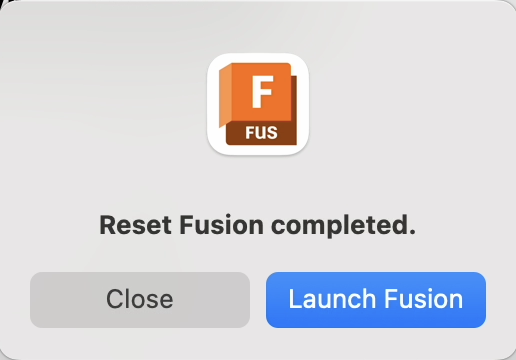
- Once Fusion is finished deleting the files, another dialog stating "Reset Fusion completed" will show.
- Select "Launch Fusion" to re-open Fusion after the Reset, or "Close" exit.