
Issue:
When working in a parametric timeline environment in Autodesk Fusion, updating a design causes timeline warnings highlighted in yellow, and errors in red. This can cause downstream features to lose references. 
Causes:
The source geometry referenced by features further down the timeline has lost association.Solution:
Compute features to reveal any warnings or errors
- Perform a Compute All (Command + B or Ctrl + B) to compute all features in the timeline. This should trigger any warnings or errors.
- It is a good practice to run this command before saving a design as it may reveal timeline errors.
Manually resolve warnings or errors in the timeline
- Right click the feature in the timeline marked in yellow to obtain more information about the nature of the error.
- Select Review Warning.
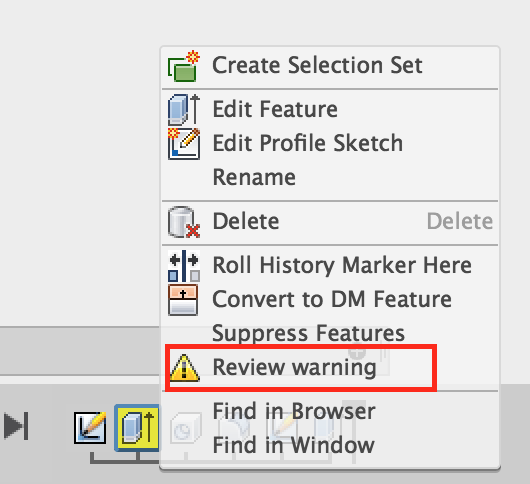
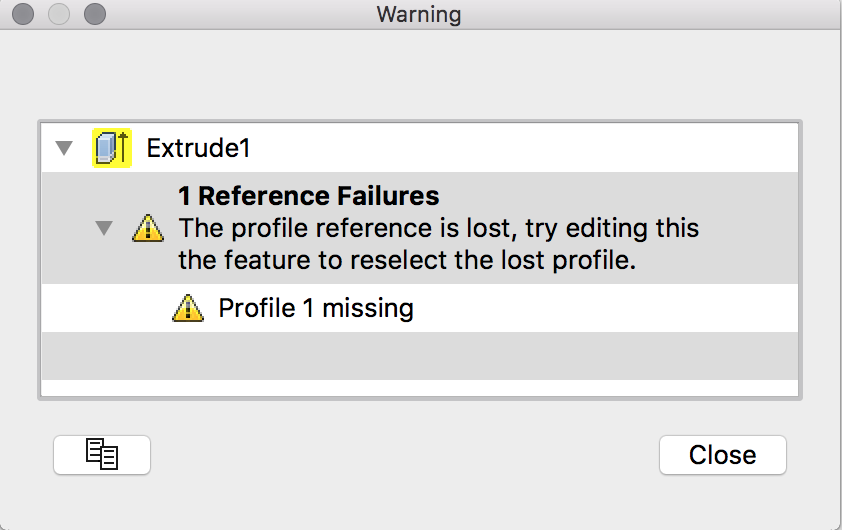
- Note: The results will provide some clue as to the nature of the warning or error. In the following example, a sketch profile that the Extruded feature was using is no longer available:
- To resolve the issue it is necessary to edit the feature in the timeline and perform some edits. These edits will be unique to the design and warning/error.
Remove the timeline or recreate the model
If it's not possible to review each warning or error, you can remove the timeline all together or start fresh in a new design:
- Export the design as a STEP file and import the file back into Fusion. This will bring in the basic model without a timeline or sketch features.
- Turn off the timeline by enabling direct modeling: How to switch between direct and parametric modeling in Fusion.
- Recreate the design with or without a timeline. This suggestion can help create a clean model where timeline warnings or errors can be addressed throughout the modeling process.
See Also:
Debugging Your Fusion Design: Let's Get Rid of Red and Yellow Features | Autodesk University