
Issue:
- When trying to save a file in Fusion the following options are dimmed:
- Save.
- Export.
- It is not possible to export, save, or create projects.
- Read only file: Changes are not savable appears despite having a subscription
Causes:
- The subscription for Fusion is expired.
- Save location is not selected.
- Projects are stored in a hub using a personal subscription to Fusion.
- Do not have their own hub or is part of a hub with only 'Contributor' level access.
- Corrupt installation
- A more recent version of the file exists and may be in the form of a recovery file needing to be saved.
- The file is a child of a configuration with an existing simulation study.
Solution:
Verify that there is an active Fusion subscription
- In Fusion, select Help > About.
- In the About Fusion dialog, active plans will be listed as subscription, student, etc.
- If there is not an active plan, or there's an Expired message, purchase a subscription or sign up for a student or start-up license. (See: How to activate Start-up or Educational licensing for Fusion).
Note: If a subscription was purchased, ensure that the contract manager has successfully assigned the Fusion user with the seat of Fusion. More information can be found in the article: Assign Users to Fusion.
Check save location
It is also worth mentioning that the save button in the "Save" dialog may be dimmed and unselectable if a location is not selected for the file to be saved to.
Select a project to save the design in:
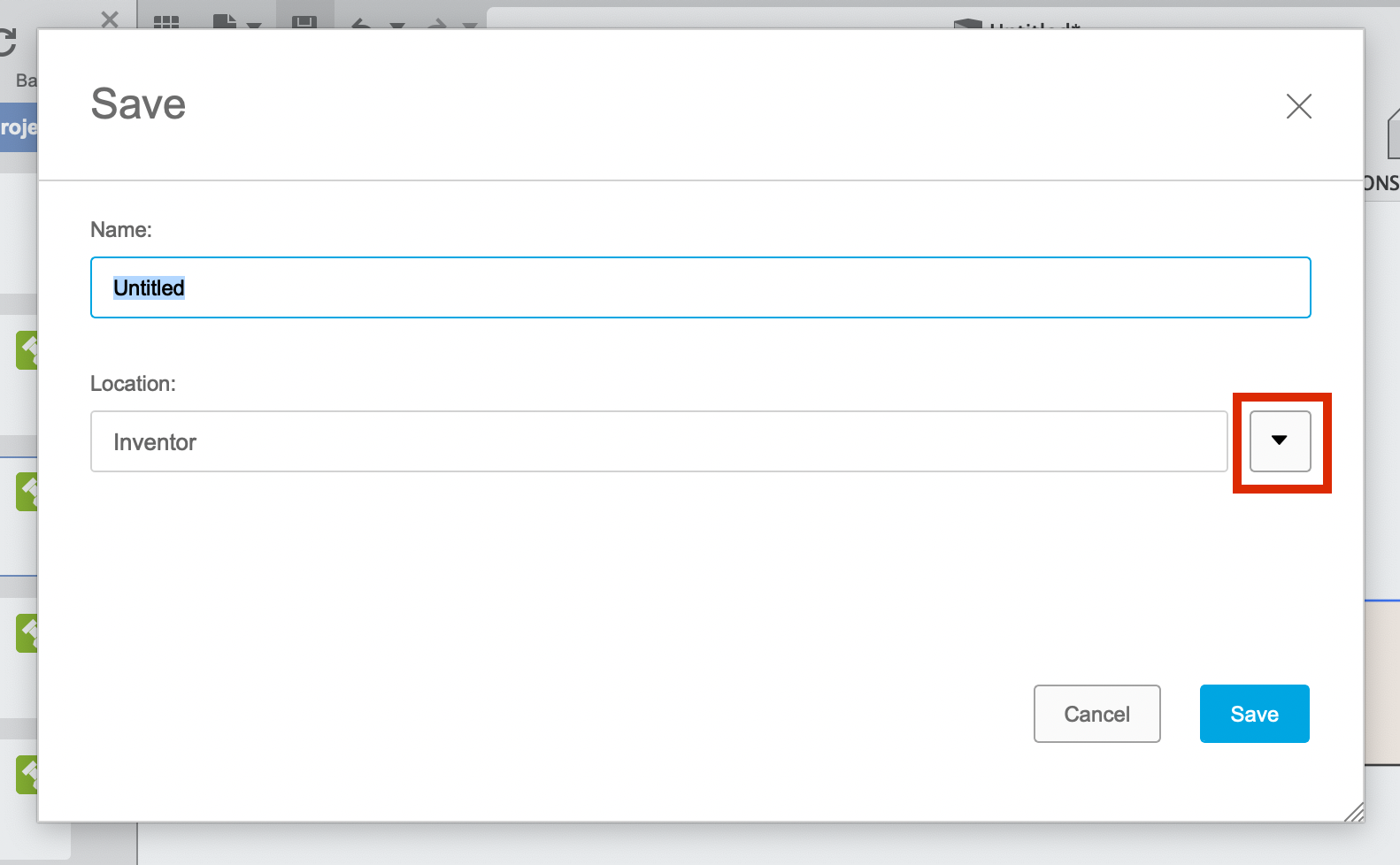
Personal subscription
If the files exist in a Personal-users hub and are shared with a subscription user, they will still see "Basic Access". It may be best to transfer the data to the subscription users hub. (See: How to transfer Fusion projects from one account to another).
Contributor access
If the affected user is only a 'Contributor' on a Team Hub, they must request access or create their own hub as outlined here: How to sign up for a new Fusion Team Hub.
Using Save As Option
- Go to File.
- Click Save As or Save As Latest.
Reinstall Fusion
- Uninstall and reinstall Fusion from service utility
Clear the cache in Fusion
How to clear the local user cache in Fusion
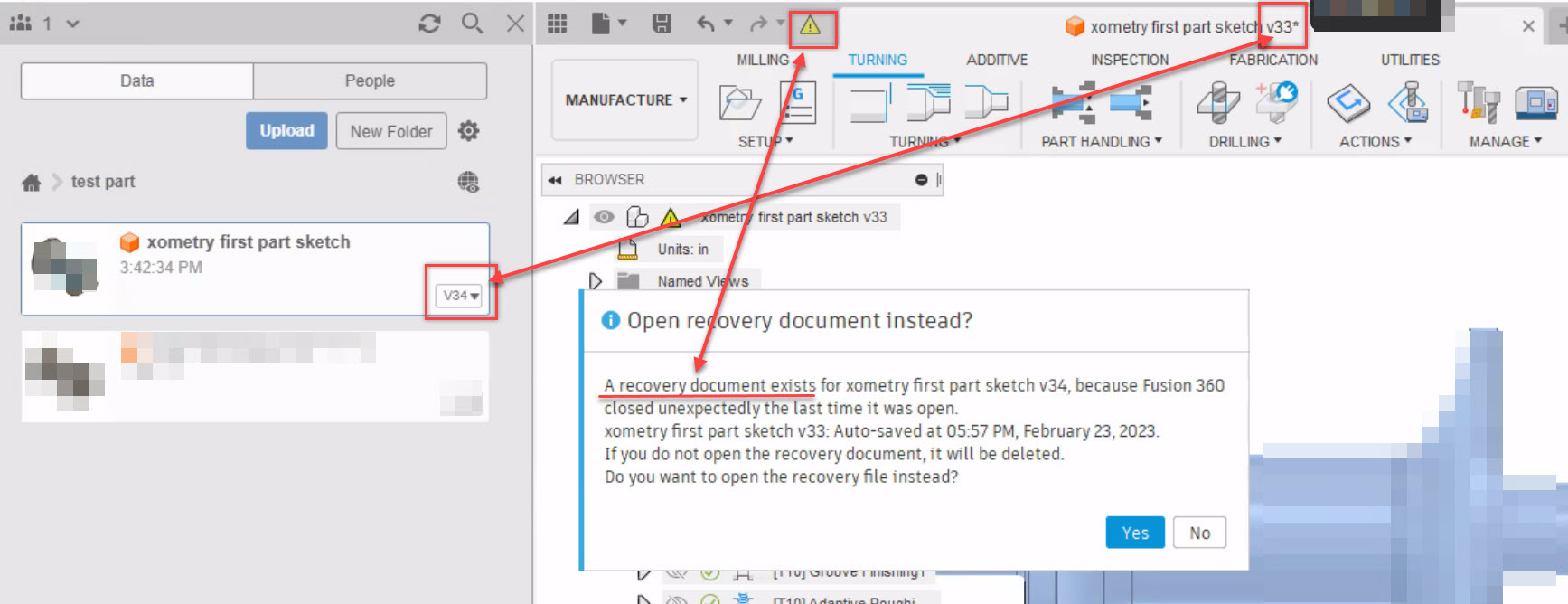
Confirm that you are working on the most recent version of the design
- Compare the version number of the open design with the latest version number of the design in the Data Panel.
- The version number of the open design can be seen at the end of the name in the tab of the open design.
- Compare this with the version number of the design in the thumbnail in the Data Panel.
- Notice if there is a Yellow warning symbol at the top of the design.
- Click this yellow warning to update it.
- If left clicking the yellow warning does nothing and the design in the Data Panel is a higher number than the open design then there is likely a recovery file of the newer version.
- Double-click the thumbnail of the design in the Data Panel.
- Open the recovery document if one is available by clicking Yes on the "Open recovery document instead?" dialog pop-up.
- Save the opened recovery document. Now the recovery document is saved properly and updated to the latest design.
Verify if the Design is a child of an existing Configuration and has a Simulation Study associated
- Check the Browser tree for a configuration drop-down.
- If the dropdown is present navigate to the simulation workspace.
- Create any study.
- Click the Simplify tool in the ribbon.
- Right click any simulation studies that are associated with the child configuration and delete them,
- Save the design and try to export.