
Autodesk Fusion is continuously evolving to better connect workflows in the cloud. If you're using Fusion's "Single User Storage", we have an exciting upgrade bringing you the latest technology and capabilities while giving you more control and security than you have in your Single User Storage.
Upgrading from Single User Storage to a hub unlocks additional capabilities:
- Configurations.
- AnyCAD.
- User group and role management for projects and folders.
- Home tab.
- Fastener libraries.
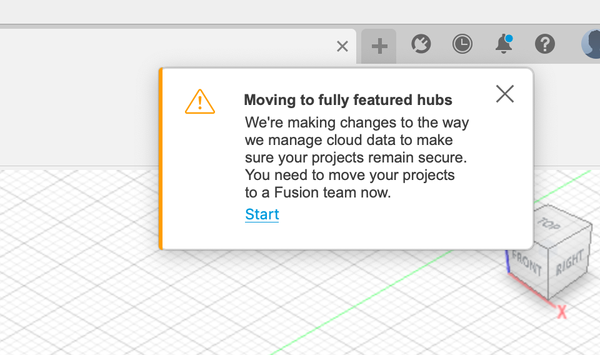
You may see this message:
"Moving to fully featured hubs. We're making changes to the way we manage cloud data to make sure your projects remain secure. You need to move your projects to a Fusion team now."
| Click to expand for more information on the removal of Single-User Storage, and details on Fusion hubs. |
General Information
Click to expand
What is Single-User Storage and why is it being replaced by Autodesk Fusion hubs?
Single-User Storage is a legacy technology. Autodesk Fusion hubs provide the same ability to work independently within a project or folder while unlocking new design and collaboration capabilities.
How do I know if I have Single User Storage?
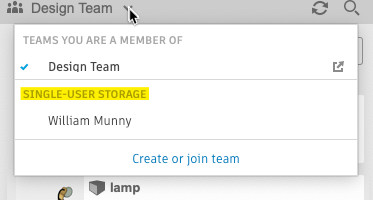
Open the Data panel in the Autodesk Fusion desktop and check the following:
- Single User Storage: As shown in the image, if a user icon is visible and you are the owner of it, you have Single User Storage.

- Autodesk Fusion hub: If you are seeing a multi-user silhouette, select the Select the hub dropdown to determine if you have Single Storage available:
What is the most important thing I need to know about upgrading?
When you upgrade, you decide if you move the data from your Single User Storage into:
- An existing Autodesk Fusion hub administered by you.
- An existing Autodesk Fusion hub administered by someone else.
- A new Autodesk Fusion hub you create during the upgrade (only available if you don't already own a Autodesk Fusion hub).
It's critical to make the above decision thoughtfully as the Autodesk Fusion hub chosen establishes administrative privileges to the hub and the data it contains.
Is there a cost to upgrading?
Upgrading your hub and the new capabilities are available at no cost.
Is upgrading required?
Yes, upgrading from Single-User Storage to a hub is required.
What if I don’t want share my data with others?
A full-featured Autodesk Fusion hub does not require you to share your data with others. You can work in a hub as an individual or you can work in a hub with others. You can work independently and privately within a specific project or folder on a hub.
Upgrade Process
Click to expand
When can I upgrade?
You can upgrade at any time from the Fusion web client (more information on accessing the web client can be found here).
How do I upgrade?
- Go to the Fusion web client
- Select any Project
- Click the “Project Members” tab
- Click the “Start update” button in the top banner
- You’ll then be guided through the process for moving all Projects to an Autodesk Fusion hub.

When will I be required to upgrade?
You will receive a notification 2025 onwards requiring you to upgrade. You can skip this process one time, but you'll be required to upgrade approximately 24 hours later.
What is going to happen during this upgrade?
You are guided step-by-step through the upgrade process. You will decide if you want to move your data:
- To an existing hub you own.
- To a hub owned by one of your colleagues.
- To a new hub created during the upgrade (only available if you don't already own a hub).
After the Upgrade
Click to expand
How do I learn more about the new features?
- Configurations
- AnyCAD
- User management
- Home tab
- Upgrade projects
- Manage people in projects and Folders
- Fastener libraries
What happens to projects that were shared with me?
Only the single user projects that you own will be moved to an upgraded hub. Projects shared with you will be available once those Single User Storage owners upgrade.
In Single User Storage, the "All" and "Shared with me" filters display a list of your projects and the projects shared with you. The improved security of the new Fusion hubs displays only the projects within the active hub. To work in a project shared with you, navigate to the hub that contains that project.
What happens to my Assets Library?
Your single user storage Assets Library is included in the upgrade process. Users who had access to your projects will be made members of your new hub and retain the same level of access.
- If you are creating a new hub as part of the upgrade, your Single User Storage Assets Library contents are automatically moved into the Assets Library.
- If you are moving your Single User Storage to an existing hub, your Assets Library contents are moved to a new project in the selected hub in case multiple teammates are moving their Single User Storages to the same hub. The project name includes your first and last name. To move the content from the Assets project into the Assets library after the upgrade, follow the steps here.
What happens to my shared or embedded links?
The changes to our cloud data mean we cannot preserve your existing links. You will need to generate new share links and new embedded links.
Why don't I see all my files from "My Recent Data" after the upgrade?
After the upgrade, your personal projects are moved into an existing hub. Since the "My Recent Data" list is tied to the active hub, it won’t immediately show files from your old single-user storage. Don't worry—your files are still there. As you begin opening designs from your new hub, the "My Recent Data" list will automatically repopulate with your most recently accessed files.