
Issue:
Users reported that, when trying to import the SOLIDWORKS files .sldprt or .sldasm into Autodesk Fusion, the files fail to translate with one or more of the following behaviors:
- The file is uploaded as a PDF
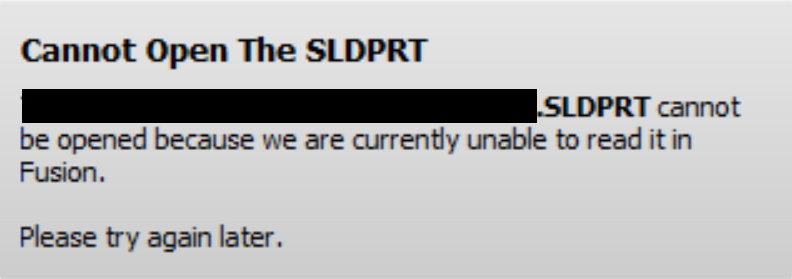
- The following message shows up in product:
Cannot Open The SLDPRT.
<Filename>.SLDPRT cannot be opened because we are currently unable to read it in Fusion.
- When accessing the file from the online browser, the translation fails with the following message in a PDF file:
Translation Results
Error: Version of the file format is not supported.
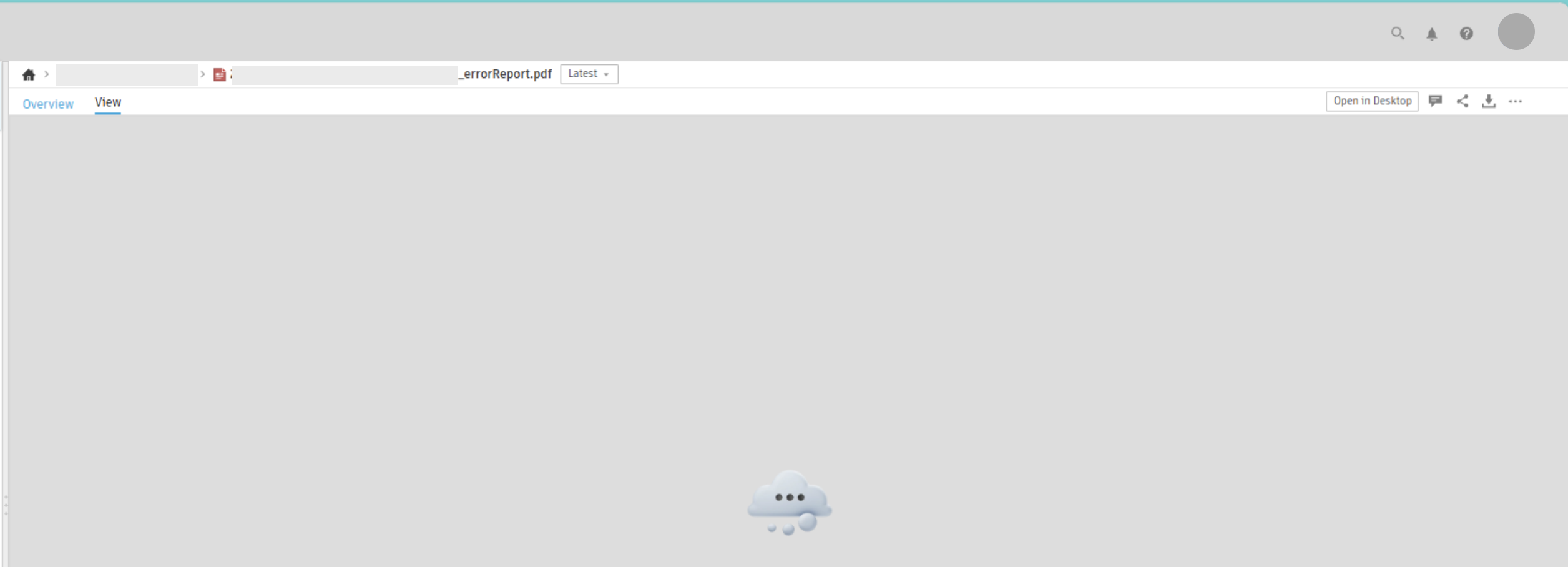
- When accessing the file from the online browser, the translation fails with an error Report PDF that shows a cloud icon:
Causes:
- The file being imported is from the newest version of SOLIDWORKS and is not yet supported. The updated translators are still being developed.
- Network connectivity issues are causing the translation to fail.
- Personal use license is being used.
- A lab installed version of Fusion is being used.
- Outdated version of Fusion is being used.
Solution:
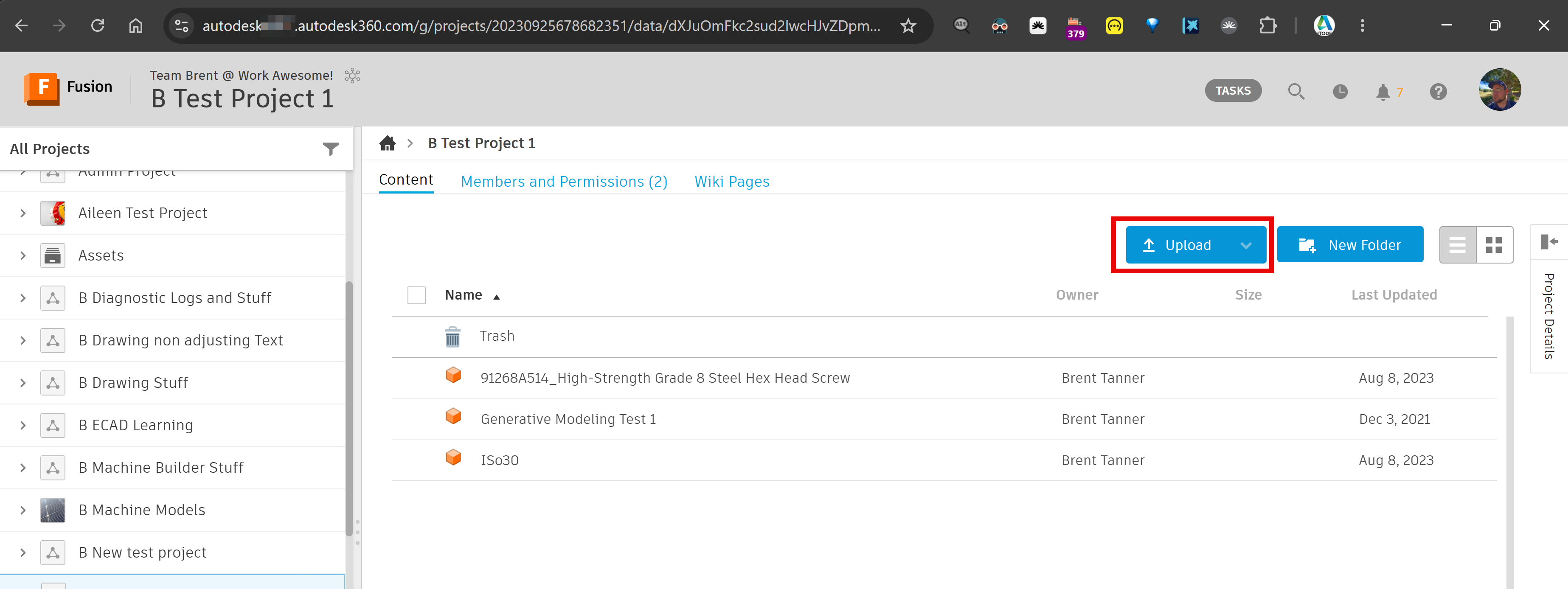
Upload via the Fusion Hub website instead of within Fusion
- Go to your Fusion Hub webpage.
- Find the project and folder location you wish to upload the file into.
- Click the Upload button on the right of the page.
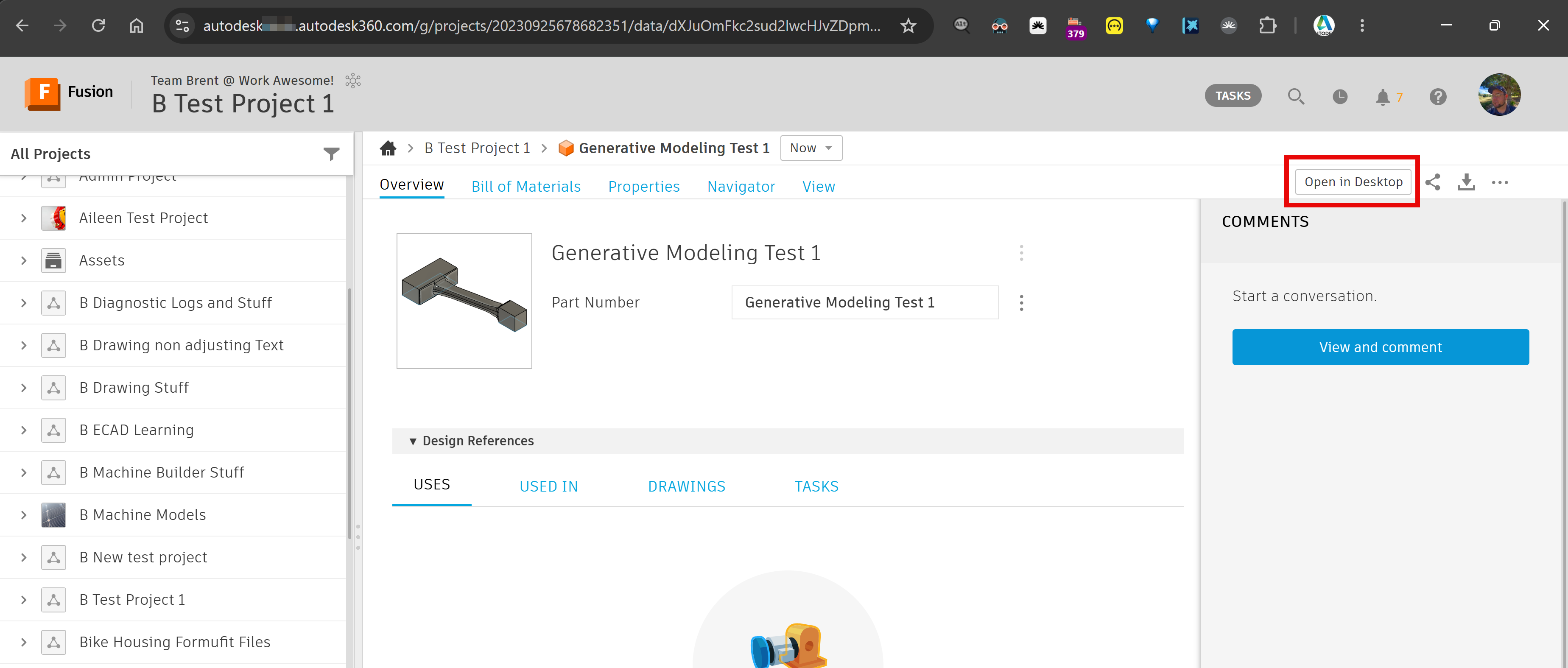
- Once the upload is complete, click Open in Desktop or find the newly uploaded file in the Fusion Desktop program and open it.
Import a different format
Import the file in Fusion as a different format by exporting it from SOLIDWORKS, such as an .iges or .step file.
Note: To verify the last save of a particular SOLIDWORKS file, open the file in Autodesk Viewer and click file name under Properties.
Proxy and firewall configuration on the affected computer
Check the proxy and firewall settings on the affected computer. For more details, see: Troubleshooting Network Connectivity Issues for Autodesk Fusion
Personal-use license is being used
Personal use licenses have limited import/export file format support, which does not include SOLIDWORKS file types. See: Fusion Help: Supported file formats by license type
Uninstall and Reinstall
If on a subscription and running a lab installed version of Fusion, uninstall and reinstall Fusion:
- How to do a manual uninstall of Autodesk Fusion.
- Reinstall through your Autodesk Account.
Update Fusion
- Check if you are on the latest version of Fusion: How to check for updates in Fusion.
- Update Fusion to latest version. See: How to update Fusion