
Issue:
Users reported that when launching Fusion or after leaving the program idle, the entire Data Panel is black.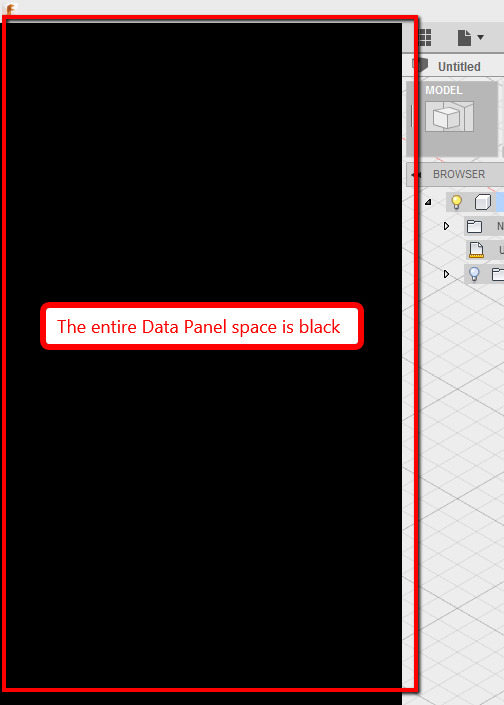
Environment:
- Windows.
- Integrated graphics.
Causes:
The computer is equipped with unsupported or low-performance graphics cards such as Intel HD graphics.Solution:
Check if a computer is equipped with a "Hybrid graphics" or "Switchable graphics"
- These are usually laptops with ATI or Nvidia cards which are configured to use Intel HD graphics in an attempt to save power. If so, try to find the related settings in the BIOS and disable it.
- Look for BIOS settings named like this:
- Hybrid Graphics
- Switchable Graphics
- Use Intel Graphics
Change to High Performance
- Try to change to High Performance in Windows power settings or in the graphics card's control center.
- See: How to configure Autodesk software to use high-performance graphics
Launch Fusion using a specific graphics processor
- Click the Start button in Windows, type Graphics settings and then hit Enter.
- Choose between Classic app or Universal app (Windows Store Apps).
- Select desired app and then click Add.
- Select the app from the list and then click Options.
- Set the graphics preference for the app and then click Save to complete.
Launch Fusion in recommended compatibility settings
- Right-click on Fusion icon on the desktop.
- Select troubleshoot compatibility.
- Select the option Try recommended settings in the compatibility troubleshooter.
- Check the settings applied to Fusion launcher in Windows compatibility mode.
- Click the Test the program button.
- Note: If the steps do not allow to modify the preferred graphics preference, try to access the graphics program for each graphics card (Nvidia Control Panel, and AMD Radeon Settings). Visit the device manufacturer's support website for assistance on how to use their respective program to modifying the preferred graphics settings.
Assign adcefwebbrowser.exe to use a specific graphics card
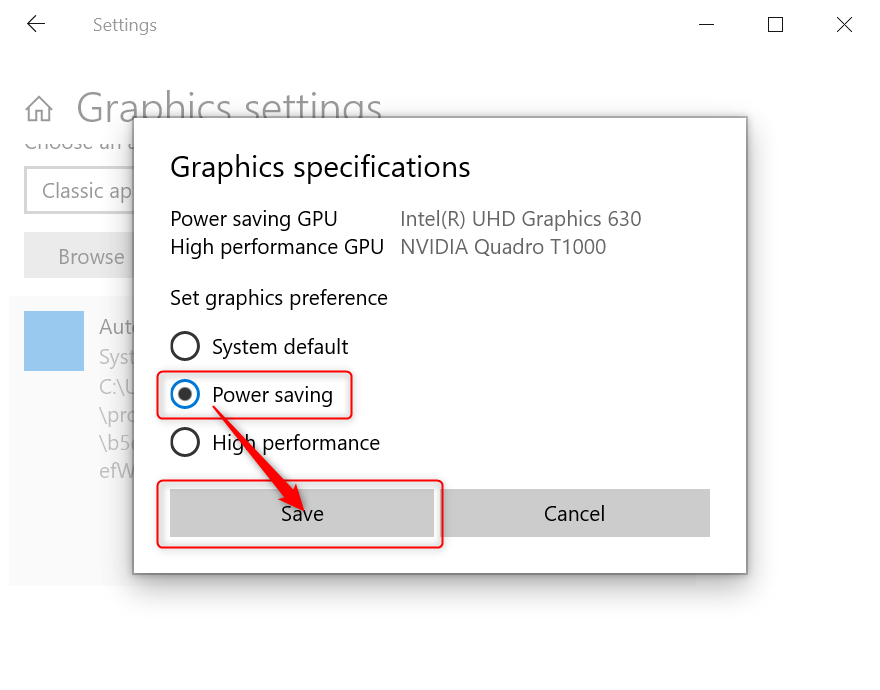
- For the Intel HD graphics, follow these steps:
- Right-click on the desktop.
- Select Display settings.
- Scroll down and select Graphics settings.
- Select Browse.
- Browse and select the adcefwebrowser.exe: %localappdata%\Autodesk\webdeploy\production\***\Win64\adcefwebrowser.exe

- Set this application to Power saving.
|
- Save and apply the changes.
- Retest to see if this helps.
- For the AMD graphics:
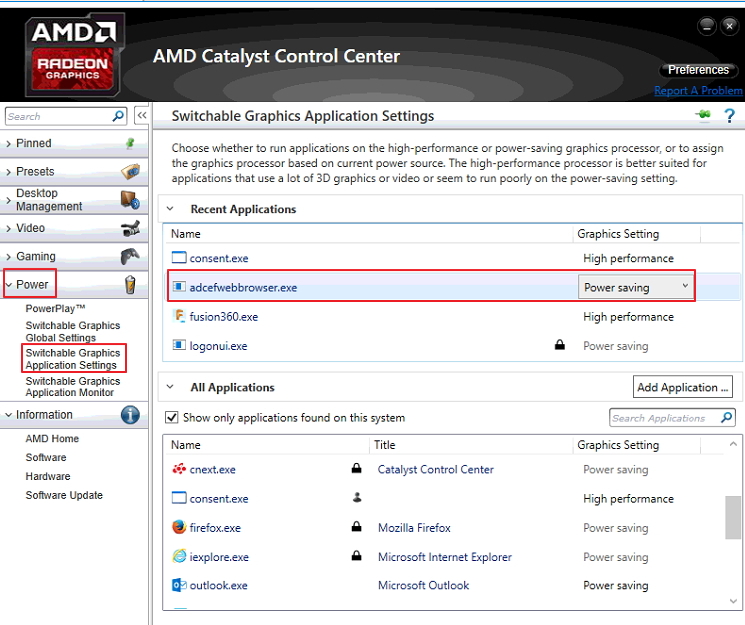
- When acdefwebbrowser.exe is missing, perform a clean uninstall and reinstall. This can be indicated by the error message:
- "C:/username/AppData/Local/Autodesk/WebDeploy/Production/alphanumericfoldername/wIN64/ADCEFWEBBROWSER.EXE E: DOES NOT EXIST"
In the case of HP laptops
- This issue might occur with Fusion when the laptop is plugged in.
- Try unplugging the laptop and reopening Fusion to see if the Data Panel is available again.
See Also:
- See Forum Discussion
- Poor Performance in Fusion on laptops with dual graphics cards
- How to optimize settings in Fusion for performance
- Performance Tips for running Fusion on high resolution monitor
- Data Panel does not function in Fusion
- Fusion Data Panel not displayed
- Fusion shows an error message and the browser process exits unexpectedly