
Issue:
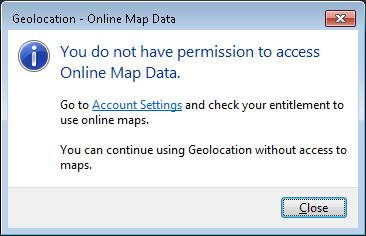
When attempting to use the GEO command (GEOGRAPHICLOCATION) in AutoCAD, or when viewing a drawing containing a live map, the Bing map either does not appear or an access or connection error occurs. Examples of errors include the following:Geolocation - Online Map Data
You do not have permission to access Online Map Data.
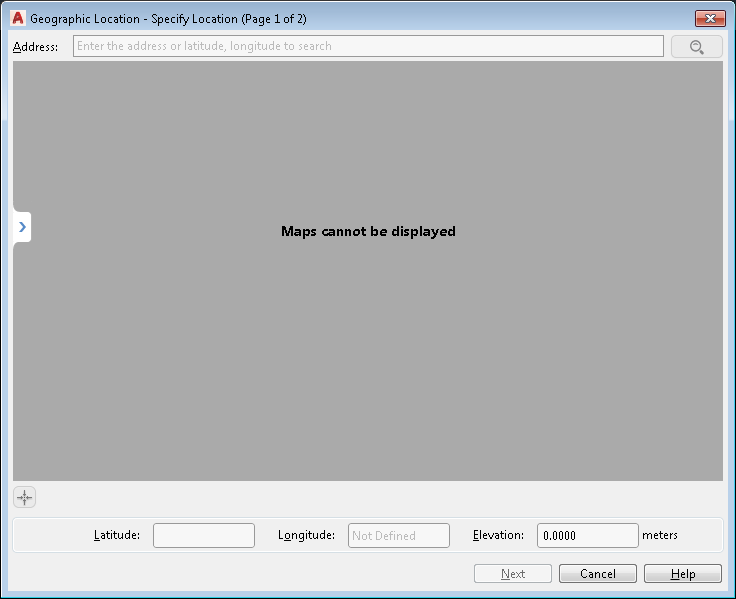
Maps cannot be displayed
You are either offline, not signed into your Autodesk Account account or you have chosen not to use maps.
Sign in to use maps, or enter the latitude and longitude values when prompted to specify a location.

Causes:
There can be multiple causes for this issue:- The Geolocation Online Map Hotfix for versions 2015-2018 has not been installed.
- Missing software updates.
- The user is not signed in.
- Antivirus, firewall, or proxy server settings are blocking access.
- Bing Map content is not available in that country or region (see Bing Maps).
- A custom CUI or profile was imported from an earlier version of AutoCAD.
- AutoCAD is using the wrong graphics card.
- A version of AutoCAD older than AutoCAD 2015 is being used.
Solution:
Try the following recommendations to resolve the issue:
- Check the basics first: AutoCAD Help - FAQ: Why doesn't the online map display?
- If the drawing has a coordinate system applied and Civil 3D or Map 3D is being used, check: A drawing with coordinate system applied doesn't show an aerial map in AutoCAD Map 3D and Civil 3D.
- If using AutoCAD, try the suggestions that apply to your version:
For versions 2021 and newer:
- Install the latest updates for your version. See: Install updates, add-ons, and enhancements.
- For versions 2024 and newer, install Autodesk Identity Manager update. See: Autodesk Identity Manager component update for product versions 2024 and beyond (Windows).
- For versions 2021-2023, install Autodesk Single Sign On update. See: Autodesk Single Sign On Component (AdSSO) update for 2020 - 2023 product versions for Windows users.
- Review the following article and follow the suggestions if the conditions apply: GEOGRAPHICLOCATION live maps don't display within AutoCAD 2021 or newer versions.
For versions 2019 and 2020:
- Install the latest updates for your version. See: Install updates, add-ons, and enhancements.
- For version 2020 install the Autodesk Single Sign On update. See: Autodesk Single Sign On Component (AdSSO) update for 2020 - 2023 product versions for Windows users.
- Sign out of AutoCAD and restart the computer. Then sign back into AutoCAD, start a new drawing, and enter the GEO command.
- If you are continually prompted to sign in when launching AutoCAD, see: Autodesk software asks to Sign in every time it is launched, every few days, or at every reboot.
- Toggle video hardware acceleration off and on in AutoCAD. See: How to enable or disable hardware acceleration in AutoCAD.
- Check that the computer's graphics card is certified. See: Certified Graphics Hardware.
- If using a computer with dual graphics cards (more common in laptops), check that AutoCAD is using the correct graphics card. See: AutoCAD uses the wrong graphics card.
- With assistance from IT, disable any firewall, network proxy, and antivirus. If using a VPN, log out or disconnect it. If live maps work with the settings turned off, follow the instructions in: Which URLs/Protocols need to be allowed for Autodesk subscription Licensing.
- Reset AutoCAD to defaults. See: How to reset AutoCAD to defaults.
- Repair the .NET Framework. See: Microsoft .NET Framework Repair Tool.
- Uninstall and reinstall AutoCAD. See: Recommended uninstall and reinstall procedures for AutoCAD.
NOTE: Logging into Autodesk Access or the Desktop Connector should sign you into every installed Autodesk product.