
Issue:
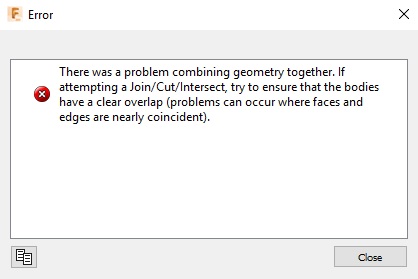
Users reported that while using the Combine, Press/Pull, Chamfer, Extrude, Cut, or Boundary Fill feature on solid bodies in Autodesk Fusion, the following message appears:
Error
There was a problem combining geometry together. If
attempting a Join/Cut/Intersect, try to ensure that the bodies
have a clear overlap (problems can occur where faces and
edges are nearly coincident).
attempting a Join/Cut/Intersect, try to ensure that the bodies
have a clear overlap (problems can occur where faces and
edges are nearly coincident).
Causes:
Invalid geometry of one or both of the bodies.Solution:
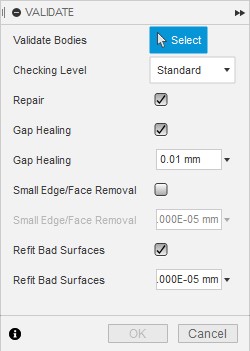
In direct modeling, repair the geometry with validate feature
- In direct modeling mode, use the Inspect -> Validate feature to repair the geometry:
- An example of how to use the Validate feature to repair the geometry is available here: Fixing Imported Component in Fusion - Stitching and Validating Surface Bodies.
For parametric modeling, use the timeline to find and repair the geometry
- Inspect the model closely to find any unexpected surfaces or intersecting geometry. Select the problem areas in the model to highlight where they were created in the timeline and manually repair them.
- Review the timeline warnings and errors to track the invalid geometry and repair it (see: Resolving Timeline Warning or Errors in Fusion).
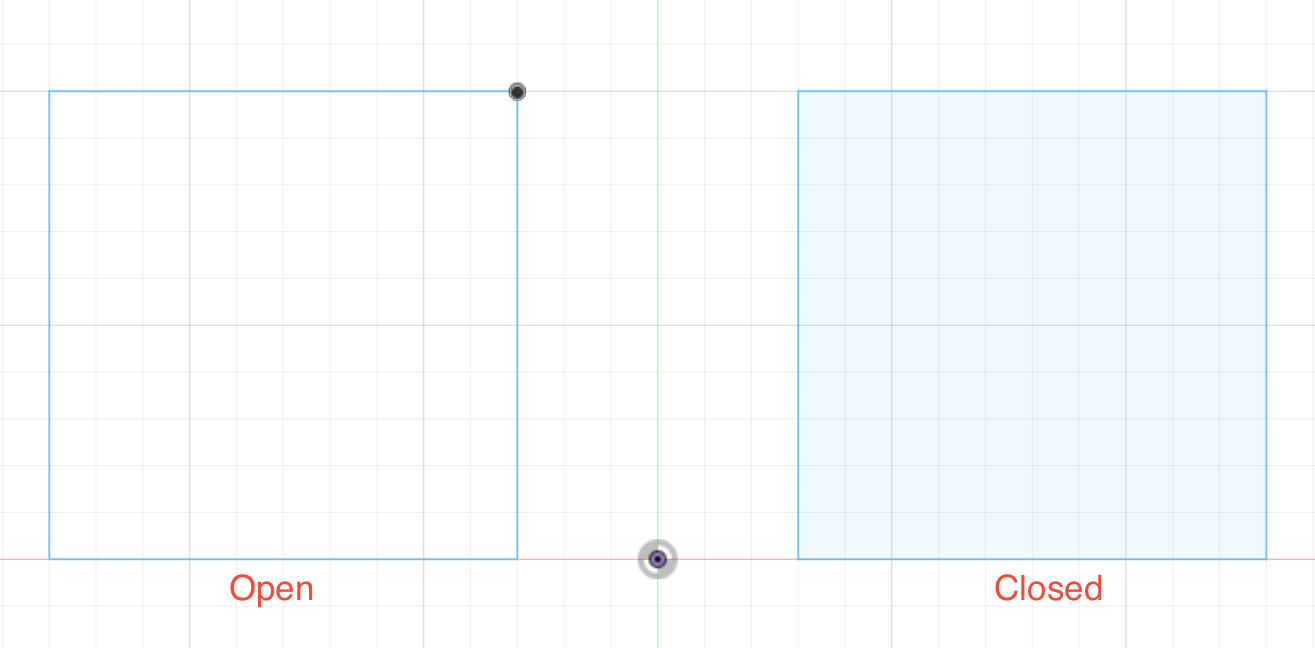
- If an extruded sketch was used to create one of the solid bodies, edit the sketch and make sure it is a closed loop.
When working with imported geometry
- This can also occur when using imported geometry, such as .STL, .DXF, or .SVG files. These files are prone to high face and edge counts that may cause extrusion failures or the creation of invalid geometry. Use solid models or native geometry to perform boolean operations instead.
- When importing from another program, try another file type. If Fusion is able to convert the file (instead of importing a .STEP, for example), the result may be better.
Restitch a body
Try unstitching the affected body and stitch it again.