
Issue:
Unable to create a drawing in Autodesk Fusion, the following issues may occur:
- Creating the drawing from the model immediately closes the drawing tab.
- Fusion is not responding while creating the drawing with or without external monitor.
- The Drawing workspace appears blank and unable to place a base view. This one may appear after the Fusion update.
- Object/design is invisible when placing a view in the Drawing.
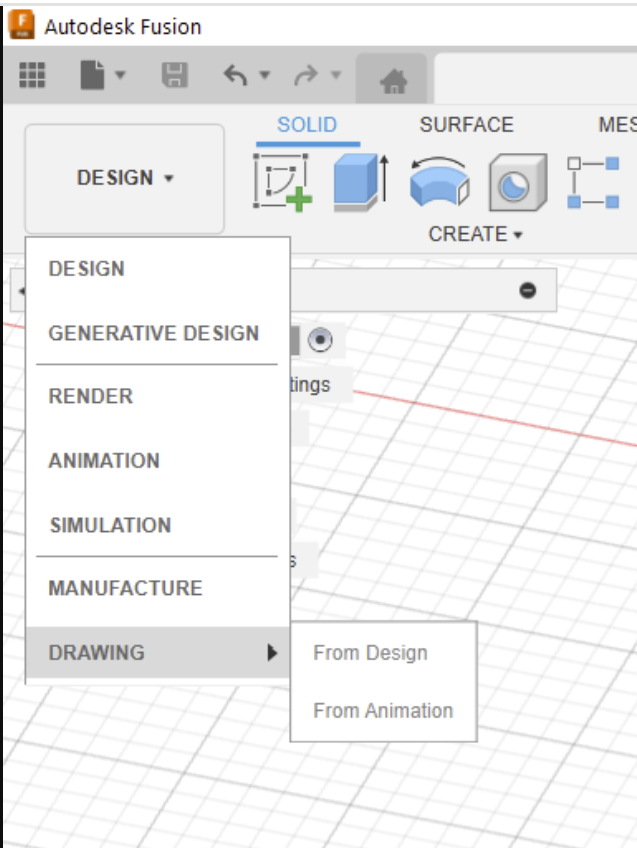
- The option From Design and From Animation is greyed out, hence Drawing is not being created.
Causes:
- Conflicting graphics cards exist in the machine.
- Graphics driver is not updated.
- Fusion shows Basic Access.
- The hardware doesn't have the minimum requirements to run Fusion.
Solution:
Use one of the following solutions to resolve the issue:
Multiple switchable graphics cards.
- If there is more than one graphics card, disable one of them from Device Manager.
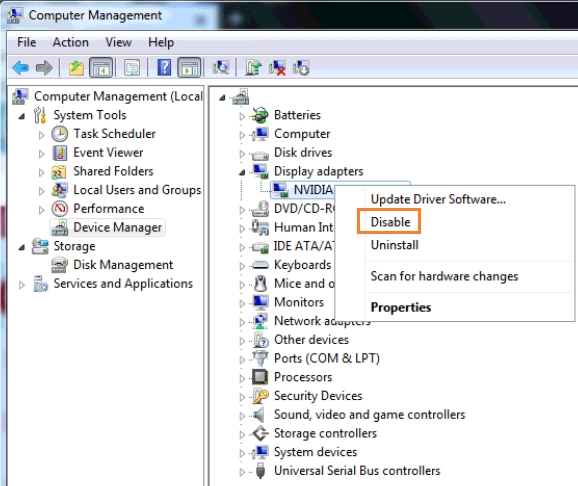
- Start Fusion again.
- Once Fusion is able to start for the first time, close the software.
- Re-enable the graphics card and start Fusion again.
Check the graphics card that Fusion uses.
Follow the steps from this article: "Your graphics card might not be optimal to run Fusion" or crashing when launching Fusion.
Update graphics driver.
Update the graphics card through the steps in the article here: How to update graphics driver for Fusion in Windows.
Graphics driver reinstallation.
Try uninstalling the graphics card driver and then reinstalling it.
Reinstall Fusion.
If with video card driver updates do not resolve do a repair or clean install of Fusion.
Fusion shows Basic access.
Follow this article if Basic Access is shown in Fusion. Fusion shows "Basic Access".
Check the System Requirements.
Confirm that the device meets the System Requirements for Autodesk Fusion.