
Issue:
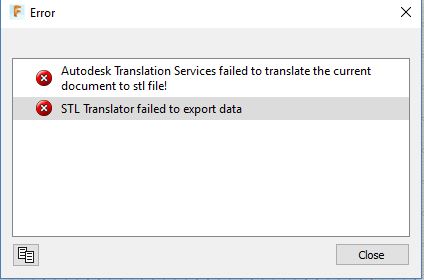
Users reported that when exporting STL files from Fusion the following error message is displayed:"Autodesk Translation Service failed to translate the current document to stl file!
STL Translator failed to export data"
Solution:
To export the model to .stl, try the following possible solutions:
Reopen the file
Close and reopen the file and try exporting again.
Troubleshoot the network/security
Verify that the network is configured for Fusion by reviewing the following articles:
Export to .stl with different settings (ASCII instead of Binary)
- Right-click on the component, component group, or body in the model Browser tree (left panel).
- Select Save As Mesh.
- Select the Format (STL (ASCII)).
- Click OK.
Restart Fusion and try exporting again
There may be an update pending. Restarting will allow the update to be completed.
Use the Export function on the Fusion Teams portal
- Navigate to the file in the portal
- Click the export option (Down Arrow icon)
- Select STL as the file type
- The file will be sent to you via email.
Remove the special characters ( / ? < > \ : * | " ) from the name of the file or component
Special characters in file or component name may cause issues with export.