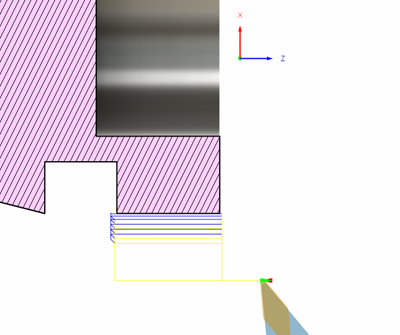
Turning in the negative diameter
You can machine on the bottom half of a part with X coordinates inverted. This allows for better chip evacuation as well as the ability to use the same tool to machine both outside and inside of the part.
Turning in the negative diameter is available in the following strategies:
- Turning Profile Roughing
- Turning Profile Finishing
- Turning Groove Roughing
- Turning Groove Finishing
- Turning Thread
When turning in the negative diameter:
- Canned cycles are unavailable.
- The default spindle direction in the operation is reversed.
- The X co-ordinates of the toolpath are reversed.
- Arc moves are flipped (that is, G2 and G3 are flipped).
- When compensation is set to In Control, compensation start is flipped (that is, G41 and G42 are flipped).
Generate a toolpath on the bottom half of the part
On the Manufacture workspace toolbar, select an operation that supports turning in the negative direction. For example, click Turning > Turning > Profile Roughing.
On the Tool tab, in the Mode group, choose a Turning Mode.
Select the Turn in Negative Diameter checkbox.
In the Tool Settings group, the default spindle direction automatically reverses. Ensure that it is consistent with your tooling setup.
Program the remaining of the operation as you normally would.
Click OK.
The toolpath is generated on the bottom half of the part.