Collaborate on designs
You can comment on, share, and reserve designs to streamline team communication and collaboration in Fusion.
Comment on designs
Comment, review, and mark up designs directly in Fusion and in the Fusion web client.
Share designs
Create links to share designs with stakeholders and collaborators so they can view it in the Fusion web client or open it in Fusion.
A team member's ability to open or view a design depends on their level of access.
Reserve designs
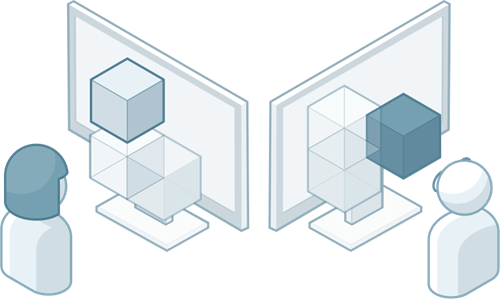
Design Reservation lets you and your project members reserve designs while you edit them in order to prevent design conflicts in your projects.
Avatars
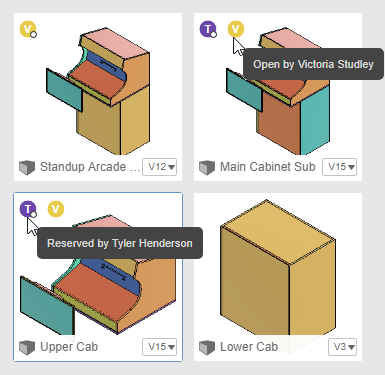
An Avatar is a set of initials in a colored circle that represents a project member in Fusion.
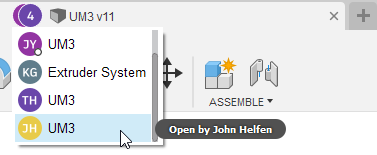
A project member's Avatar displays in the following places when they have a design or external component open:
- In the active document tab in the Application bar
- On the design thumbnail in the Data Panel
Reservation Badges
A Reservation Badge is a white dot applied to the lower-right corner of a project member's Avatar while they are editing a design. The Reservation Badge indicates that the project member has made a savable change to the design. The design is reserved by that project member until they save or discard their changes.
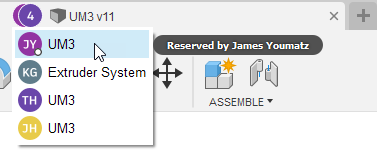
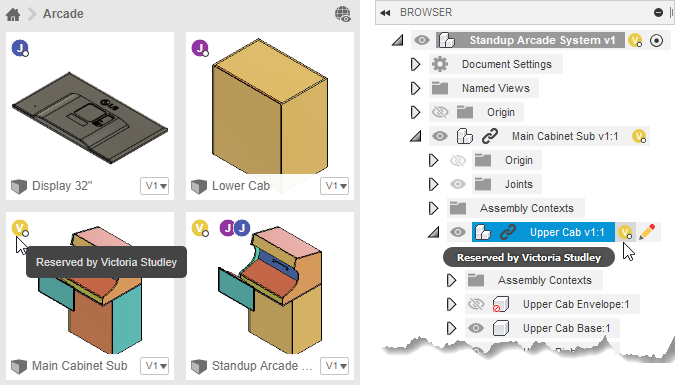
A project member's Avatar, with the Reservation Badge applied, displays in the following places when they are editing a design or external component:
- In the active document tab in the Application bar
- Next to the default component in the Browser
- Next to an external component in the Browser
- On the design thumbnail in the Data Panel
Read-Only For Me
When you're working on a distributed design with multiple project members, there may be times when you want to view, analyze, or experiment with a design without reserving it and blocking access for other project members.
Read-Only For Me lets you temporarily make a design read-only for yourself, so you're free to navigate the design while other project members continue editing.
You can make a design read-only for you before you make any savable changes or after you've made a savable change and the design is reserved for you.
If you've already edited a design and it is reserved by you, when you use Read-Only For Me to make it read-only for yourself, Fusion releases your reservation so that another project member can edit the design and save their changes.
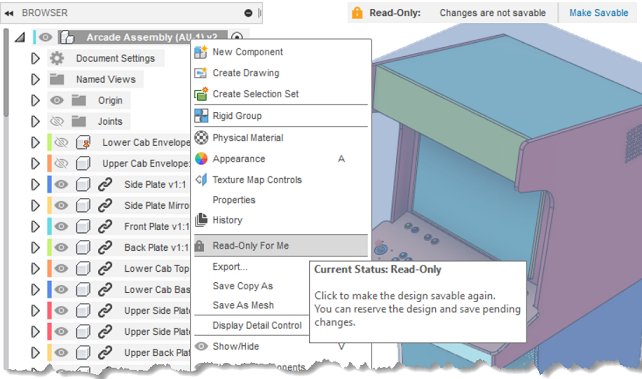
The Read-Only menu displays at the top of the canvas, indicating that the design is read-only. You can make the design savable again from here.
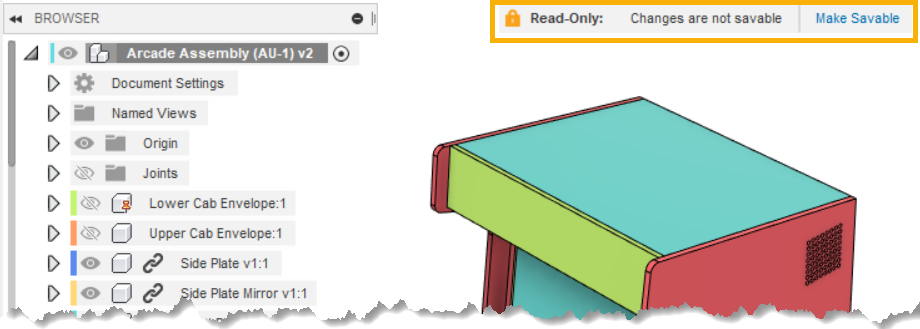
A lock icon also displays on the document tab next to the design name.

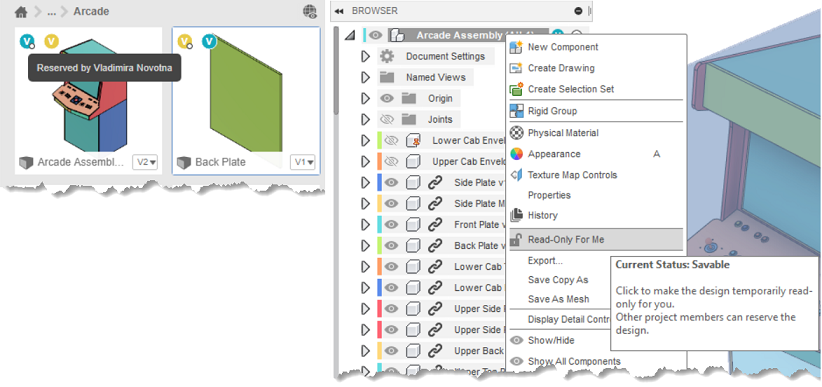
If you right-click the default component, you can also hover over Read-Only For Me in the context menu to see the current status of the design:
- Current Status: Read-Only
- Current Status: Savable