Configure change order behavior on the Change Orders tab of the Vault Settings dialog.
Access the Change Orders Tab on the Vault Settings Dialog
- Click Tools
 Administration Vault Settings.
 - In the Vault Settings dialog box, select the Change Orders tab.
Change Orders Administration for Vault 2015
The Change Orders tab contains options for restricting item changes to change orders depending on lifecycle or state, configuring the markup folder, managing change order link properties, and defining change order numbering schemes. You can also disable the Change Orders feature.
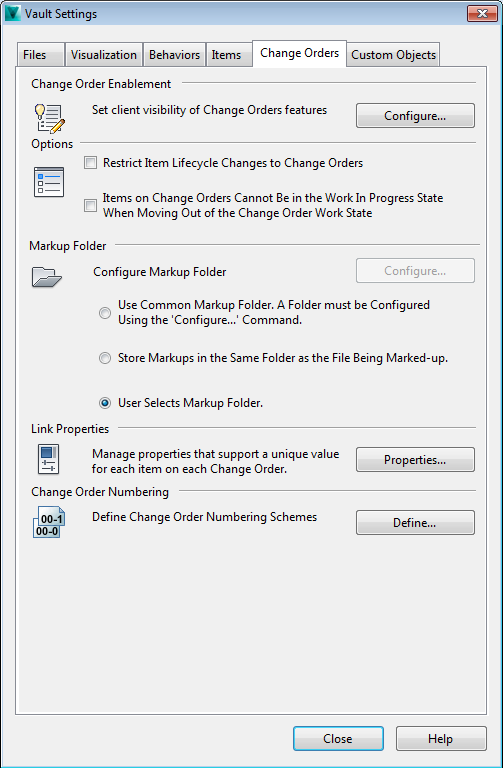
Change Order Enablement
Enable or disable the Change Orders feature to better control user access.
- Click Configure to display the Enable Items and Change Orders dialog box.
Options
- Turn on the Restrict Item Lifecycle Changes to Change Orders check box to disable manual lifecycle state changes for any user other than those with the Administrator role.
- Turn on the Items on Change Orders Cannot Be in the Work In Progress State When Moving Out of the Change Order Work State to prevent the change order state from moving from Work to Check or Review if any of the items on the change order is in the Work In Progress lifecycle state.
Markup Folder
- Select Use Common Markup Folder to force all markup files to be added to the folder specified by the Configure command. If a folder is not configured, the markup command prompts for a folder in which to place the markups. Click Configure to specify the location for the common markup folder.
- Select Store Markups in the Same Folder as the File Being Marked-up to store the markups with the corresponding file.
- Select User Select Markup Folder to allow users to chose where markup files are stored.
Link Properties
Linked user-defined change order properties are defined and managed in the User Defined Linked Properties (Change Order) dialog box.
- Click Properties to assign user-defined change order linking properties to items or files.
- These properties will be linked with items or files in the records tab.
Change Order Numbering
The numbering scheme used for identifying change orders can be customized.
- Click Define to define your own change order numbering scheme.
Change Orders Tab for Vault 2015 R2
The Change Orders tab contains options for restricting item changes to change orders depending on lifecycle or state, configuring the markup folder, managing change order link properties, and defining change order numbering schemes. You can also disable the Change Orders feature.
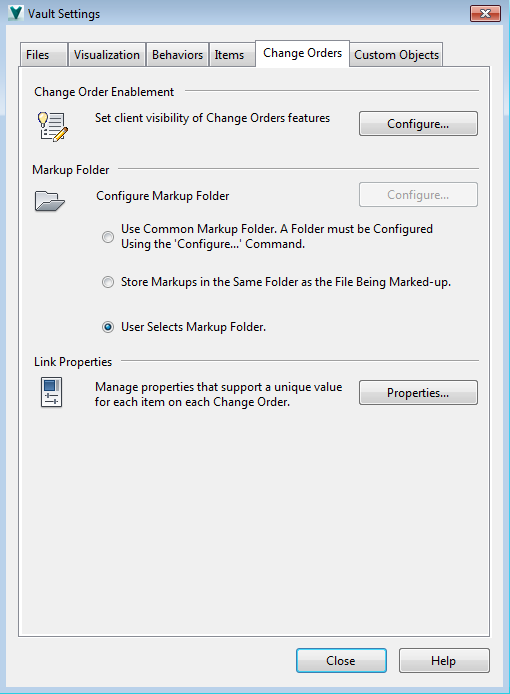
Change Orders Enablement
- Click Configure to display the Enable Items and Change Orders dialog box.
Disable or enable the Change Orders feature to better control user access.
Markup Folder
- Select Use Common Markup Folder to force all markup files to be added to the folder specified by the Configure command. If a folder is not configured, the markup command prompts for a folder in which to place the markups. Click Configure to specify the location for the common markup folder.
- Select Store Markups in the Same Folder as the File Being Marked-up to store the markups with the corresponding file.
- Select User Select Markup Folder to allow users to chose where markup files are stored.
Link Properties
- Click Properties to assign user-defined change order linking properties to items.
- These properties will be linked with items in the records tab.
Linked user-defined change order properties are defined and managed in the User Defined Linked Properties (Change Order) dialog box.