Architectural Material
Introduction
What is the mia_material ?
The mental ray mia_material is a monolithic material shader
that is designed to support most materials used by architectural
and product design renderings. It supports most hard-surface
materials such as metal, wood and glass. It is especially tuned
for fast glossy reflections and refractions (replacing the DGS
material) and high-quality glass (replacing the dielectric material).
The major features are:
- Easy to use
- yet flexible. Controls arranged logically in a "most used first" fashion.
- Templates
- for getting faster to reality.
- Physically accurate
- the material is energy conserving, making shaders that breaks the laws
of physics impossible.
- Glossy performance
- advanced performance boosts including interpolation, emulated glossiness,
and importance sampling.
- Tweakable BRDF1
- user can define how reflectivity depends on angle.
- Transparency - "Solid" or "thin" materials
- transparent objects such as glass can be treated as either "solid"
(refracting, built out of multiple faces) or "thin" (non-refracting,
can use single faces).
- Round corners
- shader can simulate "fillets" to allow sharp edges to still catch the
light in a realistic fashion.
- Indirect Illumination control
- set the final gather accuracy or indirect illumination level on a
per-material basis.
- Oren-Nayar diffuse
- allows "powdery" surfaces such as clay.
- Built in Ambient Occlusion
- for contact shadows and enhancing small details.
- All-in-one shader
- photon and shadow shader built in.
- Waxed floors, frosted glass and brushed metals...
- ...all fast and easy to set up.
- Multiple outputs
- when using mia_material_x
Enhancements in mia_material_x
The material comes in two variants, the original mia_material and the new
extended mia_material_x. These are just two different interfaces using the
same underlying code, so the functionality is identical, except that
mia_material_x ...
-
...has some additional parameters relating to bump mapping described
on page Bump.
-
...supports setting ao_do_details to 2 for enabling "ambient occlusion
with color bleed" (see page AO with bleed).
-
...returns multiple outputs in the form of a mental ray struct
return. The various outputs are described in detail on page
Multiple Outputs.
Structure of this Document
This document is divided into sections of Fundamentals
(beginning on page Fundamentals) which
explain the main features of the material
and
the Parameters section (page Parameters) that goes through all
the parameters
one by one, and a Tips Tricks
(page Tips and Tricks) with some advice for users.
Fundamentals
Physics and the Display
The mia_material primarily attempts to be physically accurate hence it
has an output with a high dynamic range. How visually pleasing the
material looks depends on how the mapping of colors inside the
renderer to colors displayed on the screen is done.
When working with the mia_material it is highly encouraged to make sure one
is operating through a tone mapper/exposure control
or at the very least are using gamma correction.
A Note on Gamma
Describing all the details about gamma correction is beyond the
scope of this document and this is just a brief overview.
The color space of a normal off-the-shelf computer
screen is not linear. The color with RGB value 200 200 200 is
not twice as bright as a color with RGB value 100 100 100
as one would expect.
This is not a "bug" because due to the fact that our eyes see light
in a non linear way, the former color is actually
perceived to be about twice as bright as the latter.
This makes the color space of a normal computer screen
roughly perceptually uniform. This is a good thing, and
is actually the main reason 24 bit color (with only
8 bits - 256 discrete levels - for each of the red, green and blue
components) looks as good as it does to our eyes.
The problem is that physically correct computer graphics operate in
a true linear color space where a value represents actual
light energy. If one simply maps the range of
colors output to the renderer naively to the 0-255 range of each
RGB color component it is incorrect.
The solution is to introduce a mapping of some sort. One of these
methods is called gamma correction.
Most computer screens have a gamma of about 2.22, but most
software default to a gamma of 1.0, which makes everything
(especially mid-tones) look too dark, and light will not
"add up" correctly.
Using gamma of 2.2 is the theoretically "correct" value, making
the physically linear light inside the renderer appear in a correct
linear manner on screen.
However, since the response of photographic film isn't linear either, users have
found this "theoretically correct" value looks too "bright" and
"washed out", and a very common compromise is to render to a
gamma of 1.8, making things look more "photographic", i.e. as if
the image had been shot on photographic film and then developed.
Tone Mapping
Another method to map the physical energies inside the renderer to
visually pleasing pixel values is known as tone mapping.
This can be done either by rendering to a floating point file
format and using external software, or use some plug-in to the
renderer to do it on-the-fly.
Two tone mapping shaders are included in the library,
the simple mia_exposure_simple and the more advanced
mia_exposure_photographic, both of which are documented
on page Tone Mapper
Note: Take special care when using tone mapping together with
gamma correction; some tone mapping shaders has their own
gamma correction feature built in, and if one is not careful one
can end up with washed out gamma due to it being applied twice.
Make sure to keep an eye on the gamma workflow so it is applied
in one place.
Use Final Gathering and Global Illumination
The material is designed to be used in a realistic lighting
environment, i.e. using full direct and indirect illumination.
In mental ray there are two basic methods to generate indirect light:
Final Gathering and Global Illumination.
For best results at least one of these methods should be used.
At the very least one should enable Final Gathering, or use Final
Gathering combined with Global Illumination (photons) for quality
results. Performance tips for using Final Gather and
Global Illumination can be found on page Final Gather Performance
of this document.
If you are using an environment for your reflections, make sure the
same environment (or a blurred copy of it) is used to light the scene
through Final Gathering.
Use Physically Correct Lights
Traditional computer graphics light sources live in a cartoon universe
where the intensity of the light doesn't change with the distance. The
real world doesn't agree with that simplification. Light decays when
leaving a light source due to the fact that light rays diverge from
their source and the "density" of the light rays change over distance.
This decay of a point light source is This decay of a point light source is 1/d², i.e. light intensity
, i.e. light intensity
is proportional to the inverse of the square of the distance to the
source.
One of the reasons for this traditional oversimplification is
actually the fact that in the early days of computer graphics
tone mapping was not used and problems of colors "blowing out"
to white in the most undesirable ways3 was rampant.
However, as long as only Final Gathering (FG) is used as indirect
illumination method, such traditional simplifications still work.
Even light sources with no decay still create reasonable renderings!
This is because FG is only concerned with the transport of light from one
surface to the next, not with the transport of light from the light
source to the surface.
It's when working with Global Illumination (GI) (i.e. with photons)
the troubles arise.
When GI is enabled, light sources shoot photons. It is imperative
for the mia_material (or any other mental ray material) to work properly
for the energy of these photons to
match the direct light cast by that same light! And since photons
model light in a physical manner, decay is "built in".
Hence, when using GI:
- Light sources must be emitting photons at the correct energy
- The direct light must decay in a physically correct way to match
the decay of the photons.
Therefore it is important to make sure the light shader and the
photon emission shader of the lights work well together.
To solve this, the mia_photometric_light shader (see page
Photometric Lights) is included, which automatically
balances photons and direct light in the correct way.
Features
The Shading Model
From a usage perspective, the shading model consists of three
components:
- Diffuse - diffuse channel (including Oren Nayar "roughness").
- Reflections - glossy anisotropic reflections (and highlights).
- Refractions - glossy anisotropic transparency (and translucency).
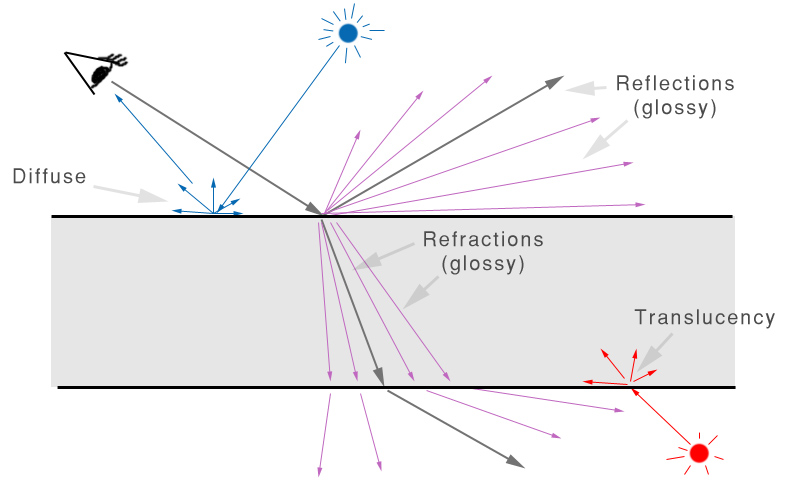
The
mia_material shading model
Direct and indirect light from the scene both cause diffuse
reflections as well as translucency effects. Direct light sources
also cause traditional "highlights" (specular highlights).
Ray tracing is used to create reflective and refractive effects, and
advanced importance-driven multi-sampling is used to create glossy
reflections and refractions.
The rendering speed of the glossy reflections/refractions can further
be enhanced by interpolation as well as "emulated" reflections with
the help of Final Gathering.
Conservation of Energy
One of the most important features of the material is
that it is automatically energy conserving.
This means that it makes sure that
diffuse + reflection + refraction <= 1, i.e. that no energy is
, i.e. that no energy is
magically created and the incoming light energy is properly distributed
to the diffuse, reflection and refraction components in a way that
maintains the first law of thermodynamics4.
In practice, this means for example that when adding more reflectivity,
the energy must be taken from somewhere, and hence the diffuse level
and the transparency will be automatically reduced accordingly.
Similarly, when adding transparency, this will happen at the cost
of the diffuse level.
The rules are as follows:
- Transparency takes energy from Diffuse, i.e. at 100 transparency, there will be no diffuse at all.
- Reflectivity takes energy from both Diffuse and Transparency, i.e. at 100 reflectivity there will neither be any diffuse nor any transparency.
- Translucency is a type of transparency, and refr_trans_w defines the percentage of transparency vs. translucency.
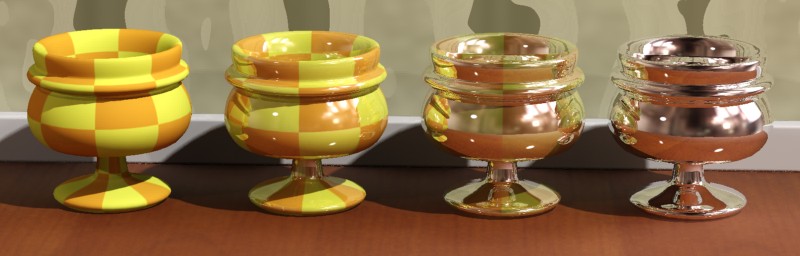
From left to right: Reflectivity 0.0, 0.4, 0.8 and 1.0
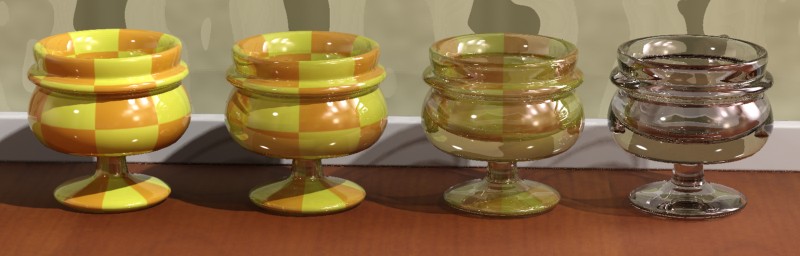
From left to right: Transparencies 0.0, 0.4, 0.8 and 1.0
It also means that the level of highlights is linked to the
glossiness of a surface. A high refl_gloss value causes a
narrower but very intense highlight, and a lower value causes a
wider but less intense highlight. This is because the energy is now
spread out and dissipated over a larger solid angle.
BRDF - how Reflectivity Depends on Angle
In the real world, the reflectivity of a surface is often view angle dependent.
A fancy term for this is BRDF (Bi-directional Reflectance Distribution Function),
i.e. a way to define how much a material reflects when seen from various angles.
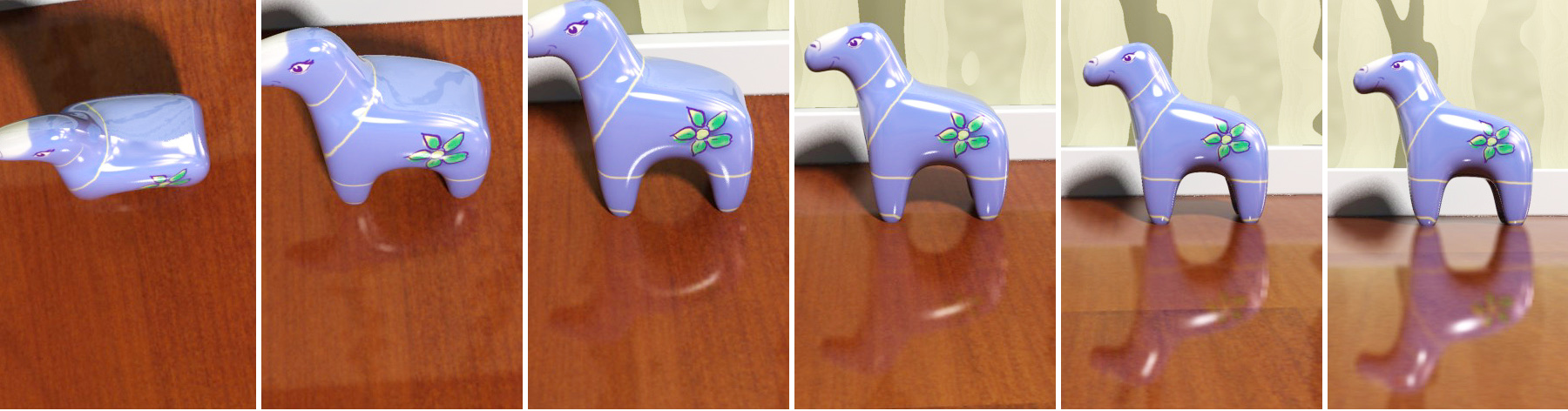
The reflectivity of the wooden floor depends on the view angle
Many materials exhibit this behavior. Glass, water and other
dielectric materials with Fresnel effects
(where the angular dependency is guided strictly by the
Index of Refraction) are the most obvious examples,
but other layered materials such as lacquered wood, plastic, etc.
display similar characteristics.
The mia_material allows this effect both to be defined by the Index of
Refraction, and also allows an explicit setting for the two
reflectivity values for:
- 0 degree faces (surfaces directly facing the camera)
- 90 degree faces (surfaces 90 degrees to the camera)
See the BRDF section on page Brdf for more details.
Reflectivity Features
The final surface reflectivity is in reality caused by the sum
of three components:
- The Diffuse effect
- The actual reflections
- Specular highlights that simulate the reflection of light sources
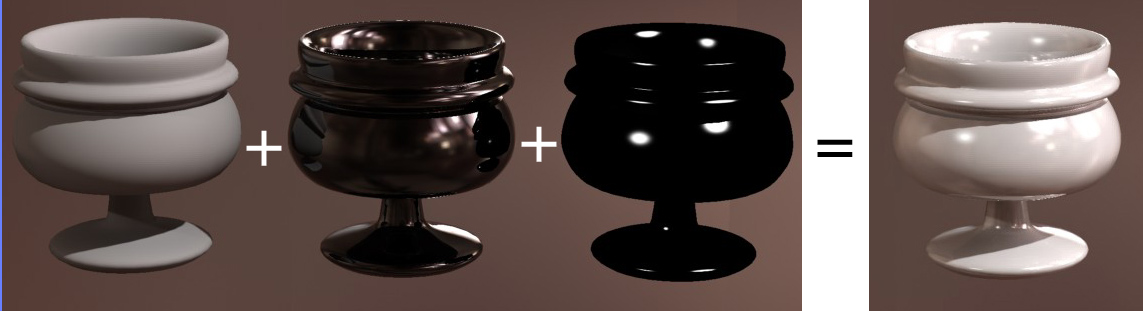
Diffuse, Reflections and Highlights
In the real world "highlights" are just (glossy) reflections of the
light sources. In computer graphics it's more efficient to
treat these separately.
However, to maintain physical accuracy the material automatically
keeps "highlight" intensity, glossiness, anisotropy etc. in sync
with the intensity, glossiness and anisotropy of reflections,
hence there are no separate controls for these as both are driven by
the reflectivity settings.
Transparency Features
The material supports full glossy anisotropic transparency, as well
as includes a translucent component, described more in detail on
page Translucency.
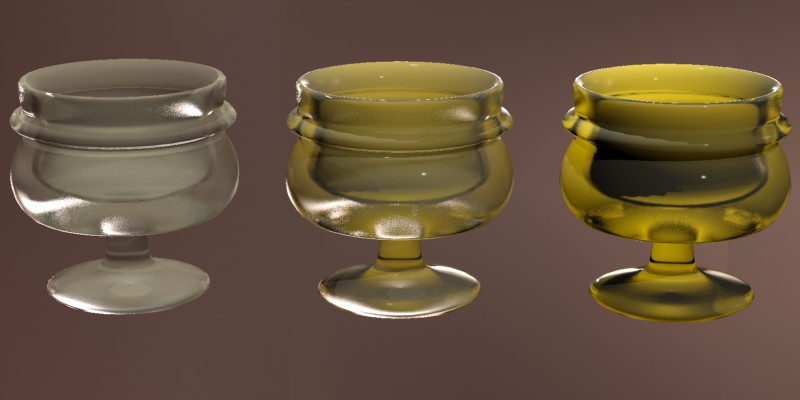
Translucency
Solid vs. Thin-Walled
The transparency/translucency can treat objects either as
solid or thin walled.
If all objects were treated as solids at all times, every
single window pane in an architectural model would have to be modeled
as two faces;
an entry surface (that refracts the light slightly in one direction),
and immediately following it an exit surface (where the light would be
refracted back into the original direction).
Not only is this additional modeling work, it is a waste of rendering
power to model a refraction that has very little net effect on the
image. Hence the material allows modeling the entire window pane as
one single flat plane, foregoing any actual "`refraction" of light.
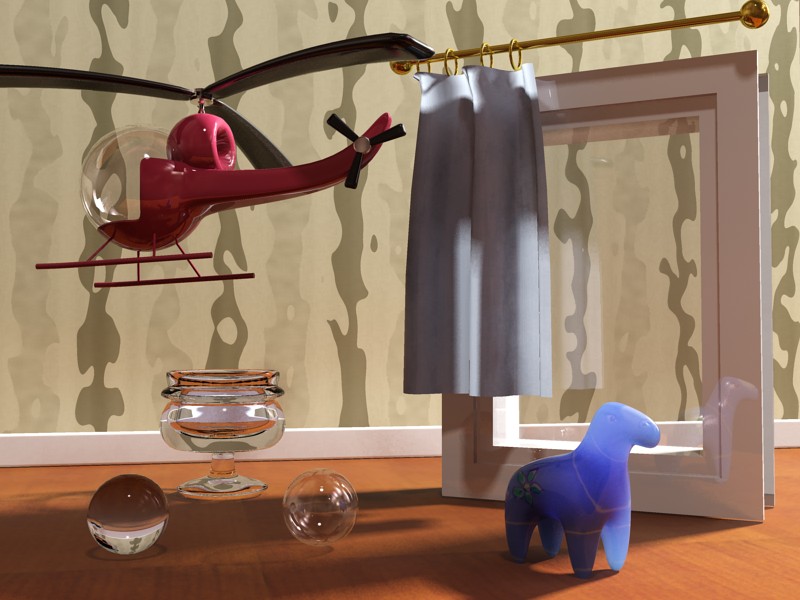
Solid vs. Thin-walled transparency and translucency
In the above image the helicopter canopy, the window pane, the
translucent curtain and the right sphere all use "thin walled"
transparency or translucency, whereas the glass goblet, the
plastic horse and the left sphere all use "solid" transparency or
translucency.
Cutout Opacity
Beyond the "physical" transparency (which models an actual property
of the material) there is a completely separate non-physical "cutout
opacity" channel to allow "billboard" objects such as trees, or
to cut out things like a chain-link fence with an opacity mask.
Special Effects
Built-in Ambient Occlusion
Ambient Occlusion (henceforth referred to as "AO") is a
method spearheaded by the film industry to emulate the "look"
of true global illumination by using shaders that calculate
how occluded (i.e. blocked) an area is from receiving
incoming light.
Used alone, an AO shader5
creates a gray scale output that is "dark" in areas to which light cannot
reach and "bright" in areas where it can:
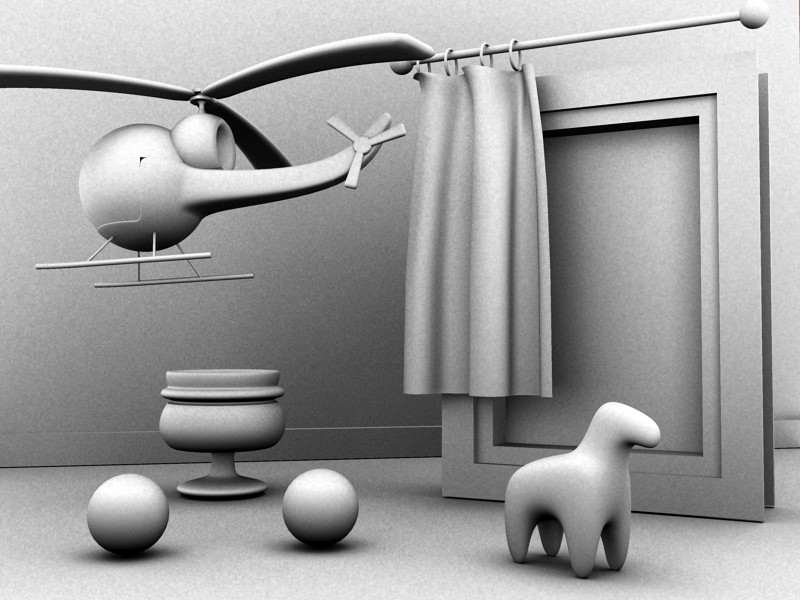
An example of AO applied to a scene
As seen in the above image, one of the main results of AO is
dark in crevices and areas where light is blocked by other surfaces
and it is bright in areas that are exposed to the environment.
One important aspect of AO is that one can tune the "distance"
within which it looks for occluding geometry.
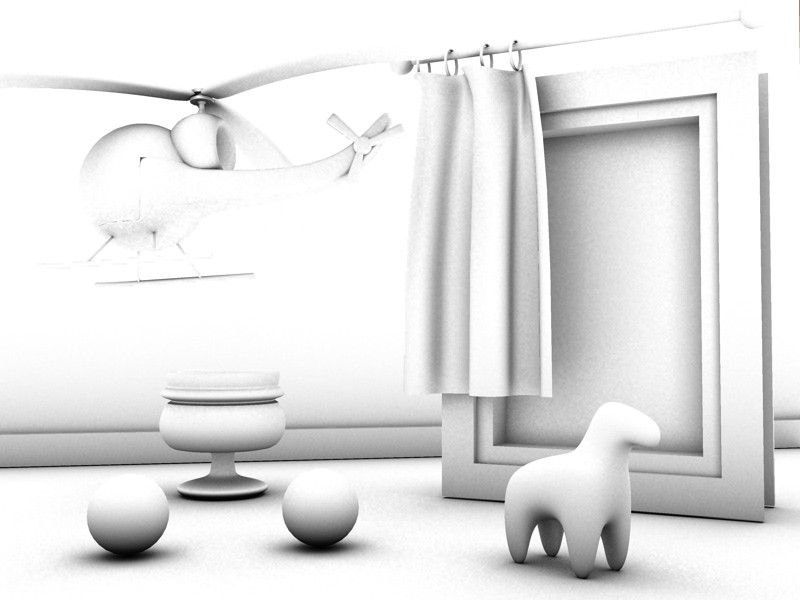
AO looked up within a shorter radius
Using a radius creates only a "localized" AO effect; only
surfaces that are within the given radius are actually considered
occluders (which is also massively faster to render).
The practical result is that the AO gives us
nice "contact shadow" effects and makes small crevices visible.
There are two ways to utilize the built in AO in the mia_material :
- "Traditional" AO for adding an omnipresent
ambient light that is then attenuated by the AO to
create details.
- Use AO for detail enhancement together with existing
indirect lighting methods (such as Final Gathering or photons).
The latter method is especially interesting when using a highly
"smoothed" indirect illumination solution (i.e. a very high
photon radius, or an extremely low final gather density) which could
otherwise lose small details. By applying the AO with short rays these
details can be brought back.
Finally the mia_material contains a large set of built in functions
for top performance, including but not limited to:
- Advanced importance sampling with ray rejection thresholds
- Adaptive glossy sample count
- Interpolated glossy reflection/refraction with detail enhancements
- Ultra fast emulated glossy reflections (refl_hl_only mode)
- Possibility to ignore internal reflections for glass objects
- Allowing a choice between traditional transparent
shadows (suitable for e.g. a window pane) and refractive
caustics (suitable for solid glass objects) on a per material
basis.
Quick Guide to the Material Parameters
This section gives a quick overview of the parameters suitable as a
memory refreshing tool for users already familiar with mia_material. A
much more detailed run down is on page Detailed Parameters.
Parameters labeled with [+] only exist in mia_material_x.
- diffuse_weight The amount of diffuse reflections.
- diffuse The diffuse color, i.e. the main color of the material.
- diffuse_roughness The Oren-Nayar "roughness".
- reflectivity Overall reflectivity level. Multiplied by the brdf_xx_degree_refl parameters.
- refl_color Overall reflectivity color. Normally white.
- refl_gloss Reflection glossiness. 1.0 = perfect mirror.
- refl_gloss_samples Number of samples (rays) for glossy reflections.
- refl_interpolate Interpolation (smoothing) of the glossy reflections. Speed at the price of accuracy.
- refl_hl_only Skip actual reflections, do only highlights and "emulated" reflections via FG.
- refl_is_metal Metal mode. Uses the diffuse color as reflection color.
- transparency The overall transparency level.
- refr_color The transparency (refraction) color.
- refr_gloss The transparency glossiness.
- refr_ior The Index of Refraction.
- refr_gloss_samples Number of samples (rays) for glossy refractions.
- refr_interpolate Interpolation (smoothing) of the glossy refractions.
- refr_translucency Enables translucency
- refr_trans_color The translucency color
- refr_trans_weight The translucency weight
- anisotropy Anisotropy. 1.0 = Isotropic.
- anisotropy_rotation The rotation of the anisotropy direction.
- anisotropy_channel The coordinate space to derive anisotropy direction from.
- brdf_fresnel When on, uses the Fresnel equation (based on IOR) for the reflectivity curve,
when off, uses the "user defined" settings below.
- brdf_0_degree_refl The user defined reflectivity curve value for surfaces facing the viewer.
- brdf_90_degree_refl The user defined reflectivity curve value for grazing surfaces.
- brdf_curve The user defined reflectivity curve shape.
- brdf_conserve_energy When on, makes sure that energy is conserved. Keep this on!
- intr_grid_density Interpolation grid density.
- intr_refl_samples Number of interpolation samples for reflections.
- intr_refl_ddist_on Enable "Detail Distance"
- intr_refl_ddist The detail distance.
- intr_refr_samples Number of interpolation samples for refraction.
- single_env_sample Do only a single environment sample even if multiple
reflectivity rays are traced. Used together with mia_envblur.
- refl_falloff_on Enable distance falloff for reflections
- refl_falloff_dist The distance at which no reflections are seen.
- refl_falloff_color_on Enable the falloff color. When off, falls of to the environment color.
- refl_falloff_color The falloff color when above is on.
- refl_depth The trace depth for reflections.
- refl_cutoff The importance cutoff for reflections.
- refr_falloff_on Enable distance falloff for refractions (transparency).
- refr_falloff_dist The distance at where no transparency is seen or when the falloff "color" is reached.
- refr_falloff_color_on When off, reflections fall off to black (total absorption). When on, falls off to the given color tint.
- refr_falloff_color The color tintint for reflections per distance travelled in the medium.
- refr_depth The trace depth for refractions.
- refr_cutoff The importance cutoff for refractions.
- indirect_multiplier The weighting of indirect illumination (FG, GI, Caustics)
- fg_quality The quality of FG
- fg_quality_w The weighting of above parameter (used for texture mapping).
- ao_on Enable Ambient Occlusion (AO).
- ao_samples Number of AO probe rays.
- ao_distance The maximum distance to look for occlusion. Shorter is faster.
- ao_dark The "shadow color" of the AO
- ao_ambient The "additional light" for the AO.
- ao_do_details Indirect illumination detail enhancement mode. 1=using AO, 2=with color bleed.
- thin_walled Treat surfaces as thin wafers of material, rather than the boundaries of solids.
- no_visible_area_hl Disables traditional "highlights" for visible area lights.
- skip_inside_refl Skips weak reflections on inside of glass.
- do_refractive_caustics Do refractive caustics, rather than transparent shadows. Only when Caustics mode is on.
- backface_cull Make surfaces invisible (to the camera only) from their back side.
- propagate_alpha Transparent surfaces propagate the alpha channel value of what is behind them.
- hl_vs_refl_balance The relative intensity of "highlights" to reflections.
- cutout_opacity The overall opacity. Used for stencil/cut-out effects.
- additional_color An additional color simply added to the other shading.
- bump A shader used for perturbing the normal.
- no_diffuse_bump Disables bump mapping for the diffuse shading.
- mode The light list mode.
- lights The lights list itself.
- [+] bump_mode Defines the mode of the new bump inputs. If zero, uses the compatible "bump" above.
- [+] overall_bump Bump that always affects everything.
- [+] standard_bump General bump. Does not affect diffuse when no_diffuse_bump is on.
- [+] multiple_outputs When on, activates the multiple outputs. When off, only writes to "result".
Detailed Description of Material Parameters
Diffuse
diffuse_weight sets the desired level (and diffuse the color) of the
diffuse reflectivity. Since the material is energy conserving, the
actual diffuse level used depends on the reflectivity
and transparency as discussed above.
The diffuse component uses the Oren-Nayar shading model.
When diffuse_roughness is 0.0 this is identical to classical Lambertian shading,
but with higher values the surface gets a more "powdery" look:
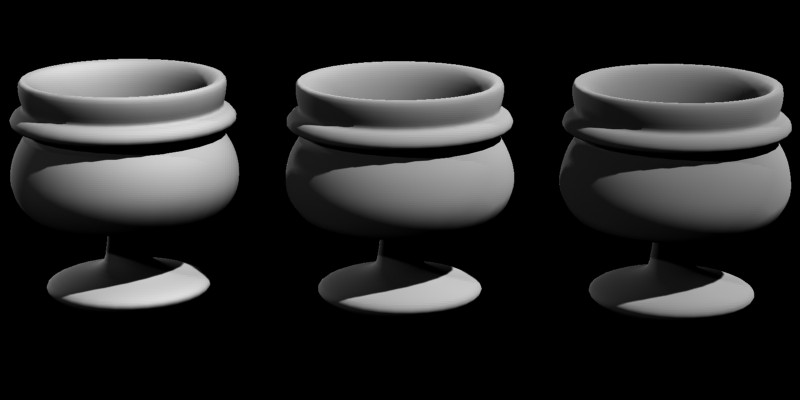
Roughness 0.0 (left), 0.5 (middle) and 1.0 (right)
Reflections
Basic Features
The reflectivity and refl_color together define level of reflections as well
as the intensity of the traditional "highlight"
(also known as "specular highlight").
This value is the maximum value - the actual value also
depends on the angle of the surface and come from the BRDF curve.
This curve (described in more detail on page Brdf) allows
one to define a brdf_0_degree_refl (for surfaces facing the view) and
brdf_90_degree_refl (for surfaces perpendicular to the view).
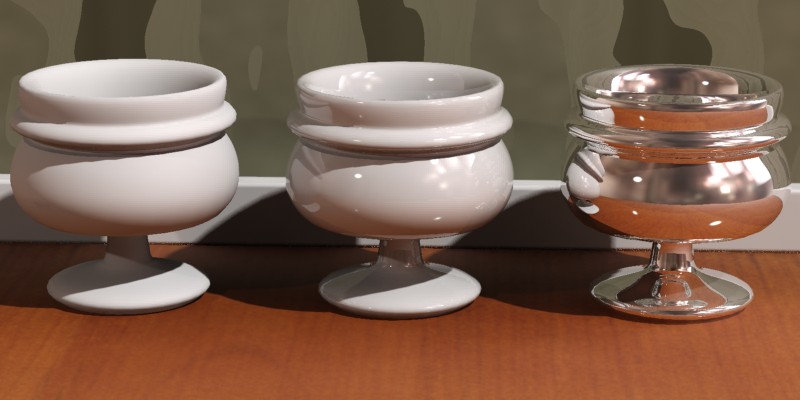
No reflectivity (left), angle dependent (center), constant (right)
- The left cup shows no reflectivity at all and a purely diffuse material.
- The center cup shows a brdf_0_degree_refl of 0.1 and a brdf_90_degree_refl of 1.0.
- The right cup has a both a brdf_0_degree_refl and brdf_90_degree_refl of 0.9, i.e.
constant reflectivity across the surface.
Note how the high reflectivity automatically "subtracts" from the
white diffuse color. If this didn't happen, the material would become
unrealistically over-bright, and would break the laws of physics
6.
The refl_gloss parameter defines the surface "glossiness", ranging
from 1.0 (a perfect mirror) to 0.0 (a diffusely reflective surface):
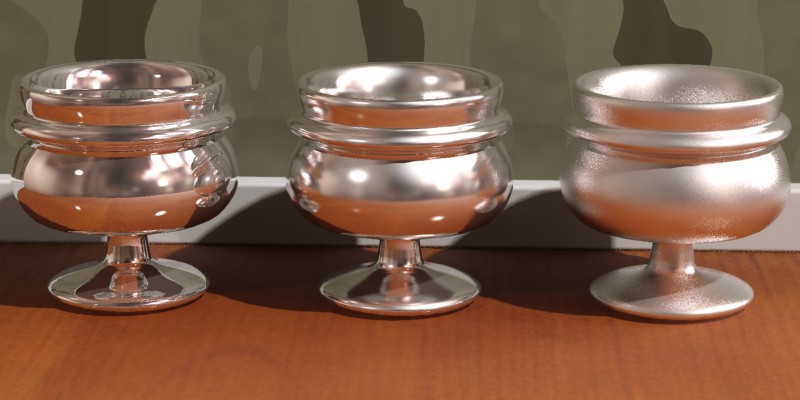
Glossiness of 1.0 (left), 0.5 (center) and 0.25 (right)
The refl_samples parameters defines the maximum7
number of samples (rays) are shot to create the glossy reflections.
Higher values renders slower but create a smoother result.
Lower values render faster but create a grainier result.
Generally 32 is enough for most cases.
There are two special cases:
- Since a refl_gloss value of 1.0 equals a "perfect mirror" it
is meaningless to shoot multiple rays for this case, hence only
one reflection ray is shot.
- If the refl_samples value is set to 0, the reflections will
be "perfect mirror" (and only one ray shot) regardless
of the actual value of refl_gloss . This can be used to boost
performance for surfaces with very weak reflections. The
highlight still obeys the glossiness value.
Metallic objects actually influence the color of their reflection
whereas other materials do not. For example, a gold bar will have
gold colored reflections, whereas a red glass orb does not have red
reflections. This is supported through the refl_is_metal option.
- When off, the refl_color parameter defines the color and reflectivity parameter (together with the
BRDF settings) the intensity and colors of reflections.
- When on, the diffuse parameter defines the color of reflections, and reflectivity parameter
sets the "weight" between diffuse reflections and glossy (metallic)
reflections.
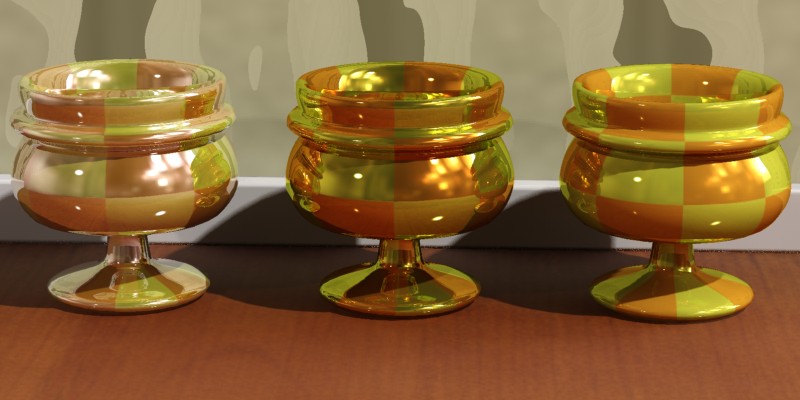
No metal reflections (left), Metal reflections (center), Metal mixed with diffuse (right)
The left image shows non-metallic reflections (refl_is_metal is off). One
can see reflections clearly contain the color of the objects they reflect
and are not influenced by the color of the materials.
The center image uses metallic reflections (refl_is_metal is on). Now the
color of reflections are influenced by the color of the material.
The right image shows a variant of this with the reflectivity at 0.5, creating
a 50:50 mix between colored reflections and diffuse reflections.
Glossy reflections need to trace multiple rays to yield a smooth
result, which can become a performance issue. For this reason
there are a couple of special features designed to enhance their
performance.
The first of those features is the interpolation. By turning
refl_interpolate on, a smoothing algorithm allows rays to be re-used and
smoothed8.
The result is faster and smoother glossy reflections at the
expense of accuracy. Interpolation is explained in more detail on page
Interpolation.
For highly reflective surfaces it is clear that true reflection rays
are needed. However, for less reflective surfaces (where it is less
"obvious" that the surface is really reflecting anything) there
exists a performance-enhancing shortcut, the refl_hl_only switch.
When refl_hl_only is on, no actual reflection rays are traced. Instead
only the "highlights" are shown, as well as soft reflections
emulated with the help of using Final Gathering9.
The refl_hl_only mode takes no additional render time
compared to a non-glossy (diffuse) surface, yet can yield surprisingly
convincing results.
While it may not be completely convincing for "hero" objects
in a scene it can work very well for less essential scene elements.
It tends to work best on materials with weak reflections or
extremely glossy (blurred) reflections:
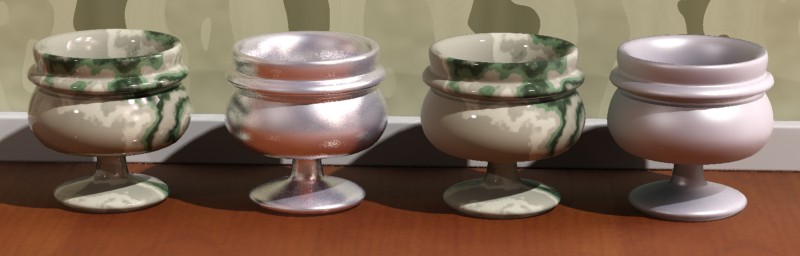
The left two cups use real reflections, those on the right use
refl_hl_only
While the two cups on the left are undoubtedly more convincing than those
on the right, the fact that the right hand cups have no additional
render time compared to a completely non-reflective surface makes
this mode very interesting. The emulated reflections still pull in a
directional color bleed such that the bottom side of the cup is
influenced by the color of the wooden floor just as if it was truly
reflective.
Refractions
The transparency parameter defines the level of refractions and
refr_color defines the color. While this color can be used to
create "colored glass", there is a slightly more accurate method
to do this described on page Colored Glass.
Due to the materials energy conserving nature (see page
Energy Conservation) the value set in the transparency parameter is
the maximum value - the actual value depends on the
reflectivity as well as the BRDF curve.
The refr_ior defines the Index of Refraction, which is a measurement
of how much a ray of light "bends" when entering a material. Which
direction light bends depends on if it is entering or
exiting the object. The mia_material use the direction of the
surface normal as the primary cue for figuring out whether it is
entering or exiting. It is therefore important to model
transparent refractive objects with the surface normal pointing
in the proper direction.
The IOR can also be used to define the BRDF curve, which is
what happens in the class of transparent materials known as
"dielectric" materials, and is illustrated here:
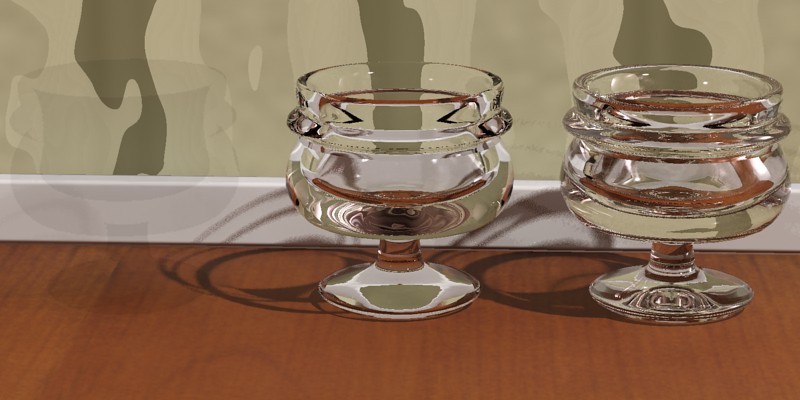
Index of refraction 1.0 (left), 1.2 (center) and 1.5 (right)
Note how the leftmost cup looks completely unrealistic and
is almost invisible. Because an IOR of 1.0 (which equals
that of air) is impossible, we get no change in reflectivity
across the material and hence perceive no "edges" or change
of any kind. Whereas the middle and rightmost cups have a realistic
change in reflectivity guided by the IOR.
One is however not forced to base the reflectivity on the IOR
but can instead use the BRDF mode to set it manually:
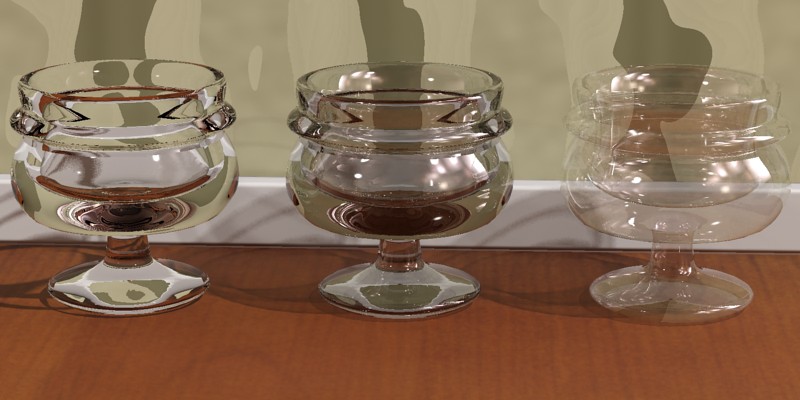
Different types of transparency
The left cup again acquires it's curve from the index of
refraction. The center cup has a manually defined curve, which has
been set to a brdf_90_degree_refl of 1.0 and a brdf_0_degree_refl of 0.2, which looks a bit
more like metallized glass. The rightmost cup uses the same
BRDF curve, but instead is set to "thin walled" transparency
(see page Thin-Walled). Clearly, this method is the better
way to make "non-refractive" objects compared to simply setting
refr_ior to 1.0 as we tried above.
As with reflections, the refr_gloss parameter defines how sharp or blurry
the refractions/transparency are, ranging from a 1.0 (a completely clear
transparency) to 0.0 (an extremely diffuse transparency):
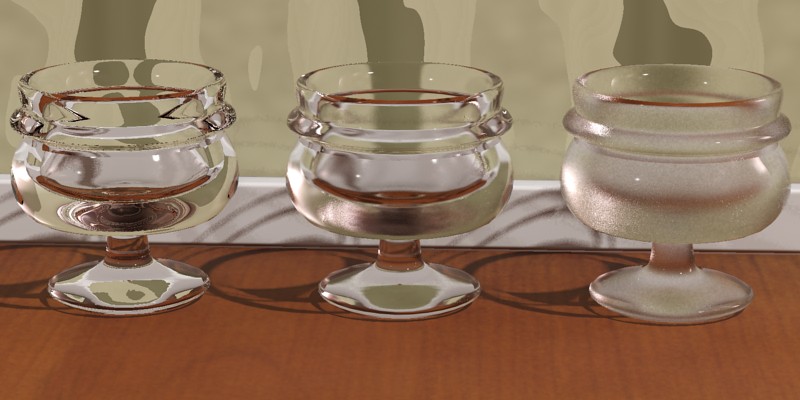
A
refr_gloss of 1.0 (left), 0.5 (center) and 0.25 (right)
Just as with the glossy reflections, the glossy transparency has a
refr_interpolate switch, allowing faster, smoother, but less accurate
glossy transparency. Interpolation is described on page Interpolation.
Translucency
Translucency is handled as a special case of transparency, i.e.
to use translucency there must first exist some level of transparency,
and the refr_trans_w parameter decides how much of this is used as
transparency and how much is translucency:
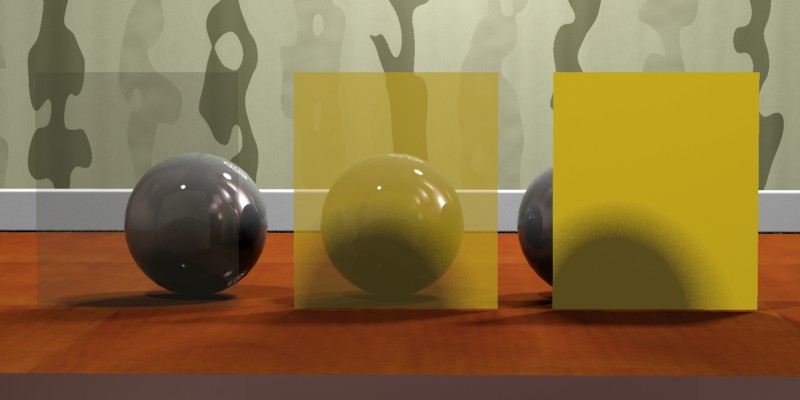
A
transparency of 0.75 and a
refr_trans_w of 0.0 (left), 0.5 (center) and 1.0 (right)
- If refr_trans_w is 0.0, all of the transparency is used for transparency.
- If refr_trans_w is 0.5, half of the transparency is used for transparency and half is used for translucency.
- If refr_trans_w is 1.0, all of the transparency is used for translucency and there is no actual transparency.
The translucency is primarily intended to be used in "thin walled" mode
(as in the example above) to model things like curtains, rice paper, or
such effects. In "thin walled" mode it simply allows the shading of the
reverse side of the object to "bleed through".
The shader also operates in "Solid" mode, but the
implementation of translucency in the mia_material is a simplification concerned
solely with the transport of light from the back of an object to it's front
faces and is not "true" SSS (sub surface scattering). An "SSS-like" effect
can be generated by using glossy transparency coupled with translucency
but it is neither as fast nor as powerful as the dedicated SSS shaders.
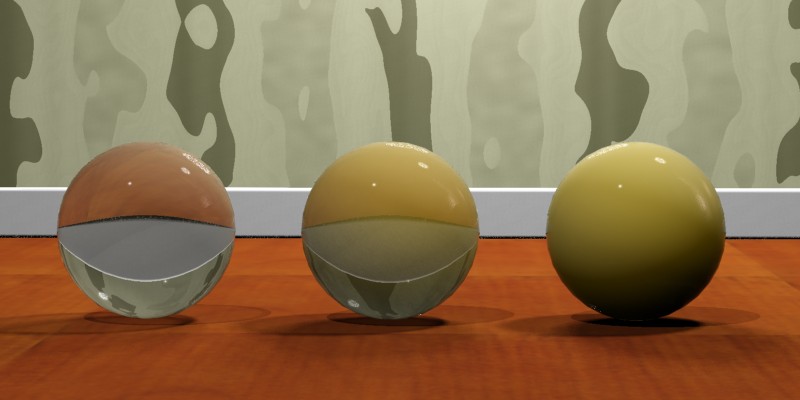
Solid translucency w.
refr_trans_w of 0.0 (left), 0.5 (center) and 1.0 (right)
Anisotropy
Anisotropic reflections and refractions can be created using
the anisotropy parameter. The parameter sets the ratio between the
"width" and the "height" of the highlights, hence when anisotropy
is 1.0 there is no anisotropy, i.e. the effect is disabled.
For other values of anisotropy (above and below 1.0 are both valid)
the "shape" of the highlight (as well as the appearance of
reflections) change.
 anisotropy
 values of 1.0 (left), 4.0 (center) and 8.0 (right)
The anisotropy can be rotated by using the anisotropy_rotation parameter.
The value 0.0 is un-rotated, and the value 1.0 is one full revolution
(i.e. 360 degrees). This is to aid using a texture map to steer the
angle:
 anisotropy_rotation
 values of 0.0 (left), 0.25 (center) and textured (right)
Note: When using a textured anisotropy_rotation it is important
that this texture is not anti-aliased (filtered).
Otherwise the anti-aliased pixels will cause local vortices in the
anisotropy that appear as seam artifacts.
For values of 0 or above, the space which defines the "stretch directions"
of the highlights are derived from the texture space set by
anisotropy_channel10.
anisotropy_channel can also have the following "special" values:
- -1: the base rotation follows the local object coordinate system.
- -2: the base rotation follows the bump basis vectors
- -3: the base rotation follows the surface derivatives
- -4: the base rotation follows a vector placed in
state>tex prior to calling mia_material
See also "brushed metal" on page Brushed Metals in the tips section.
BRDF
As explained in the introduction on page Angle the materials
reflectivity is ultimately guided by the incident angle from
which it is viewed.
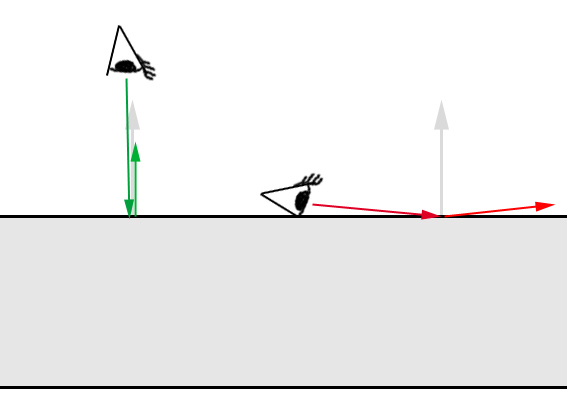
0 degree (green) and 90 degree (red) view angles
There are two modes to define this BRDF curve:
The first mode is "by IOR", i.e. when brdf_fresnel is on.
How the reflectivity depends on the angle is then solely guided by
the materials IOR.
This is known as Fresnel reflections and is the behavior of
most dielectric materials such as water, glass, etc.
The second mode is the manual mode, when brdf_fresnel is off.
In this mode the brdf_0_degree_refl parameter defines the reflectivity for
surfaces directly facing the viewer (or incident ray), and brdf_90_degree_refl
defines the reflectivity of surfaces perpendicular to the viewer.
The brdf_curve parameter defines the falloff of this curve.
This mode is used for most hybrid materials or for metals. Most
material exhibit strong reflections at grazing angles and hence
the brdf_90_degree_refl parameter can generally be kept at 1.0 (and using the
reflectivity parameter to guide the overall reflectivity instead).
Metals tend to be fairly uniformly reflective and the brdf_0_degree_refl
value is high (0.8 to 1.0) but many other layered materials, such
as linoleum, lacquered wood, etc. has lower brdf_0_degree_refl values (0.1 - 0.3).
See the tips on page Material Tips for some guidelines.
Special Effects
Built-in Ambient Occlusion
The built in Ambient Occlusion (henceforth shortened to "AO") can
be used in two ways. Either it is used to enhance details and "contact
shadows" in indirect illumination (in which case there must first
exist some form of indirect illumination in the first place),
or it is used together with a specified "ambient light" in a more
traditional manner. Hence, if neither indirect light exists, nor any
"ambient light" is specified, the AO will have no effect
11.
The ao_samples sets the number of samples (rays) shot for creating
the AO. Higher value is smoother but slower, lower values faster but
grainier. 16 is the default and 64 covers most situations.
The ao_distance parameter defines the radius within which occluding objects
are found. Smaller values restrict the AO effect only to small crevices
but are much faster to render. Larger values cover larger areas but
render slower. The following images illustrate the raw AO contribution
with two different distances:
Larger distance
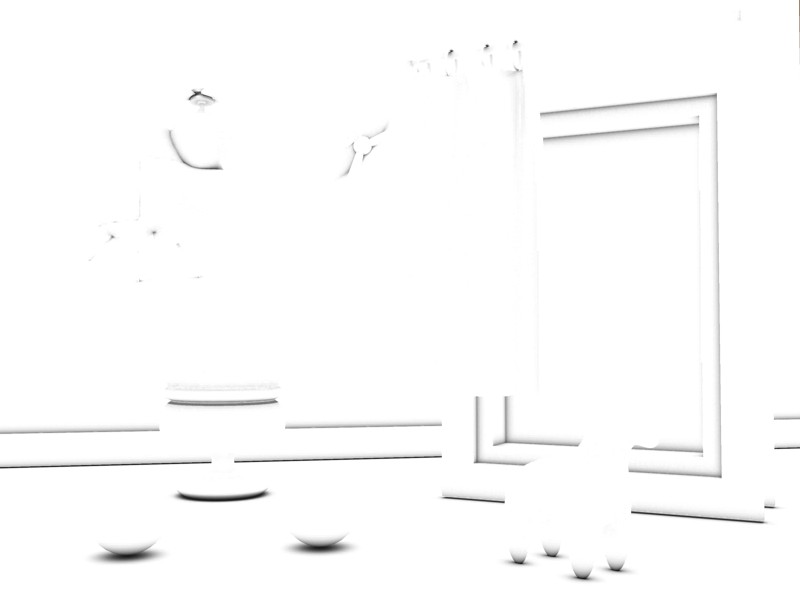
Smaller distance
As mentioned in the introduction on page Ambient Occlusion Effect
the AO can be used for "detail enhancement" of indirect illumination.
This mode is enabled by setting ao_do_details to 1.
This mode is used to apply short distance AO multiplying it with
the existing indirect illumination (Final Gathering or
GI/photons), bringing out small details.
Study this helicopter almost exclusively lit by indirect light:
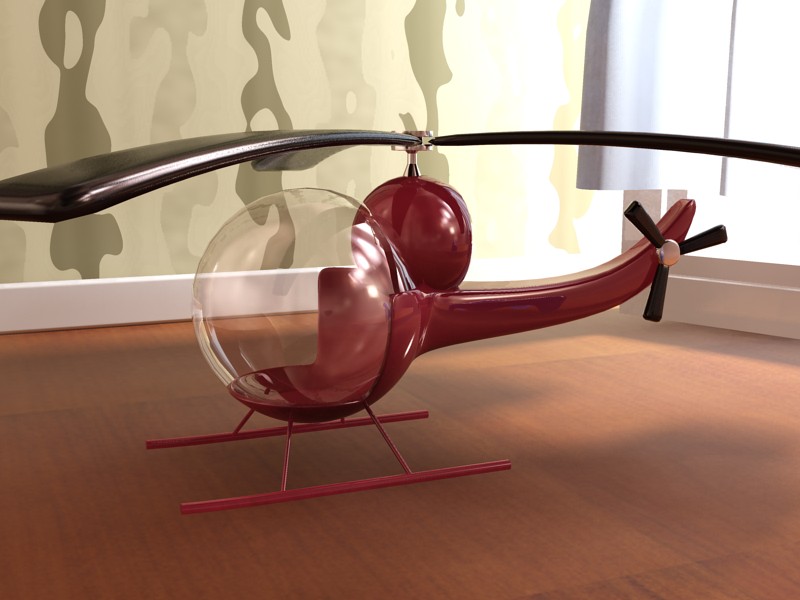
Without AO
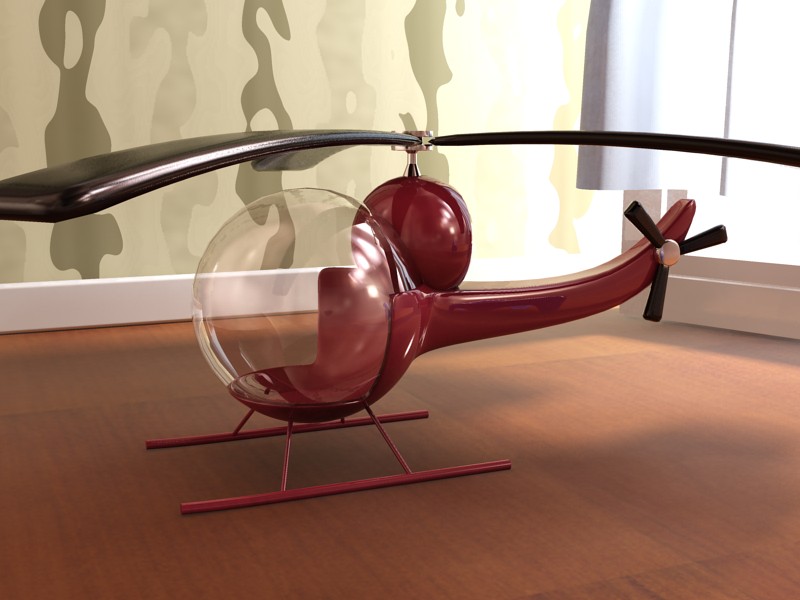
With AO
Note how the helicopter does not feel "grounded" in the left image
and the shadows under the landing skids are far too vague. The right
image uses AO to "punch out" the details and the contact shadows.
One can also set ao_do_details to 2, which enables a more sophisticated
AO mode introduced in mental ray 3.6.
Instead of doing simple occlusion, which can only
add "darkness" of varying degree, the shader will actually look
at the color of the surrounding objects, and use that color rather
than "darkness". Since this involves shading each of the points
hit, this is not as fast as pure AO, but it has the additional
effect of resolving both bright and dark details.
 ao_do_details
 = 1
 ao_do_details
 = 2
The image on the left illustrates the problem with the traditional
AO; it applies to all indirect illumination and always makes it
darker. It is most noticeable on the glowing sphere (which
has a dark spot under it) but can also be perceived on the floor
in front of the cube which is suspiciously dark, even though the
cube is strongly lit on the front, as well as between the
legs of the horse and the underside of the red sphere.
In contrast, the image on the right is using ao_do_details=2 for all
materials, and now the floor is correctly lit by the glowing ball,
there is a hint of white bounce-light on the floor from the cube,
there is light between the legs of the horse, and on the underside
of the red ball.
If you find that using AO creates a "dirty" look with excessive
darkening in corners, or dark rims around self-illuminated objects,
try to set ao_do_details to 2 for a more accurate result.
The ao_dark parameter sets the "darkness" of the AO shadows.
It is used as the multiplier value for completely occluded surfaces.
In practice this means: A black color will make the AO effect very dark,
a middle gray color will make the effect less noticeable (brighter) etc.
When the new ao_do_details mode 2 is used, it instead sets the "blend"
between the color picked up from nearby objects and "darkness".
The blend is:
(1-ao_dark) * (object colors) + black * ao_dark.
.
The ao_ambient parameter is used for doing more "traditional" AO,
i.e. supplying the imagined "ever present ambient light" that is
then attenuated by the AO effect to create shadows.
While "traditional AO" is generally used when rendering
without other indirect light, it can also be combined
with existing indirect light.
One needs to keep in mind that this magical "ever present ambient
light" is inherently non-physical, but may perhaps help lighten
some troublesome dark corners.
Advanced Rendering Options
Reflection Optimization Settings
These parameters define some performance boosting options for
reflections.
refl_falloff_dist allows limiting reflections to a certain distance,
which both speeds up rendering as well as avoiding pulling in distant
objects into extremely glossy reflections.
If refl_falloff_color is enabled and used, reflections will fade to this
color. If it is not enabled, reflections will fade to the environment
color. The former tends to be more useful for indoor scenes, the
latter for outdoor scenes.
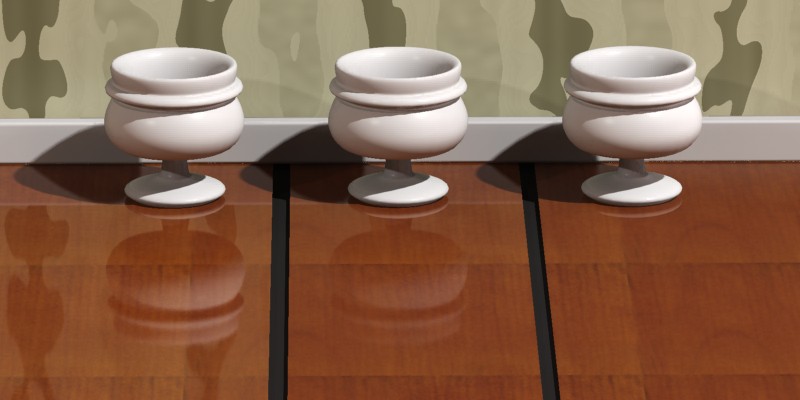
Full reflections (left), fading over 100mm (center) or 25mm (right)
Each material can locally set a maximum trace depth using the
refl_depth parameter. When this trace depth is reached the material
will behave as if the refl_hl_only switch was enabled, i.e. only
show highlights and "emulated" reflections. If refl_depth is
zero, the global trace depth is used.
refl_cutoff is a threshold at which reflections are rejected (not
traced). It's a relative value, i.e. the default of 0.01 means that
rays that contribute less than 1 to the final pixel are ignored.
Refraction Optimization Settings
The optimization settings for refractions (transparency) are nearly
identical to those for reflections. The exception is that of
refr_falloff_color which behaves differently.
- When refr_falloff_dist is used, and refr_falloff_color is not used,
transparency rays will fade to black. This is like smoked
glass or highly absorbent materials. Transparency will just
completely stop at a certain distance. This has the same
performance advantage as using the refl_falloff_dist for reflections,
i.e. tracing shorter rays are much faster.
- However, when refr_falloff_color is used, it works differently.
The material will then make physically correct absorption.
Exactly at the distance given by refr_falloff_dist will the
refractions have the color given by refr_falloff_color - but the
rays are not limited in reach. At twice the distance,
the influence of refr_falloff_color is double, at half the distance
half, etc.
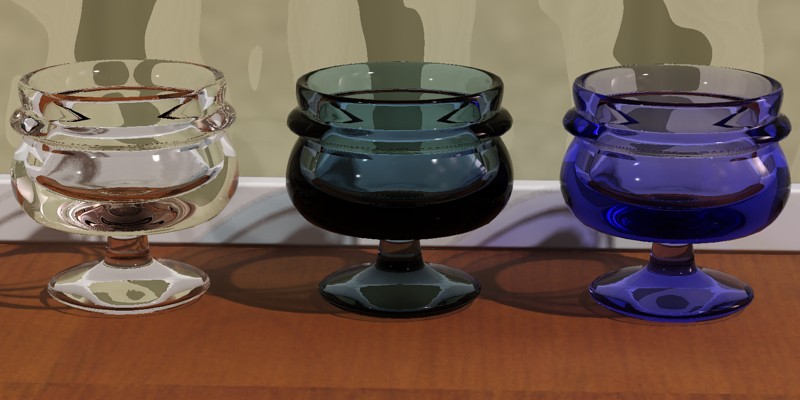
No limit (left), fade to black (center), fade to blue (right)
The leftmost cup has no fading. The center cup has refr_falloff_color off,
and hence fades to black, which also includes the same performance
benefits of limiting the trace distance as when used for reflections.
The rightmost cup, however, fades to a blue color. This causes
proper exponential attenuation in the material, such that the thicker
the material, the deeper the color. See page Colored Glass
for a discussion about realistic colored glass.
Note: To render proper shadows when using refr_falloff_dist one
must use ray traced shadows, and the shadow mode must be set to segment.
See the mental ray manual on shadow modes.
Each material can locally set a maximum trace depth using the
refl_depth parameter. When this trace depth is reached, the material
switches to tracing transparent rays. This is a new from mental ray 3.8,
where the shader is by-design ignoring trace depth limits in refractions.
This is described in detail on page threeeightrefraction.
One can switch to the old behavior of running out of refractive trace
depth (returning black) by setting this parameter to -1.
If refl_depth is zero, the global trace depth is used.
refl_cutoff works identical to the reflection case described above.
Options
The options contain several on/off switches that control some of
the deepest details of the material:
The thin_walled decides if a material causes refractions (i.e. behaves
as if it is made of a solid transparent substance) or not (i.e. behaves
as if made of wafer-thin sheets of a transparent material).
This topic is discussed in more detail on page Thin-Walled.
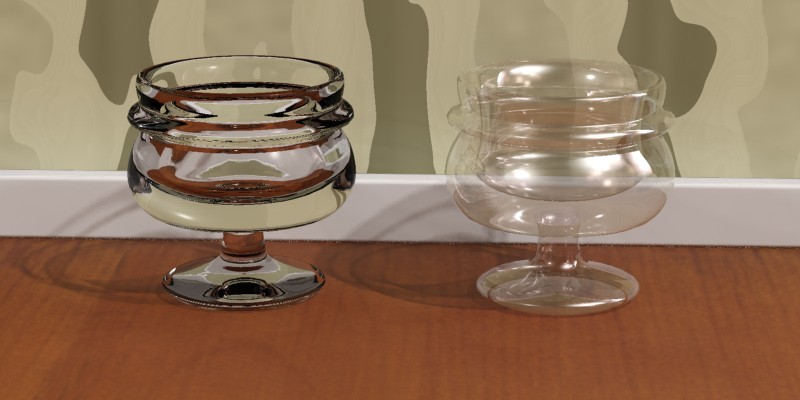
Solid (left) and Thin-walled (right)
The do_refractive_caustics parameter defines how glass behaves when caustics
are enabled.
When not rendering caustics, the mia_material uses a shadow shader to
create transparent shadows. For objects such as window panes this is
perfectly adequate, and actually creates a better result than using
caustics since the direct light is allowed to pass (more or less)
undisturbed through the glass into e.g. a room.
Traditionally, enabling caustics in mental ray cause all
materials to stop casting transparent shadows and instead start
to generate refractive caustics. In most architectural scenes
this is undesirable; one may very well want a glass decoration on
a table to generate caustic effect, but still want the windows
of the room to let in quite normal direct light.
This switch makes this possible on the material level.
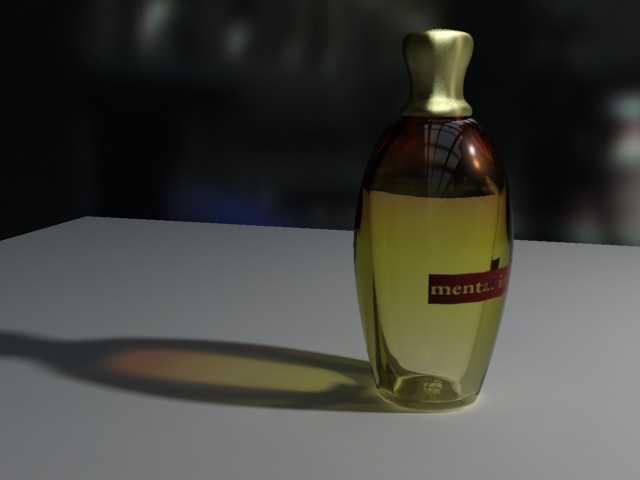
Using transparent shadows
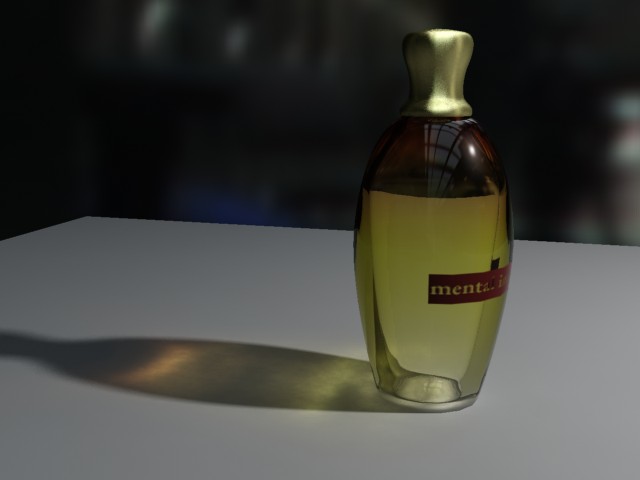
Using refractive caustics
The left image shows the result that happen when do_refractive_caustics is off,
the right the result when it is on. Both modes can be freely mixed
within the same rendering. Photons are automatically treated
accordingly by the built in photon shader, shooting straight through
as direct light in the former case, and being refracted as caustics
in the latter.
The backface_cull switch enables a special mode which makes surfaces
completely invisible to the camera when seen from the reverse side.
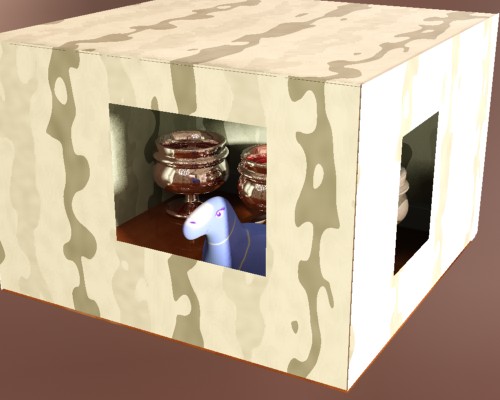
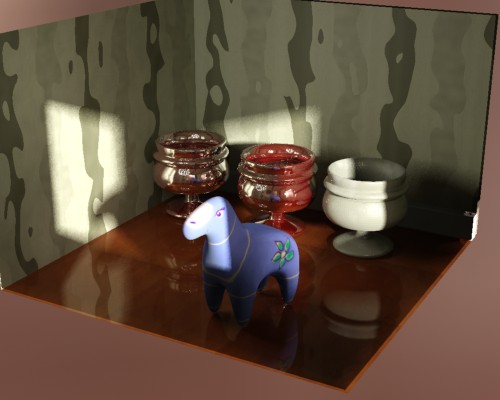
This is useful to create "magic walls" in a room. If all walls are
created as planes with the normal facing inwards, the backface_cull
switch allows the room to be rendered from "outside". The camera
will see into the room, but the walls will still "exist" and
cast shadows, bounce photons, etc. while being magically "see
through" when the camera steps outside.
No Back-face Culling
Back-face Culling on the walls
The propagate_alpha switch defines how transparent objects treats any
alpha channel information in the background. When on, refractions
and other transparency effects will propagate the alpha of the
background "through" the transparent object. When off, transparent
objects will have an opaque alpha.
The no_visible_area_hl parameter concerns the behavior of visible area
lights.
Keep in mind that traditional "highlights" (i.e. specular
effects) is a computer graphics "trick" in place of actually creating
a glossy reflection of an actual visible light-emitting surface.
However, mental ray area lights can be visible, and when they
are visible they will reflect in any (glossy) reflective objects.
If both the reflection of the visible area light and the
highlight is rendered, the light is added twice, causing an
unrealistic brightening effect. This switch (which defaults to on)
causes visible area lights to loose their "highlights" and instead
only appear as reflections12.
hl_vs_refl_balance modifies the balance between the intensity of the highlight
and the intensity of reflections. The default value of 1.0 is the
"as close to physically correct as possible" value. This parameter
allows tweaking this default value where values above 1.0 makes the
highlight stronger, and below 1.0 weaker.
A final optimization switch (also on by default) is the
skip_inside_refl checkbox.
Most reflections on the insides of transparent objects are
very faint, except in the special case that occurs at certain angles
known as "Total Internal Reflection" (TIR).
This switch saves rendering time by ignoring the weak
reflections completely but retaining the TIR's.
The indirect_multiplier allows tweaking of how strongly the material responds
to indirect light, and fg_quality is a local multiplier for the number
of final gather rays shot by the material. Both default to 1.0 which
uses the global value.
To aid in mapping textures to fg_quality the additional fg_quality_w
parameter exists. When zero, fg_quality is the raw quality setting,
but for a nonzero fg_quality_w the actual quality used is the product
of the two values, with a minimum of 1.0. This means that with a color
texture mapped to fg_quality and fg_quality_w set to 5.0, black in the
texture results in a quality of 1.0 (i.e. the number of final gather rays
shot is the global default), and white in the texture in a quality of 5.0
(five times as many rays are shot).
Interpolation
Glossy reflections and refractions can be interpolated. This
means they render faster and become smoother.
Interpolation works by pre-calculating glossy reflection in a grid
across the image. The number of samples (rays) taken at each point is
govern by the refl_samples or refr_samples parameters just as in the
non-interpolated case. The resolution of this grid is set by the
intr_grid_density parameter.
However, interpolation can cause artifacts. Since it is
done on a low resolution grid, it can lose details.
Since it blends neighbors of this low resolution grid it can cause
over-smoothing. For this reason it is primarily useful on flat
surfaces. Wavy, highly detailed surfaces, or surfaces using bump
maps will not work well with interpolation. Also, since the grid
exists in screen space, animations involving camera motion are not
recommended since these may cause this grid-nature to become
visible.
Valid values for intr_grid_density parameter are:
- 0 = grid resolution is double that of the rendering
- 1 = grid resolution is same as that of the rendering
- 2 = grid resolution is half of that of the rendering
- 3 = grid resolution is a third of that of the rendering.
- 4 = grid resolution is a fourth of that of the rendering.
- 5 = grid resolution is a fifth of that of the rendering.
Within the grid data is stored and shared across the points.
Lower grid resolutions is faster but lose more detail information.
Both reflection and refraction has an intr_refl_samples parameter
which defines how many stored grid points (in an N by N group around
the currently rendered point) is looked up to smooth out the
glossiness. The default is 2, and higher values will "smear"
the glossiness more, but are hence prone to more oversmoothing artifacts.
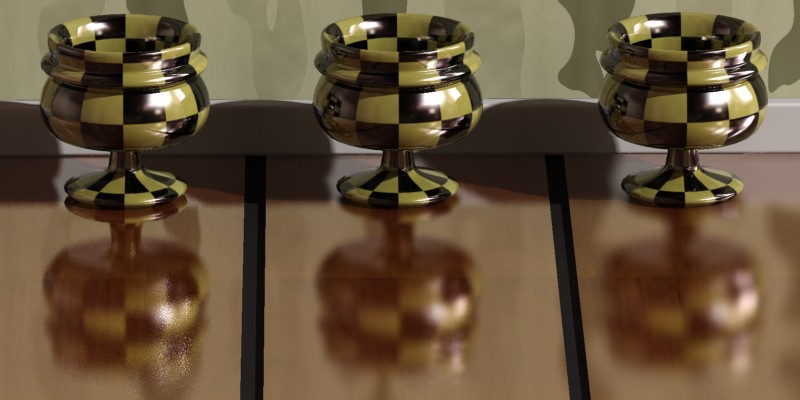
No interpolation (left), looking up 2 points (center) and 4 points (right)
The reflection of the left cup in the floor is not using interpolation,
and one can perceive some grain (here intentionally exaggerated).
The floor tiles under the other two cup uses a half resolution
interpolation with 2 (center) and 4 (right) point lookup respectively.
This image also illustrates one of the consequences of using
interpolation: The foot of the left cup, which is near the floor,
is reflected quite sharply, and only parts of the cup far from the
floor are blurry. Whereas the interpolated reflections on the
right cups have a certain "base level" of blurriness (due to the
smoothing of interpolation) which makes even the closest parts
somewhat blurry. In most scenes with weak glossy reflections this
discrepancy will never be noticed, but in other cases this can make
things like legs of tables and chairs feel "unconnected" with
a glossy floor, if the reflectivity is high.
To solve this the intr_refl_ddist parameter exists. It allows a second
set of detail rays to be traced to create a "clearer" version of
objects within that radius.
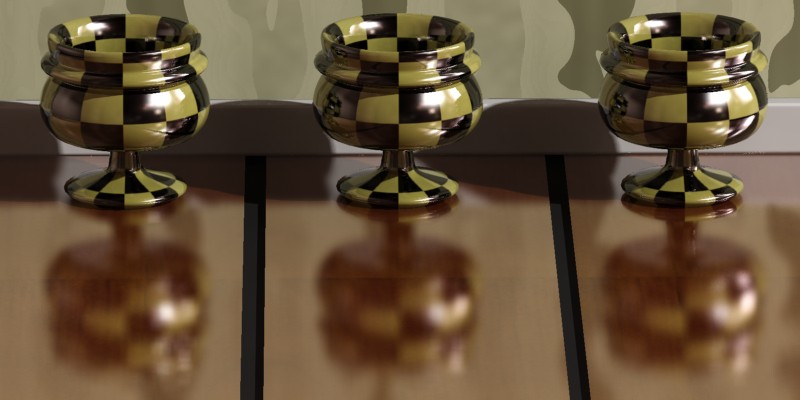
No detail distance (left), 25mm detail distance (center) and 150mm detail distance (right)
All three floor tiles use interpolation but the rightmost
two use different distances for the "detail distance".
This also allows an interesting "trick": Set the refl_samples to 0,
which renders reflections as if they were mirror-perfect but use
the interpolation to introduce blur into this "perfect" reflection
(and perhaps use the intr_refl_ddist to make nearby parts less blurry).
This is an extremely fast way to obtain a glossy reflection.
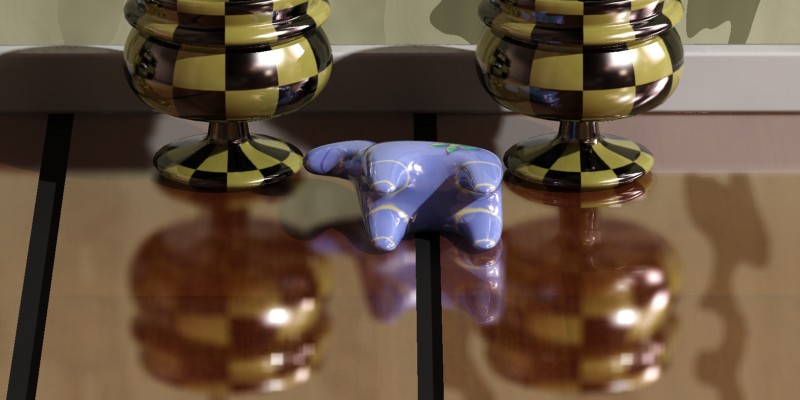
No detail distance (left), with detail distance (right)
The above floor tiles are rendered with mirror reflections, and the
"blurriness" comes solely from the interpolation. This renders as
fast (or faster!) than pure mirror reflections, yet gives a satisfying
illusion of true glossy reflections, especially when utilizing the
intr_refl_ddist as on the right.
Special Maps
The mia_material also supports the following special inputs:
Bump Mapping
The bump parameter accepts a shader that perturbs the normal for bump mapping.
This parameter is only used it the new bump_mode parameter is zero.
When no_diffuse_bump is off, the bumps apply to all
shading components (diffuse, highlights, reflections, refractions... ).
When it is on, bumps are applied to all component except the
diffuse. This means bumps are seen in reflections, highlights, etc.
but the diffuse shading shows no bumps. It is as if the materials
diffuse surface is smooth, but covered by a bumpy lacquer coating.
 no_diffuse_bump
 is off (left) and on (right)
In mia_material_x there are also three new parameters related to bump mapping:
two vector bump inputs, overall_bump and standard_bump, and a bump_mode parameter
defining the coordinate-space of those vectors. The shaders put into overall_bump
or standard_bump should return a vector, but it is also legal for those
shaders to modify the normal vector themselves and return (0,0,0).
overall_bump defines an overall bump that always applies both to the diffuse
and the specular component at all times, regardless of the setting of
no_diffuse_bump standard_bump is a vector equivalent of the old bump parameter,
in that
it applies globally when no_diffuse_bump is off, and only to the
specular/reflection "layer" when no_diffuse_bump is on. However,
the standard_bump is added "on top of" the overall_bump result.
The intended use is to put the mia_roundcorners shader in overall_bump
and your normal bump shader into standard_bump. This way, the "round corners"
effect will apply both to the diffuse and specular component irregardless
of the setting of no_diffuse_bump.
The bump_mode parameter defines the coordinate space of the vectors, and
if they are additive or not. The following values are legal:
- 0: compatible mode. The old bump parameter is used in place of overall_bump and standard_bump.
- 1: "add" mode in "internal" space
- 2: "add" mode in world space
- 3: "add" mode in object space
- 4: "add" mode in camera space
- 5: "set" mode in "internal" space
- 6: "set" mode in world space
- 7: "set" mode in object space
- 8: "set" mode in camera space
The "add" modes mean that the vector should contain a normal perturbation, i.e.
a modification that is "added" to the current normal. Whereas "set" mode means that
the actual normal is replaced by the incoming vector, interpreted in the
aforementioned coordinate space.
This new scheme makes the mia_material_x bump mapping compatible with more
mental ray integrations, as well as allows the round corners to be applied
even if no_diffuse_bump is on.
Cutout Opacity and Additional Color
The cutout_opacity is used to apply an opacity map to completely remove parts
of objects. A classic example is to map an image of a tree to a flat
plane and use opacity to cut away the parts of the tree that are
not there.
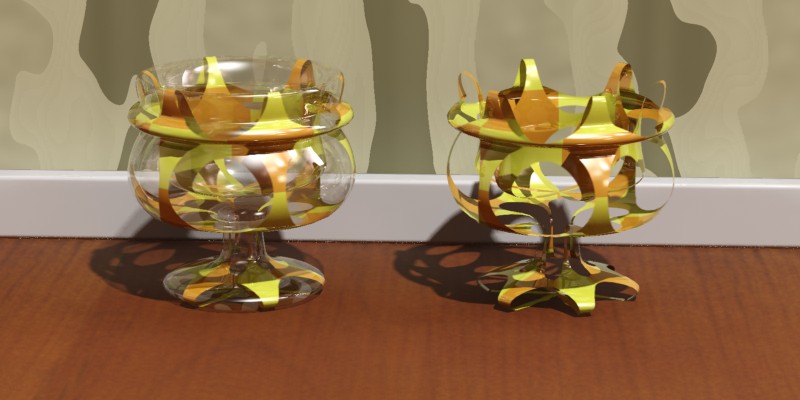
Mapping the transparency (left) vs.
cutout_opacity (right)
The additional_color is an input to which one can apply any shader.
The output of this shader is simply added on top of the shading
done by the mia_material and can be used both for "self illumination"
type effects as well as adding whatever additional shading one
may want.
The material also supports standard displacement and environment
shaders. If no environment is supplied, the global camera environment
is used.
The new behavior of refractions added in mental ray 3.8
In mental ray 3.8 the behavior of running out of the refractive
trace depth has changed.
Prior to version 3.9, running out of refractive trace depth would
return a black refraction. Most other transparency/glass
shaders return the environment, which can create very odd results
when rendering an indoor rendering with an extremely bright outdoor
environment, and bright areas appear in glass objects in dark cupboards
that suddenly refract some sky.
But returning black, as was done in previous versions, while
less damaging, isn't the ideal choice either. One does not want to
see large swatches of black suddenly pop up in a glass installation.
Having to manually tune trace depth is cumbersome and error prone.
Ideally, one wants the glass to always refract its surroundings,
no matter what, leaving the choice of how deep to trace to the
renderer.
Trace depth limits like refl_depth exist to prohibit rays from
bouncing indefinitely to create large render times. But only rays
that change direction (such as reflections and refractions) can
bounce around indefinitely - straight (transparency) rays cannot.
These rays will eventually either escape the scene, or hit an opaque
object. And the mia_material utilises importance propagation, which will
automatically cull any rays whos contribution to the final
pixel goes the refl_cutoff value.
For these reason, the mia_material in mental ray 3.8 will willingly
and by design ignore refractive trace depth, and will
not stop tracing rays when the refractive trade depth is
reache. Instead, it will switch from refractive rays to
plain straight transparency rays. Since these rays are
guaranteed to escape the object (as mentioned above), they will
always return a reasonable color for deep refractions, be it
the sky, or a surrounding opaque object.
The new behavior relieves the user from having to think about
refractive trace depth - deep refractions will always look
reasonable, even though perhaps not technically correct.
If the old behavior (returning black) is required, setting
refl_depth to -1 will switch it back on. Rays that hit
the scene global refractive trace depth will then be black.
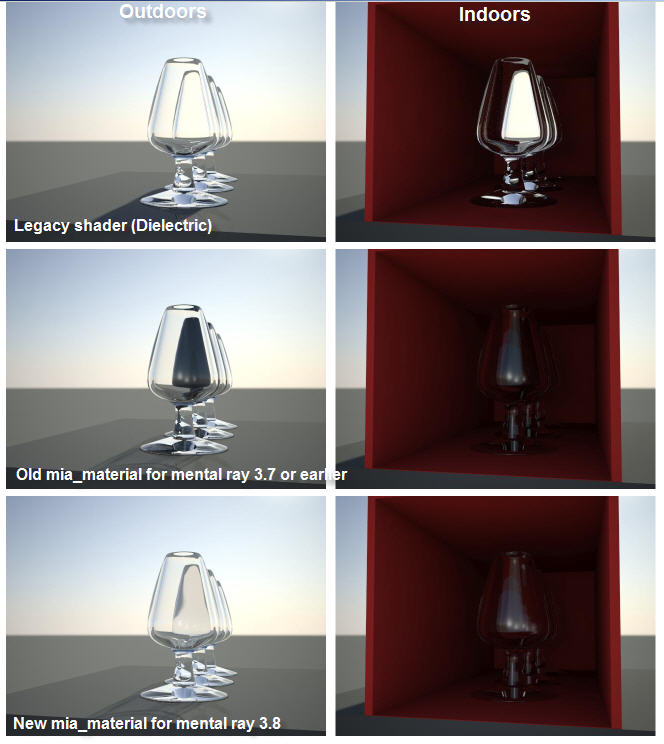
The new refractive trace depth behavior
The above figure shows in the first row the result of using
a legacy shader - Dielectric - (which returned the environment,
and hence did not look correct indoors),
in the second row the pre mental ray 3.8 mia_material
(which returned black, and hence
did not look correct outdoors) and in the third row
the new mia_material which looks correct in both cases.
Multiple Outputs of mia_material_x
Introduction
Here follows a detailed listing of the available outputs
of mia_material_x:
Most of the outputs follow the pattern of xxx_result,
xxx_raw and xxx_level. The "result" is the
final contribution, "raw" is the un-scaled contribution,
and "level" is the scaling. The "level" is often related
to an input parameter (or combinations thereof), and has been
modified to abide by the energy conservation feature of the material.
Unless otherwise noted, it is true that Unless otherwise noted, it is true that xxx_result = xxx_raw * xxx_level.
.
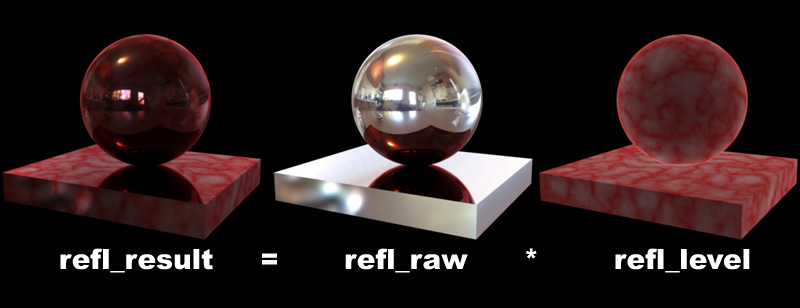
The different outputs and their relationship
Hence the outputs contain some redundancy; if one just wants the
"current reflections" in a separate channel, use refl_result,
but if one wants more control over the amount of reflections in post
production, one can instead use refl_raw and refl_level,
multiplying them in the compositing phase prior to adding them to the
final color.
Be aware, though, that mia_material_x will intentionally sample
reflections that has a very low level in the actual rendering phase at low
quality (for performance), so doing huge modifications to reflection
intensity in post should be avoided.
List of All Outputs
The following outputs exist:
- result is the main, blended output, i.e. the "beauty" pass.
It is identical to the single output of mia_material. If the "safety"
parameter multiple_outputs is off,
no other output except this one is ever written to
13.
- diffuse_result is the resulting diffuse component after
lighting, including textures, diffuse_raw is the diffuse
lighting itself, without textures, and diffuse_level is
the diffuse texture color adjusted by the energy conservation.
- spec_result is the resulting specular component,
spec_raw is the raw un-attenuated highlight, and
spec_level is the specular level, which is the same as
refl_level if the input parameter hl_vs_refl_balance is 1.0.
- refl_result is the resulting reflection component,
refl_raw is the raw (full intensity) reflection,
and refl_level is the actual reflectivity, including
reflection color and BRDF (or Fresnel) curve attenuation effects.
- refr_result is the resulting refraction (transparency)
component, refr_raw is the raw full intensity transparency,
and refr_level is the actual transparency level, which has
been adjusted by the energy conservation.
- tran_result is the resulting translucency component,
tran_raw is the raw translucency, and tran_level
the actual translucency level, adjusted by the energy conservation.
- indirect_result is the resulting indirect illumination
including ambient occlusion effects and multiplying by the diffuse color,
indirect_raw is the raw result from mi_compute_avg_radiance(),
indirect_post_ao is the indirect illumination affected by AO
but without being multiplied by the diffuse color, and ao_raw
is the raw contribution of the AO.
- add_result is a straight pass-through of the add_color
parameter.
- opacity_result contains the final contribution of any
background of the object as a result of the input cutout_opacity being less than 1.0.
opacity_raw contains the background `without scaling by the opacity.
These outputs will contain black if cutout_opacity is 1.0 since no actual transparency
ray is ever traced in that case! The opacity output contains the
actual opacity itself. Care must be taken if opacity equals zero,
because this mean that the material has performed no shading whatsoever
and none of the other outputs will contain any value at all!
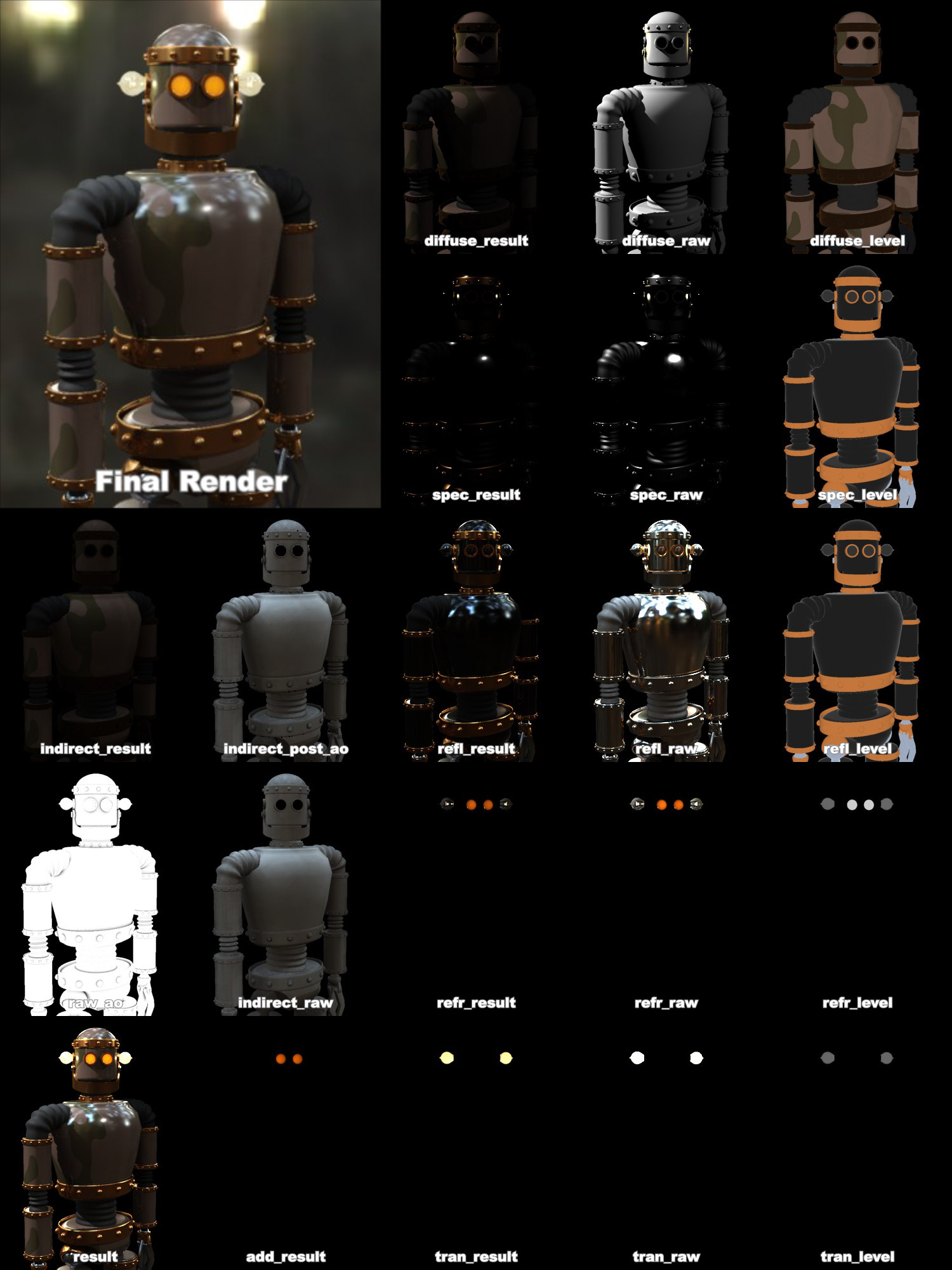
An example of outputs
Proper Compositing
Due to the redundancy available in the outputs, there are several ways to
composite them together to yield the same result as the beauty render.
Here we outline two compositing pipelines in equation form.
First we have the "simple" variant, which is simply a sum of the
various result parameters. This version allows only minor
post production changes to the overall balance between the materials.
But it has the advantage of not needing as many files, as well
as working reasonably well in non-floating-point compositing.
    Beauty = diffuse_result + indirect_result + spec_result +
                refl_result + refr_result + tran_result +
                add_result
Then we have the more "complex" variant which uses the various
raw and level outputs, which allows much greater
control in post production.
Note that the raw outputs needs to be stored and composited
in floating point to maintain the dynamic range.
The level outputs always stay in a 0.0-1.0 range and does not
require floating point storage.
    Beauty = diffuse_level * (diffuse_raw + (indirect_raw * ao_raw)) +
                spec_level * spec_raw +
                refl_level * refl_raw +
                refr_level * refr_raw +
                tran_level * tran_raw +
                add_result
Please note that this equation contains multiplications, and postponing
multiplication to a stage in the rendering pipeline that lies after
individual samples get filtered down to pixels has
fundamental mathematical limitations, which may be visible as artifacts
on edges between objects, or in any part of the image with an alpha
of less than 1.0.
None of these problems exist if the math is applied on a per-sample basis
(by routing these outputs to other parts of a shade tree and performing
math on them there).
Tips and Tricks
The Final Gathering algorithm in mental ray 3.5 is vastly improved from
earlier versions, especially in it's adaptivity.
This means one can often use much lower ray counts and much lower
densities than in previous versions of mental ray.
Many stills can be rendered with such extreme settings as 50 rays
and a density of 0.1 - if this causes "over-smoothing" artifacts,
one can use the built in AO (see page Ambient Occlusion)
to solve those problems.
When using Final Gathering together with GI (photons), make sure
the photon solution is fairly "smooth" by rendering with Final
Gathering disabled first. If the photon solution is noisy, increase
the photon search radius until it "calms down", and then re-enable
Final Gathering.
Quick Guide to some Common Materials
Here are some quick rules-of-thumb for creating various materials.
They each assume basic default settings as a starting point.
General Rules of Thumb for Glossy Wood, Flooring, etc.
This is the kind of "hybrid" materials one run into in many
architectural renderings; lacquered wood, linoleum, etc.
For these materials brdf_fresnel should be off (i.e.
we define a custom BRDF curve). Start out with brdf_0_degree_refl of
0.2 and brdf_90_degree_refl of 1.0 and apply some suitable texture map
to the diffuse. Set reflectivity around 0.5 to 0.8.
How glossy is the material? Is reflections very clear
or very blurry? Are they Strong or Weak?
- For clear, fairly strong reflections, keep refl_gloss at 1.0
- For slightly blurry but strong reflections, set a lower refl_gloss value.
If performance becomes an issue try using refl_interpolate.
- For slightly blurry but also very weak reflections one can often "cheat"
by setting a lower refl_gloss value (to get the broader highlights) but set
refl_samples value to 0. This shoots only one mirror ray for reflections - but if
they are very weak, one can often not really tell.
- For medium blurry surfaces set an even lower refl_gloss and maybe
increase the refl_samples. Again, for performance try refl_interpolate.
- For extremely blurry surfaces or surfaces with very weak reflections,
try using the refl_hl_only mode.
A typical wooden floor could use refl_gloss of 0.5, refl_samples of 16, reflectivity of
0.75, a nice wood texture for diffuse, perhaps a slight bump map
(try the no_diffuse_bump checkbox if bumpiness should appear only in the lacquer layer).
A linoleum carpet could use the same but with a different texture and bump map, and
probably with a slightly lower reflectivity and refl_gloss.
Ceramics
Ceramic materials are glazed, i.e. covered in a thin layer of transparent
material. They follow similar rules to the general materials
mentioned above, but one should have brdf_fresnel on and the refr_ior
set at about 1.4 and reflectivity at 1.0.
The diffuse should be set to a suitable texture or color, i.e. white
for white bathroom tiles.
Stone Materials
Stone is usually fairly matte, or has reflections that are so blurry they
are nearly diffuse. The "powdery" character of stone is simulated with
the diffuse_roughness parameter - try 0.5 as a starting point. Porous stone such
as bricks would have a higher value.
Stone would have a very low refl_gloss (lower than 0.25) and one can most likely
use refl_hl_only to good effect for very good performance. Use a nice stone texture
for diffuse, some kind of bump map, and perhaps a map that varies the
refl_gloss value.
The reflectivity would be around 0.5-0.6 with brdf_fresnel off and brdf_0_degree_refl at 0.2 and
brdf_90_degree_refl at 1.0
Glass
Glass is a dielectric, so brdf_fresnel should definitely be on. The IOR
of glass is around 1.5. Set diffuse_weight to 0.0, reflectivity to 1.0 and transparency to 1.0.
This is enough to create basic, completely clear refractive glass.
If this glass is for a window pane, set thin_walled to on.
If this is a solid glass block, set thin_walled to off and
consider if caustics are necessary or not, and set do_refractive_caustics accordingly.
Is the glass frosted? Set refr_gloss to a suitable value. Tune the refr_samples
for good quality or use refr_interpolate for performance.
Colored Glass
For clear glass the tips in the previous section work. But colored glass
is a slightly different story.
Many shaders set the transparency at the surface of the glass. And indeed this
is what happens if one simply sets a refr_color to some value, e.g. blue. For glass done
with thin_walled turned on this works perfectly. But for solid glass objects
this is not an accurate representation of reality.
Study the following example. It contains two glass blocks
of very different size and a sphere with a spherical hole
inside of it14
plus a glass horse.
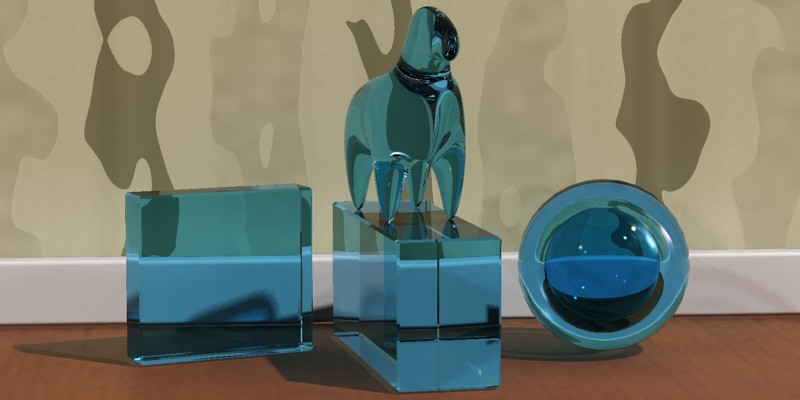
With a blue
refr_color: Glass with color changes at the surface
The problems are evident:
- The two glass blocks are of completely different thickness,
yet they are exactly the same level of blue.
- The inner
sphere is darker than the outer.
Why does this happen?
Consider a light ray that enters a glass object. If the color is "at the surface", the ray
will be colored somewhat as it enters the object, retain this color through the object, and
receive a second coloration (attenuation) when it exits the object:
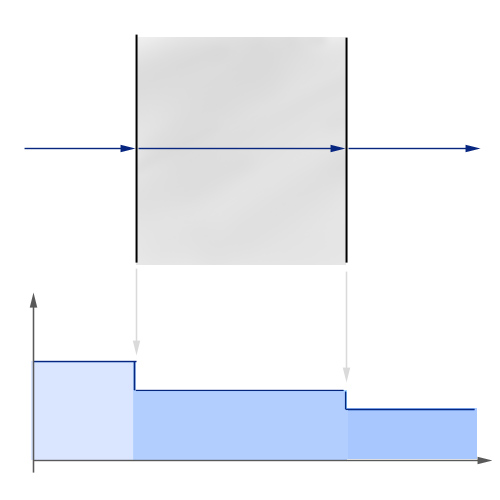
Diagram for glass with color changes at the surface
In the illustration above the ray enters from the left, and at the entry surface it
drops in level and gets slightly darker (bottom of graph schematically illustrates
the level). It retains this color throughout the travel through the medium and drops
in level again at the exit surface.
For simple glass objects this is quite sufficient. For any glass
using thin_walled it is by definition the correct thing to do,
but for any complex solid it is not. It is especially wrong
for negative spaces inside the glass (like the sphere in our example)
because the light rays have to travel through four surfaces
instead of two (getting two extra steps of
"attenuation at the surface")
In real colored glass, light travels through the
medium and is attenuated "as it goes". In the mia_material
this is accomplished by enabling the refr_falloff_dist and
use the refr_falloff_color and setting the refr_color to white.
This is the result:
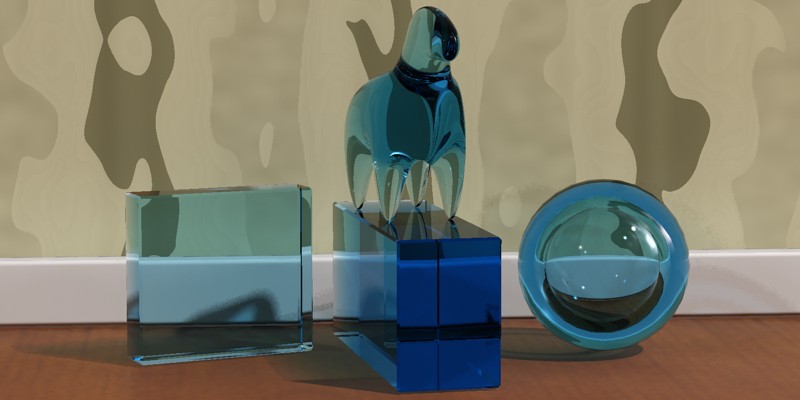
Glass with color changes within the medium
The above result is clearly much more satisfactory; the
thick glass block is much deeper blue than the thin one,
and the hollow sphere now looks correct.
In diagram form it looks as follows:
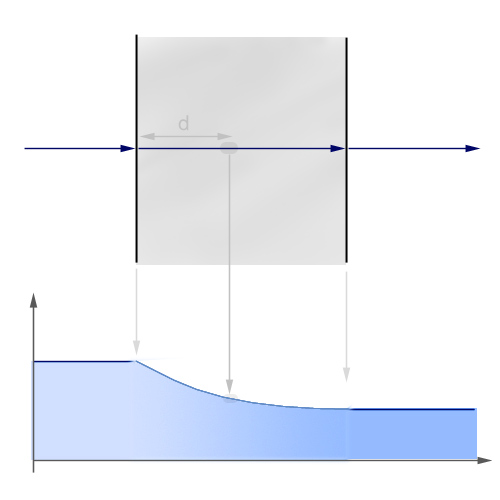
d=
refr_falloff_dist where attenuation is
refr_falloff_color
The ray enters the medium and during it's entire travel
it is attenuated. The strength of the attenuation is such
that precisely at the refr_falloff_dist (d in the figure)
the attenuation will match that of refr_falloff_color
(i.e. at this depth the attenuation is the same as was received
immediately at the surface with the previous model).
The falloff is exponential
such that at double refr_falloff_dist the effect is that of
refr_falloff_color squared, and so on.
There is one minor trade off:
To correctly render the shadows of a material using this method
one must either use caustics or make sure mental ray is
rendering shadows in "segment" shadow mode.
Using caustics naturally gives the most correct looking shadows
(the above image was not rendered with caustics), but will require
that one has caustic photons enabled and a physical light source that
shoots caustic photons.
On the other hand, the mental ray "segment" shadows have a
slightly lower performance than the more widely used "simple" shadow
mode. But if it is not used, there shadow intensity will not
take the attenuation through the media into account
properly15.
Water and Liquids
Water, like glass, is a dielectric with the IOR of 1.33.
Hence, the same principles as for glass (above) applies for solid
bodies of water which truly need to refract things... for example
water running out of a tap. Colored beverages use the same principles
as colored glass, etc.
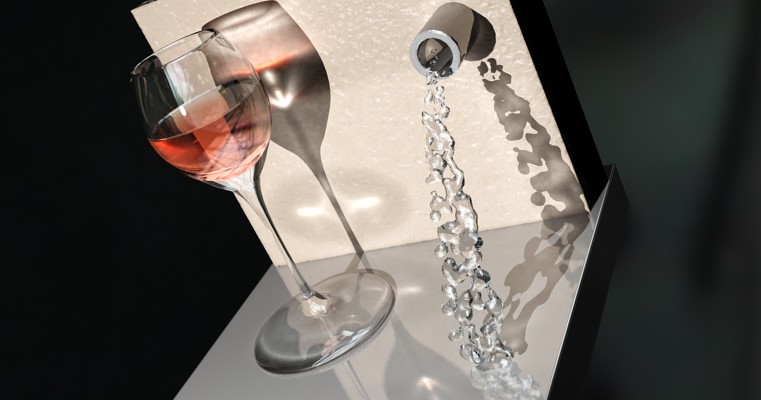
Water into Wine
To create a beverage in a container as in the image above, it is
important to understand how the mia_material handles refraction
through multiple surfaces vs. how the "real world" tackles
the same issue.
What is important for refraction is how the transition from
one medium to another with a different IOR. Such a transition
is known as an interface.
For lemonade in a glass, imagine a ray of light travelling through
the air (IOR = 1.0) enter the glass, and is refracted by the IOR of
the glass (1.5). After travelling through the glass the ray leaves
the glass and enters the liquid, i.e. it passes an interface
from one medium of IOR 1.5 to another medium of IOR 1.33.
One way to model this in computer graphics is to make the glass
one separate closed surface, with the normals pointing towards
the inside of the glass and an IOR of 1.5, and a second, closed
surface for the beverage, with the normals pointing inwards and
an IOR of 1.33, and leaving a small "air gap" between the container
and the liquid.
While this "works", there is one problem with this approach: When
light goes from a higher IOR to a lower there is a chance of an effect
known as "Total Internal Reflection" (TIR). This is the effect
one sees when diving in a swimming pool and looking up - the
objects above the surface can only be seen in a small circle straight
above, anything below a certain angle only shows a reflection of
the pool and things below the surface. The larger the difference in
the IOR of the two media, the larger is the chance of TIR.
So in our example, as the ray goes from glass (IOR=1.5) to air, there
is a large chance of TIR. But in reality the ray would move
from a medium of IOR=1.5 to one of IOR=1.33, which is a much smaller
step with a much smaller chance of TIR. This will look different:
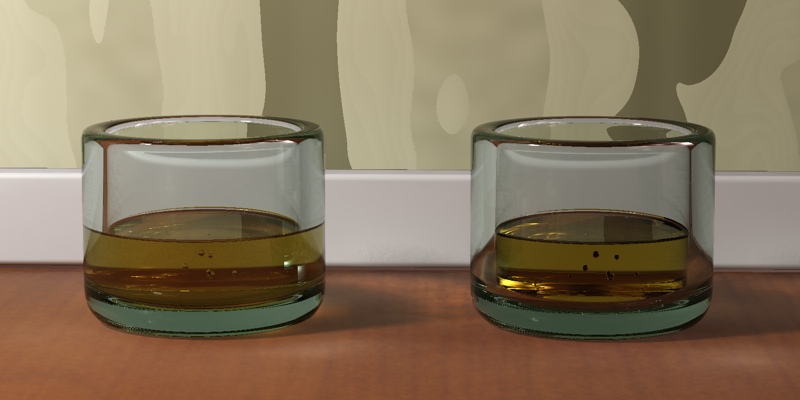
Correct refraction (left) vs. the "air gap" method (right)
The result on the left is the correct result, but how it is obtained?
The solution to the problem is to rethink the modeling, and not
think in terms of media, but in terms of interfaces. In our
example, we have three different interfaces, where we can consider
the IOR as the ratio between the IOR's of the outside and inside media:
- Air-Glass interface (IOR = 1.5/1.0 = 1.5)
- Air-Liquid interface (IOR = 1.33/1.0 = 1.33)
- Glass-Liquid interface (IOR=1.33/1.5=0.8)
It is evident that in the most common case of an interface with air,
the IOR to use is the IOR of the media (since the IOR of air is 1.0),
whereas in an interface between two different media, the
situation is different.
To correctly model this scenario, we then need three surfaces,
each with a separate mia_material applied:
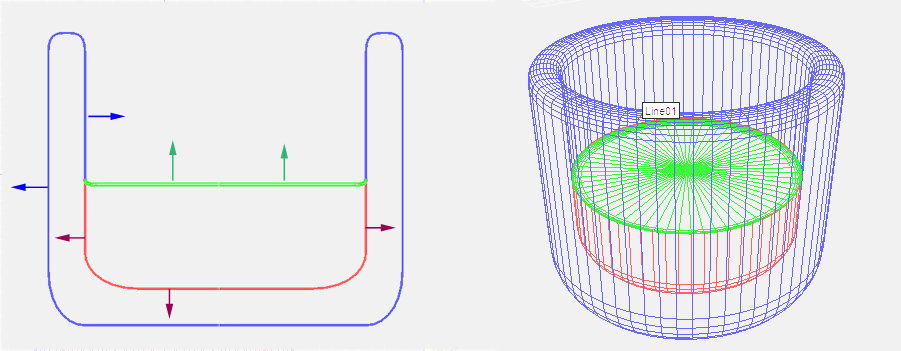
The three
interfaces for a liquid in a glass
- The Air-glass surface (blue), with normals pointing out of the glass,
covering the area where air directly touches the glass, having an
IOR of 1.5
- The Air-liquid surface (green), with normals pointing out of the liquid,
covering the area where air directly touches the liquid, having an
IOR of 1.33
- The Glass-liquid surface (red), with normals pointing out of the liquid,
covering the area where the glass touches the liquid, having an
IOR of 0.8
By setting a suitable refr_falloff_dist and refr_falloff_color for the two liquid materials
(to get a colored liquid), the image on the left in the comparison above is the result.
The Ocean and Water Surfaces
A water surface is a slightly different matter than a visibly
transparent liquid.
The ocean isn't blue - it is reflective. Not much of the
light that goes down under the surface of the ocean gets anywhere
of interest. A little bit of it is scattered back up again doing
a little bit of very literal "sub surface scattering".
To make an ocean surface with the mia_material do the following steps:
Set diffuse_weight to 0.0, reflectivity to 1.0 and transparency to 0.0 (yes, we
do not use refraction at all!).
Set the refr_ior to 1.33 and brdf_fresnel to on. Apply
some interesting wobbly shader to bump
and our ocean is basically done!
This ocean has only reflections guided by the IOR. But
this might work fine - try it. Just make sure there is something
there for it to reflect! Add a sky map, objects, or a just a
blue gradient background. There must be something or it
will be completely black.
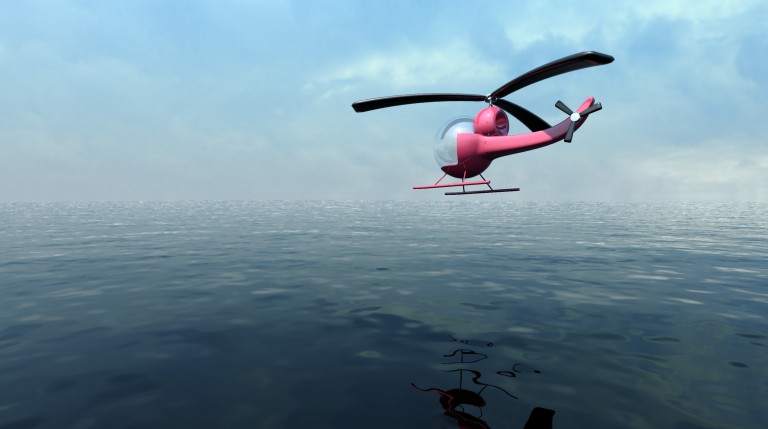
The Ocean isn't blue - the sky is
For a more "tropical" look, try setting diffuse to some
slight greenish/blueish color, set the diffuse_weight to some fairly
low number (0.1) and check the no_diffuse_bump checkbox.
Now we have a "`base color" in the water which emulates the little
bit of scattering occurring in the top level of the ocean.
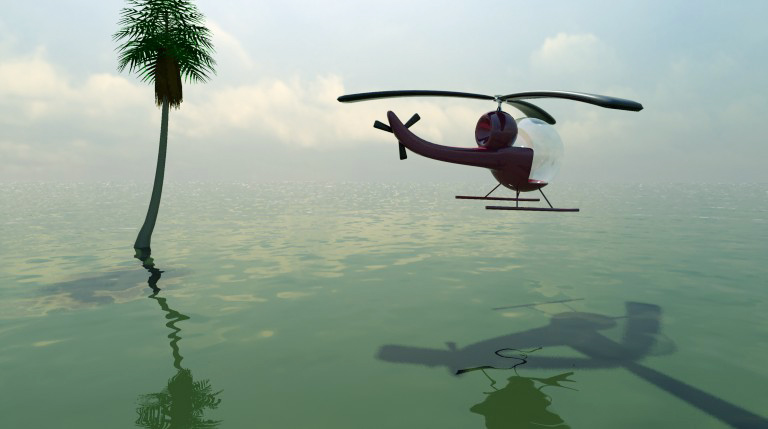
Enjoy the tropics
Metals are very reflective, which means they need something to reflect.
The best looking metals come from having a true HDRI environment,
either from a spherically mapped HDRI
photo16,
or something like the mental ray physical sky.
To set up classic chrome, turn brdf_fresnel off, set
reflectivity to 1.0, brdf_0_degree_refl to 0.9 and brdf_90_degree_refl to 1.0. Set diffuse
to white and check the refl_is_metal checkbox.
This creates
an almost completely reflective material. Tweak the refl_gloss
parameter for various levels of blurry reflections to taste.
Also consider using the "round corners" effect, which tend
to work very well on metallic objects.
Metals also influence the color of their reflections.
Since we enabled refl_is_metal this is already happening; try
setting the diffuse to a "gold" color to create gold.
Try various levels of refl_gloss (with the help of refl_interpolate
for performance, when necessary).
One can also change the reflectivity which has a slightly different
meaning when refl_is_metal is enabled; it blends between the
reflections (colored by the diffuse) and normal diffuse shading.
This allows a "blend" between the glossy reflections and the
diffuse shading, both driven by the same color. For example,
an aluminum material would need a bit of diffuse blended in,
whereas chrome would not.
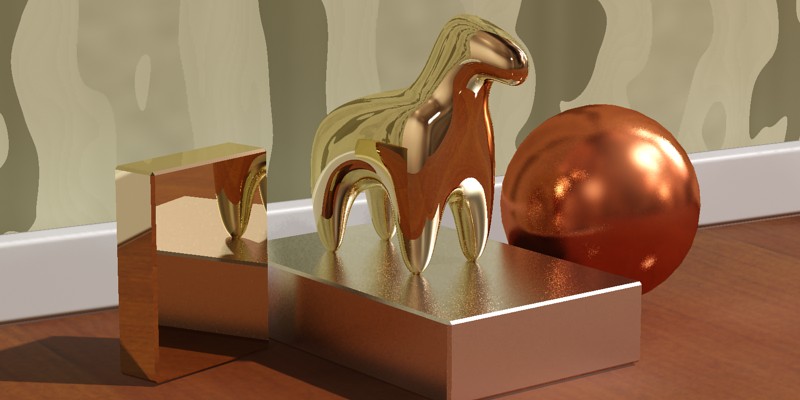
Gold, silver and copper, perhaps?
Brushed metal is an interesting special case of metals.
In some cases, creating a brushed metal only takes turning
down the refl_gloss to a level where one receives a
"very blurred" reflection. This is sufficient when the
brushing direction is random or the brushes are too small
to be visible even as an aggregate effect.
For materials that have a clear brushing direction
and/or where the actual brush strokes are visible,
creating a convincing look is a slightly more involved process.
The tiny grooves in a brushed metal all work together to
cause anisotropic reflections. This can be illustrated
by the following schematic, which simulates the brush grooves
by actually modeling many tiny adjacent cylinders, shaded
with a simple Phong shader:
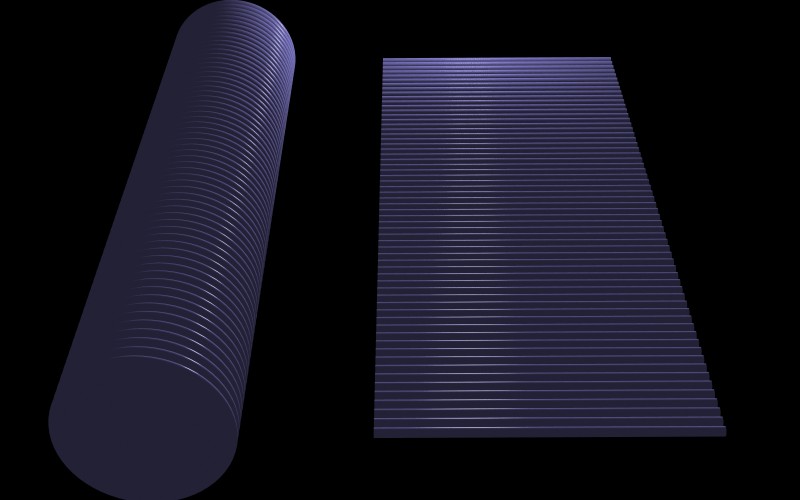
Many small adjacent cylinders
As one can see, the specular highlight in each of the cylinders
work together to create an aggregate effect which is the
anisotropic highlight.
Also note that the highlight isn't continuous, it is actually
broken up in small adjacent segments. I.e. the main visual cues
that a material is "brushed metal' are:
- Anisotropic highlights that stretch out in a direction
perpendicular to the brushing direction.
- A discontinuous highlight with "breaks" in the brushing
direction.
Many attempts to simulate brushed metals have only looked at
the first effect, the anisotropy. Another common mistake is to
think that the highlight stretches in the brushing direction.
Neither is true.
Hence, to simulate brushed metals, we need to simulate these two
visual cues. The first one is simple; use anisotropy and anisotropy_rotation
to make anisotropic highlights. The second can be done in several
ways:
- With a bump map
- With a map that varies the anisotropy or refl_gloss
- With a map that varies the refl_color
Each have advantages and disadvantages, but the one we will try here
is the last one. The reason for choosing this method is that it works
well together with interpolation.
- Create a map for the "brush streaks". There are many
ways to do this, either by painting a map in a paint
program, or by using a "Noise" map that has been stretched
heavily in one direction.
- The map should vary between middle-gray and white. Apply this map to
the refl_color in a scale suitable for the brushing.
- Set diffuse to white (or the color of the metal)
but set diffuse_weight to 0.0 (or a small value).
- Make sure refl_is_metal is enabled.
- Set refl_gloss to 0.75.
- Set anisotropy to 0.1 or similar. Use anisotropy_rotation to align the highlight
properly with the map. If necessary use anisotropy_channel to base it on
the same texture space as the map.
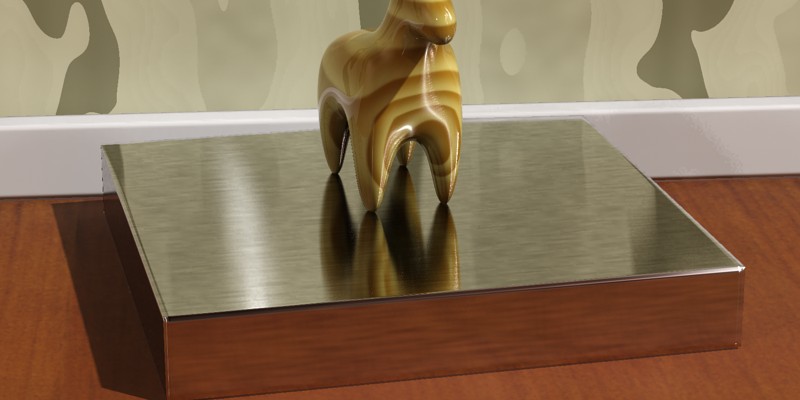
Brushed Metal
Footnotes
- 1
- Bidirectional Reflectance Distribution Function
- 2
-
This is also known as the "sRGB" color space.
- 3
- Raw clipping in sRGB
color space is very displeasing to the eye,
especially if one color channel clips earlier than the others.
Tone mapping generally solves this by "soft clipping" in a more
suitable color space than sRGB.
- 4
-
The first law of thermodynamics is that no one talks about thermodynamics ;)
- 5
- Like the separate mental ray mib_amb_occlusion shader.
- 6
- See page Energy Conservation.
- 7
-
The actual number is adaptive and depends on reflectivity,
ray importance, and many other factors.
- 8
- The technique works best on flat surfaces.
- 9
-
If Final Gathering is not enabled, this mode simply shows the highlights
and attempts no emulation of reflections.
- 10
-
Note that deriving the anisotropy from texture space only creates
one space per triangle and may cause visible seams between triangles.
- 11
-
Sometimes people use AO as a general multiplier to all diffuse
light. This has the distinct drawback of affecting even brightly
directly lit areas with "AO shadows", which can look wrong.
This use is not covered by the built in AO shader because it is
trivially achieved by simply applying the mib_amb_occlusion shader to the
diffuse color of the material and putting the materials original
color into it's Bright parameter.
- 12
- Naturally this does not apply to
the refl_hl_only mode, since it doesn't actually reflect anything.
- 13
- To easier support using mia_material_x in phenomena and other places
where formerly mia_material was used, the multiple_outputs parameter exists.
If this is set to off, no other parameter than result is
written to (leaving the others unmodified and hence undefined).
This also makes it safe to supply mia_material_x to parameters
of type "shader" which only expect a single color return value.
- 14
-
Created by inserting a second sphere with the
normals flipped inside the outer sphere.
Don't forget to flip normals of such surfaces
or they will not render correctly!
- 15
- But it could potentially still look "nice".
- 16
- Many HDRI images are available online.