The way you select and transform items in Alias is different from Rhino. Although the Transform tools (Move, Rotate, Scale and Nonp-Scale) are common to all entity types (Objects, Object Components such as Curves, Surfaces, CVs, Edit Points, Templates, and so on), each type has its own selection, or pick tool.
The process of applying transforms to the different entity types is to enter the selection mode first. So to move control vertices (similar to Rhino's Control Points), choose Pick Point TypesCV and then TransformMove. The CV selection can be made before selecting the Move tool, or edited after by pressing the Shift key, which temporarily suspends the transform tool.
In any selection or transform mode, picking an object or component with the left mouse button adds or removes objects from the selection. The right mouse button removes objects from the selection. The middle mouse button starts a new selection. [Tip: While in a selection mode, pressing the middle mouse button in empty space makes sure nothing at all is picked: it's like using the PickNothing tool.] These three picking modes can be assigned to any of the mouse buttons through PreferencesSelection Options.
Grouping
Grouping and ungrouping is an important part of the Alias workflow. While surfaces may be joined in Rhino to create polysurfaces that act like solids, in Alias, you work with NURBS surfaces to ensure the integrity of the data during the entire modeling process. It is why you might find yourself grouping and ungrouping surfaces into objects in Alias rather than joining and exploding in Rhino. The only time objects are turned into solids in Alias is to generate data for CAD or STL export. Solids in Alias are called shells, and are created using the Surface EditStitchShell Stitch tool. (See Export CAD & STL Data at the end of this guide.)

|
Edit
Groups the picked objects into a single object, allowing you to pick and apply transformations to all the components at once. |

|
Edit
Separates the components of a group into individually pickable objects. |
Transforms
Transforms in Alias differ from Rhino because the transforms are applied to the group of objects, objects, or object components (like surfaces, CVs, and such) based on their position in space and the position of their pivot point. The transform tools do not require the origin of the transforms to be set like in Rhino. When needed, the Pivot Point can be moved first to accommodate the desired transforms. Transform tools are located on the "Transform" tab on the tool palette.

|
Move – moves objects in XYZ with the aid of the mouse. In the Perspective window, the left mouse button constrains movement to the X dimension, the middle mouse button to Y, and the right mouse button to Z. In Orthographic windows, the left mouse button moves freely on the orthographic plane, the middle mouse button constrains movement horizontally, and the right mouse button constrains movement to the vertical direction. The default Perspective View transform constrains can be changed in Preferences |

|
Rotate – rotates objects in XYZ with the aid of the mouse. In all windows, the left mouse button constrains rotations about the X axis, the middle mouse button about the Y axis, and the right mouse button about the Z axis. |

|
Scale – scales objects uniformly in XYZ. |

|
Nonp-Scale – scales object non-proportionally in XYZ. In the Perspective window, the left mouse button constrains operations to the X dimension, the middle mouse button to Y, and the right mouse button to Z. In Orthographic windows, the left mouse button moves freely on the orthographic plane, the middle mouse button constrains scaling horizontally, and the right mouse button constrains scaling vertically. |
The Move and Rotate tools have an option to set their transform axis local or global.
Transform values can be edited in the Information Window (WindowsInformationInformation Window):
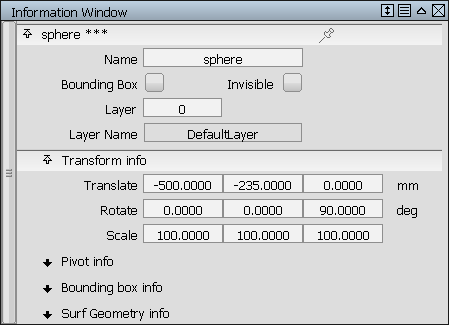
Transform values can also be entered at the Prompt Line:

At the Prompt Line, values are entered in the form X Y Z for the Move, Rotate, and Nonp–Scale tools. The Scale prompt only allows one value to be set.
The Prompt Line also allows for Absolute (ABS) or Relative (REL) values. To switch between ABS and REL, type an A or R in the prompt, either by itself, or with the values (for example, R2 0 1 sets relative values, and moves an object two units in the positive X direction from where it currently is, keeps the same relative position on the Y axis, and moves one unit in the positive Z direction).
Pivot Point – Pivot Points are an important component of Alias workflow. They can be placed appropriately to accommodate the desired transforms. Each node has its own Pivot Point. Sometimes nodes or groups of nodes are grouped to offer different transforms, or multi-level transforms.
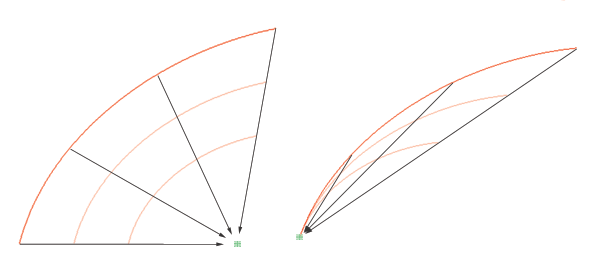
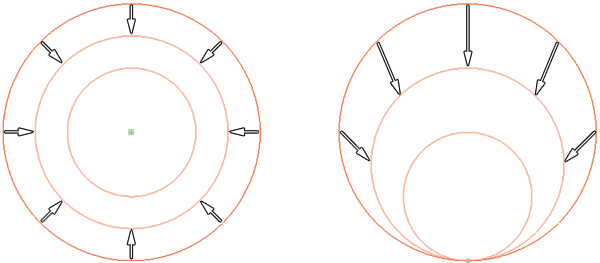
The way these objects scale depends on the position of their pivot points.

|
Zero Transform – applies any scaling, translation (movement), and rotation to the picked objects at the geometry level, so the transform values on the object nodes are reset to zero. |

|
Set Pivot – enables you to move a Pivot Point. Pivot Points can be snapped to the grid, other objects, or object elements. |
 |
Center Pivot – centers the Pivot Point of a group of objects, an object, or object components based on a cubic volume that contains all the selected items (their bounding box). |
Other Transform Tools – Alias also provides a set of Deformation tools in the Object Edit tool palette, under Dynamic Shape Modeling.

|
Lattice Rig: provides a box–shaped manipulator called a lattice to enable global modifications to the model. |

|
Twist Rig: twist a surface or collection of surfaces about a single axis. |

|
Bend Rig: bend selected geometry to conform to a user–created curve; or a continuous sequence of curves. |

|
Conform Rig: deform or "badge" an otherwise flat feature onto a curved surface so that the output conforms to the shape of the curved surface. |

|
Transformer Rig: transform shapes made of multiple surfaces to explore and communicate large shape changes with custom modifiers. |