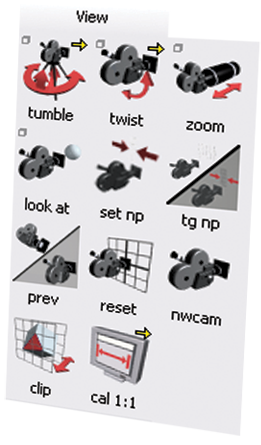
Click in a window (orthographic or perspective), then choose View Set Non Proportional View from the palette, and drag the mouse to interactively compress the view.
To return the view to equal scaling, use ViewToggle Non Proportional View.
In the Perspective window, you can also click the Non Proportional View Scale Set icon  in the NavBar, and then click and drag the mouse to interactively compress the view.
Clicking the Non Proportional View Scale Toggle icon  in the NavBar returns the view to equal scaling.
Additional viewing tools are available on the View palette.