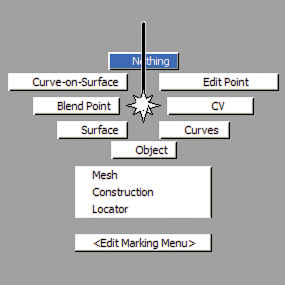
To use Alias effectively, you need to become accustomed to toggling on and off the display of certain elements. This is particularly true of Control Vertices (CVs). These points reveal the mathematics of the geometry and provide a powerful method for sculpting geometry.
Master display controls are located in ObjectDisplay Control. This control window provides check boxes for turning the various controls on and off.
You will find that it is easier to access these controls in the Marking Menus and the Control Panel.
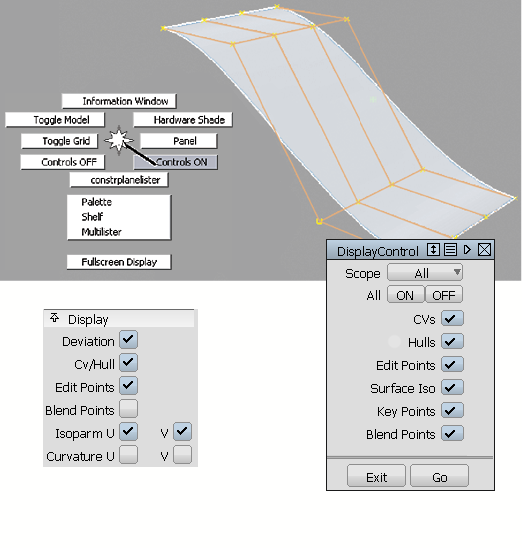
To pick Control Vertices (CVs), use Pick CV from the palette or from your Marking Menus. The pick behavior is the same as that of picking objects, so you can click to select or marquee select multiple CVs.
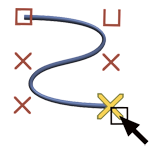
When a CV is selected, it shares the same pivot point as the curve it belongs to, which is useful for scaling and rotating the points. If you snap-move a CV, the CV itself goes to the target location (unlike objects, where it is the pivot that snaps to the target location). This is also true of other points and handles. (For more information, see Snapping.)
Another important pick tool is Pick Nothing. Pick Nothing deselects all objects in the scene. This tool is a momentary function. As an example, if you are in Pick Object and realize you have selected the wrong curves, you can invoke Pick Nothing to deselect. However, you are still in Pick Object mode and can continue selecting, without having to choose that tool again.