Display
While modeling, the way models are displayed is important. Alias offers many choices.
Control the display within a modeling window through its embedded Show menu. Press the Shift key to toggle more than one item at a time.
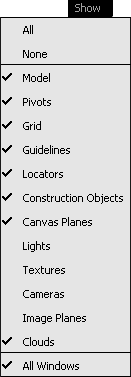
The same controls are available by choosing WindowDisplay Show or one of the WindowDisplayToggles menu items. Select All Windows to apply the settings to all windows. (This is the default.)
The Control Panel offers display controls on a per curve or surface basis.
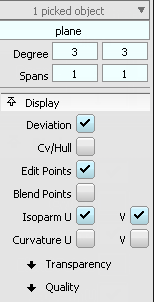
These controls are also available by choosing ObjectDisplayControl. The display of new curves and surfaces can also be set in the Display Control window.
You can adjust the visibility of individual objects or groups of objects using ObjectDisplayInvisible, Toggle Visibility, or Hide Unselected.
All objects can be redisplayed by choosing Object DisplayVisible. To re-display only some objects, change the ObjectDisplayVisible option All to Pick before picking the objects in the Object Lister or the SBD Window.
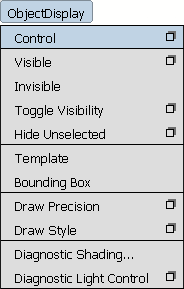
Objects can also be shaded through the diagnostic Shading tools located in ObjectDisplayDiagnostic Shading.
The Diagnostic Shading tools apply to the selected objects if any, or to all the visible objects when none are selected.
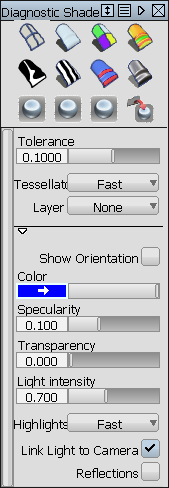
Hardware Shade and Diagnostic Shading are independent tools that do not share their color information.
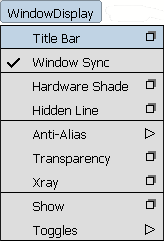
Orthographic windows can be synchronized with WindowDisplayWindow Sync. This is very useful for keeping the proportions of the orthographic modeling windows proportional. (This is the default.)
Hardware Shade or Hidden Line display can also be switched on via the WindowDisplay menu.