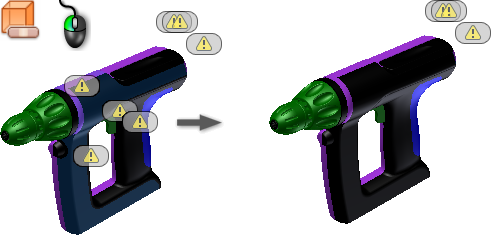
Heal Errors
Use the Heal Errors command to repair the geometry with a specified tolerance value.
- Use the Find Errors command to check the geometry. If errors are detected, the Heal Errors command is available.
- Select solids or surfaces to examine, using one of the following methods:
- On the ribbon, click
Repair tab
 Repair panel
Heal Errors
. Note: "Bodies" refers to solids and surfaces.
Repair panel
Heal Errors
. Note: "Bodies" refers to solids and surfaces. - In the browser, right-click a body and select Heal Errors.
- On the ribbon, click
Repair tab
- Select bodies to heal in the browser or graphics screen or choose Select All.
- Set the Allowable Change tolerance.
- Click Analyze Selected Bodies to obtain a report of how many errors are fixed at this tolerance. The errors that are fixed highlight in the graphics screen. Note: We recommend that you use a small tolerance value. If errors are not repaired, then slowly increase the tolerance value and click Analyze Selected Bodies to obtain a new report. This action ensures that the original integrity of the surface is maintained.
- Click OK to apply the tolerance and heal the errors or click Cancel to exit the command without fixing errors.