Change the current design collection
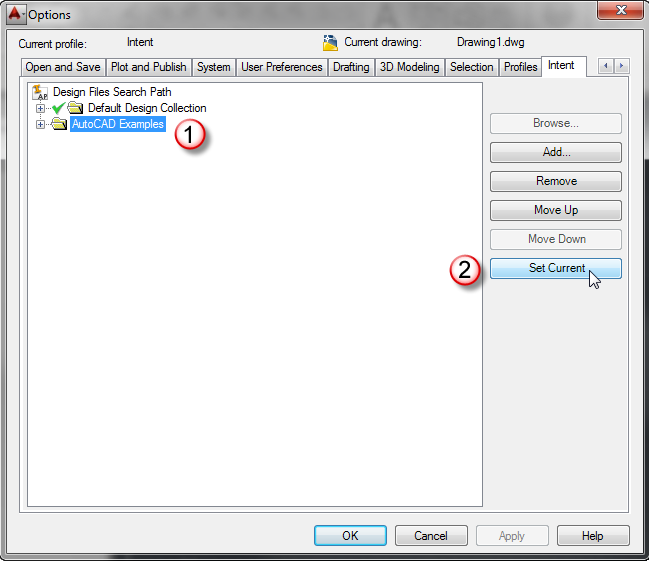
- In the Options dialog box, Intent tab, select the collection to set current.
- Click Set Current.
A green check mark indicates that the design collection is current.
Create a design collection
- In the Options dialog box, Intent tab, select the Design Files Search Path node, or any design collection in the list.
- Click Add... .
- In the Browse For Folder dialog box, select a folder, or click Make New Folder to create a new one, and click OK.
The new design collection is listed with the path you selected. It is not active until you set it current.
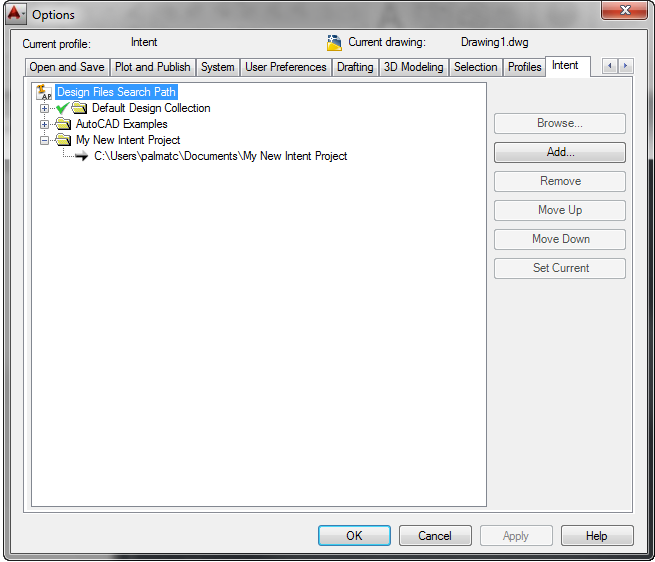
Note: The design collection is named for the first folder you select. To rename a collection, slowly double-click the design collection name.
Add a path to a design collection.
- In the Options dialog box, Intent tab, expand a design collection folder to show the path or paths in the collection.
- Select a path (Example: C:\Users\palmatc\Documents\My New Intent Project).
- Click Add... .
- In the Browse For Folder dialog box, select an additional folder, and click OK.
- Repeat to add any number of paths.
- When finished, click OK.
Design collections can contain multiple paths.
Note: The order of the paths in a collection is important. Use the Move Up and Move Down buttons to change the search path order within a collection.