To add an environment background
- Open the Presenter window, and click the Effects tab.
- In the left pane, expand the Recommended archive, open the Environments subfolder, and then open the Panorama folder.
- Drag the Sky effect over to the palette on the right.
The background is not yet visible in the Scene View.
- Return to the Recommended archive, open the Backgrounds subfolder, and drag the Environment effect over to the palette.
The background is now visible. This is because this type of background is made up of two parts, the Sky image and the background Environment shader that points at the image; the two elements link together automatically.
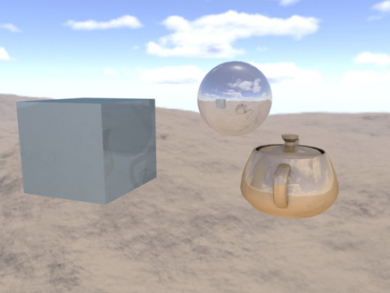
Once this is complete, moving around the model will see the background moving appropriately in real-time. With a modern graphics card, if there are reflective surfaces in the scene, setting the Presenter Hardware Shading in the Options Editor to Lighting will show the newly set up background reflected in all such surfaces (see Presenter Page).
Tip: Click Render to show this background in the photorealistic output.