In this lesson, you create a group of mr Proxy objects, and associate each proxy with an .mib file such as the ones you saved in the previous lesson. Then you assign each proxy a material from your mytrees material library.
Set up the lesson:
- If you have a scene open from the previous lesson, do not save it.
-
 Open
proxy_trees_start.max.
Open
proxy_trees_start.max.
The new scene features a rolling terrain intersected by a riverbed.
Create an mr Proxy object and associate it with an .mib file:
- Go to the
 Create panel and activate
  (Geometry). Open the Objects drop-down list, and choose “mental ray.” On the Object Type rollout, click to activate “mr Proxy.”
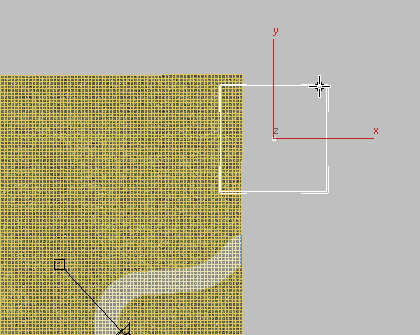
 - In the Top viewport, click and drag anywhere to the right of the plane object.
The proxy object you create can be of any size.
- Go to the
 Modify panel and rename the object Elm-Winter.
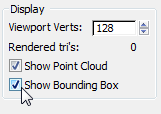
 - Inthe Display group, turn on Show Bounding Box.
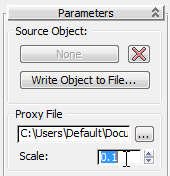
- In the Parameters rollout
 Proxy File group, click the
  browse button.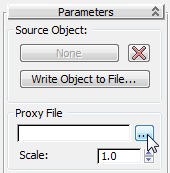
3ds Max opens a file dialog. Go to the \sceneassets\renderassets folder, choose elm1_winter.mib, then click Open.
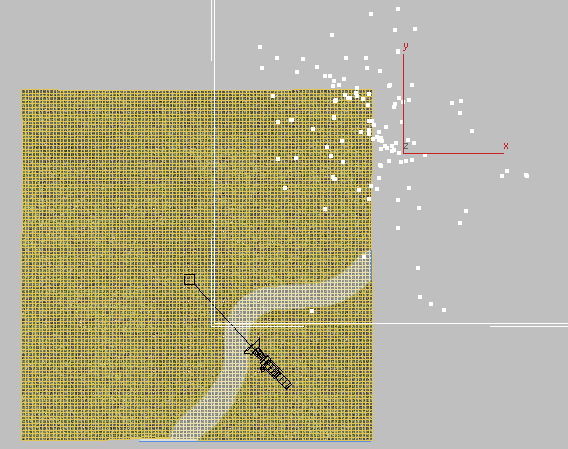
The scale of the imported proxy file is too large.
- In the Parameters rollout Proxy File group, set the Scale spinner to 0.1 to reduce the proxy to one-tenth its default size.

Copy the original proxy and change the tree types:
- In the Top viewport,

 +move the proxy to the right.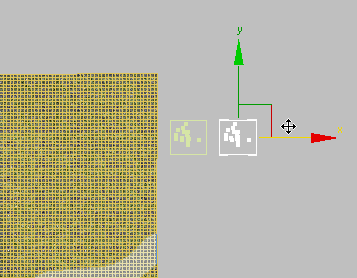
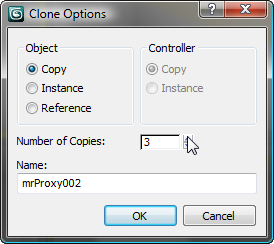
- In the Clone Options dialog Object group, make sure Copy is chosen, then set Number of Copies to 3. Click OK.
-
 Select a copied proxy and on the Modify panel, name it Elm-Spring.
 - In the Parameters rollout Proxy File group, click the browse button and use the file dialog to choose
elm2_spring.mib.
- Repeat steps 3 and 4 for each of the two remaining proxies, rename them Elm-Summer and Elm-Fall, and associate them with their corresponding .mib files.
- Select all four proxy objects and +move them once, downward. In the Clone Options dialog, make sure Copy is chosen, then click OK.
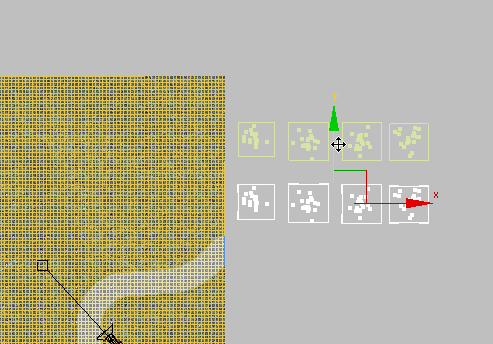
- Repeat steps 3 and 4 for each of the new proxies. Rename them Oak-Winter, Oak-Spring, Oak-Summer, and Oak-Fall, and associate them with their corresponding .mib files.
Render the result:
- Activate the Camera01 viewport. Press P to make it a Perspective view.
 Zoom,
Zoom,  pan, and
  orbit so you have a good view of all eight tree proxies, then
  render the Perspective viewport.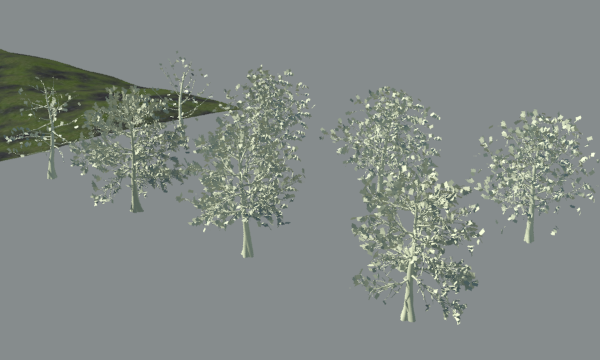
Tree proxies with the same material
The tree proxies have different shapes and leaf densities, but their leaves and trunks are all the same color. In the next procedure, you will associate each proxy with a material you saved earlier in the material library.
- Minimize the Rendered Frame Window.
Assign materials to the tree proxies:
- From the main menu, choose Rendering Material/Map Browser.
- In the Top viewport, Click and
 +click to select Elm-Winter and Oak-Winter, then drag the Tree-Winter material from the Material/Map Browser mytrees.mat group, and drop this material on your selection.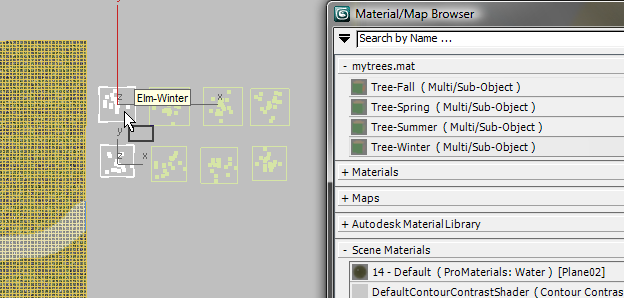
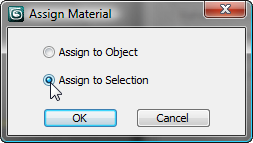
3ds Max opens an Assign material dialog. On the dialog, make sure Assign To Selection is chosen, then click OK.
- Repeat the previous step for each of the spring, summer, and fall pairs of tree proxies, using the appropriate library material.
-
 Close the Material/Map Browser.
 - Render the Perspective viewport once again.

Tree proxies after receiving materials from the material library
Now you have eight different types of trees that are ready to be multiplied and distributed across your scene.
- Close the Rendered Frame Window.
- Change the Perspective viewport back to the Camera01 view.
Save your work:
- Save your file as my8_trees.max.