Please follow these instructions for selection of ancillary and assignment to kit.
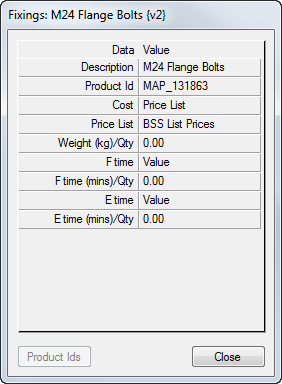
- Create each ancillary required for inclusion into the kit under the relevant Ancillary type heading. For example: Fixings, Clips or Ancillary Materials if length based for example. Accessed from the database Fittings
 Ancillaries Drop down menu for each type. Apply and OK once all created.
 - Assign costs, times and weights to the ancillary if required. Product codes can be used and then links to the price list containing the code can also be set here.
- Select Ancillary Kits from the Type of Ancillary drop down. (Bottom of the list menu).
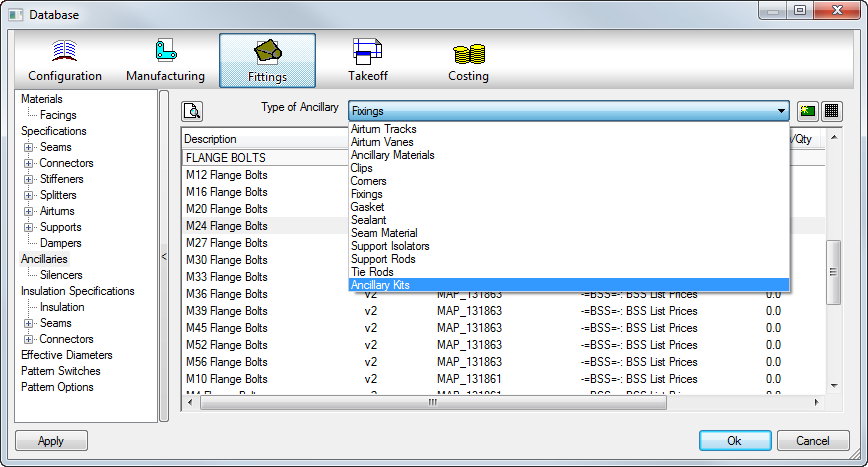
- Select New to create a new Ancillary kit.
 or selecting whilst having one highlighted will ask to duplicate.
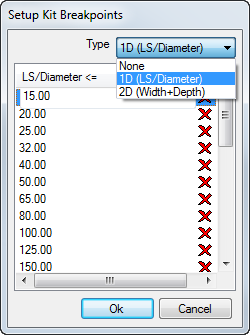
 - Configure the name and if using breakpoints, enter each breakpoint by determining whether width/depth or diameter based.
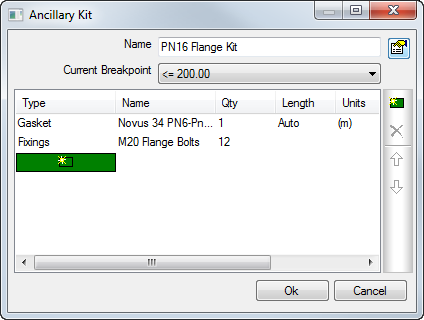
- Assign the ancillaries to the kit or if using breakpoints, assign various to each breakpoint size.
- Once completed, the Ancillary kit is ready for assigning to the component. For example. Connector Material assignment if wanting to read the breakpoint table of sizes.