This example will show how to update price lists. In the examples below we have used Lindab and Actionair.
Updating a Product List (code based) Price List
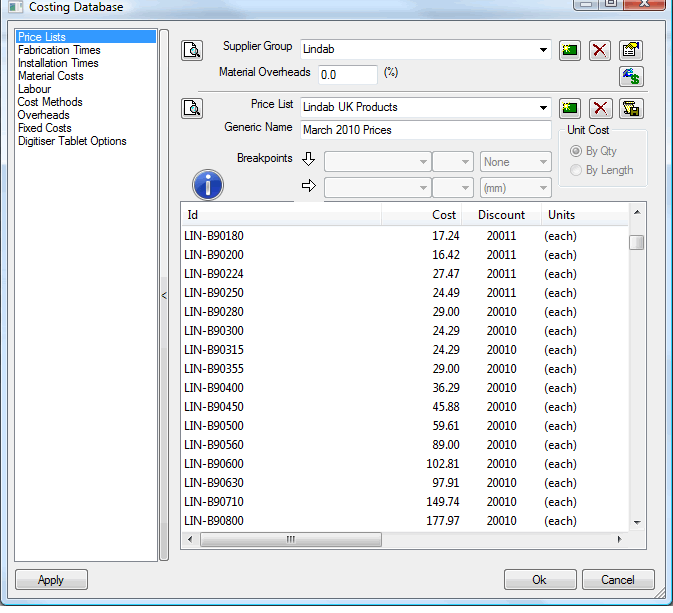
Supplier: Name provided here shows in the Estimate Summary breakdown as the overarching supplier. Multiple Price Lists can be given the same supplier name allowing a complete breakdown of cost against the supplier.
Material Overheads: Percentage value entered here will apply across all codes and increase prices. Generally used for markup of the supplier. The Cost field is the list price generally imported from the supplier spreadsheet. This is geiven a discount code to give the nett cost. The nett cost is then increased by the material overhead and could potentially further increase using profit margin.
Discounts: Used to setup variable increases or decreases of costs. Custom codes are created and then assigned a value. The custom codes are then assigned to the price list IDs as shown above using the 20011 and 20010 discount codes from Lindab.
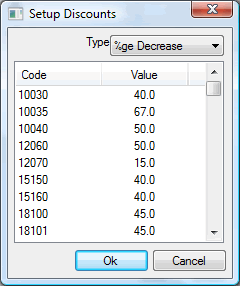
There are optional types of discounting. Decrease, Increase or using a multiplier as a factor value.
Price List Name: Name given to the price list and what is assigned to each of the items. The item can then only look for values in the table that is assigned. Good idea to name this as generic as possible so wouldnt need changing in the future. Changing this would then mean re-assigned to all items using the price list each time its changed. Example shows a generic name Lindab UK Products.
Generic Name: Name that can be assigned to the price list and other price lists that have the same codes enabling a swap out of prices. Could have a generic EAN number assigned in the price list. This could be used in multiple price lists from different suppliers. As long as the Generic Name is the same, this enabled a swap on the price list to be established similar to a mapping of price lists. If not used for this then this field is an extra description field available for custom entry of text.
Import Costs / Update Supplier: Used for updating price lists using the CSV import. This searches for a CSV import file that then requires mapping to each column in the price list table.

Ensure mandatory fields for Id, Cost and Units are assigned. The other fields are optional on import. Unless wanting to change the discount on the items, Discount and other fields should be left to Not Used so will be ignored when performing the import of costs.
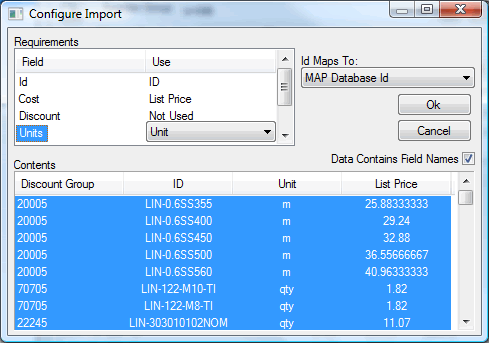
On import, costs will be rounded to the decimal points setting from the Configuration dialogue (default = 2).
Id Maps To should be left at MAP Database Id unless using an alternative supplier update covered in a separate topic.
Confirming the import then begins to update with the desired costs.
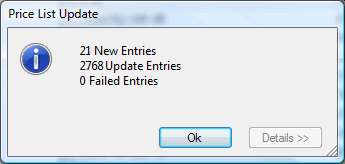
A summary for the Price List Update is displayed providing how many entries were updated. Failed entries would mean that there were codes with problematic units or text in the price fields.
The update should only have entries against Updated Entries and any New Entries that have been found.
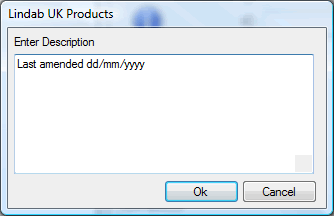
Information option: after the import of costs, there is the ability to add free entry text agaisnt the price list to provide information on how the price list was obtained or when the last time the update had been completed. Free entry text to compose a history.
In place of importing from CSV. The ability to copy the column from a spreadsheet application is available. Copying the columns of data from the like of Excel and then Right Clicking > Paste in the Price List dialoge shown below enables the same functionality as importing through CSV. The mapping dialogue is displayed and the help from this point explained above should be followed.
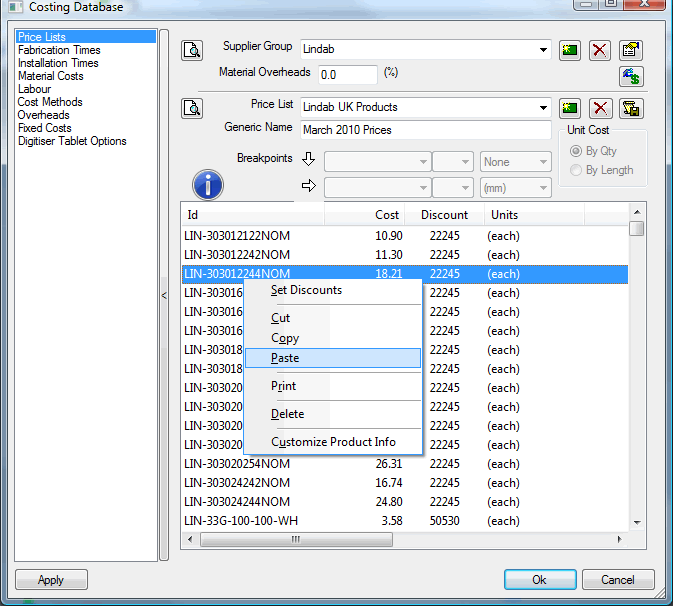
The Right Clicking of code entries in the Price List also gives the option to assign Discounts. Multiple items can be selected at once using SHIFT and Right Click methods and also holding CTRL and Right Click to select individuals. The Discount codes available here are those configured from the Setup Discounts dialogue explained earlier in this topic.
Updating a Breakpoint style (dimension based) Price List
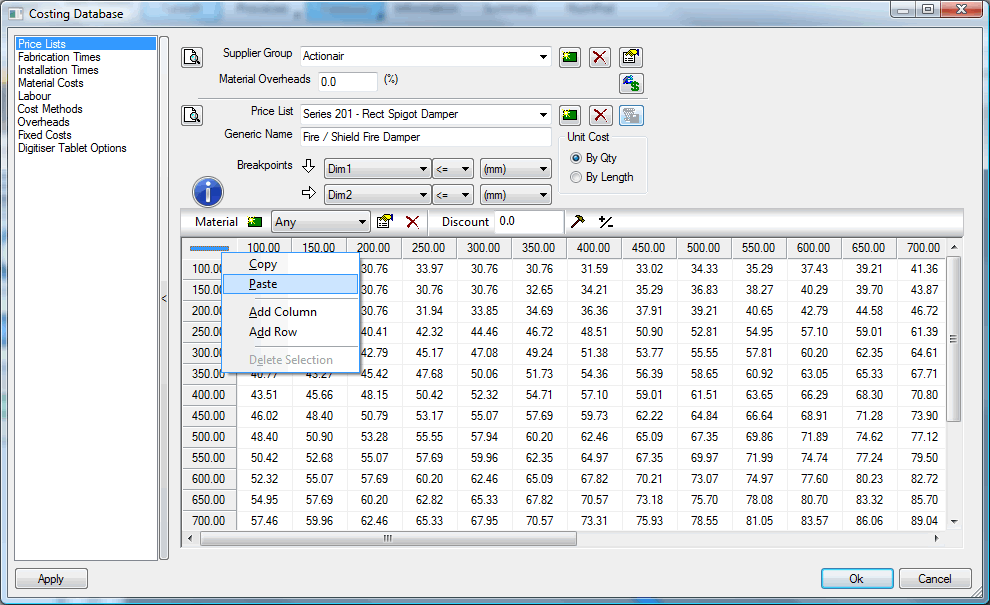
Spreadsheet data must match the data for the breakpoints. The above example shows the dimension breakpoints Dim1 and Dim2 for vertical and horizontal references. Based on the dimension entered of the assigned item, the Breakpoint fields show that less than or equal to the breakpoint value will be used to determine what price the item obtains.
Updating the breakpoint style is done via the top left cell. Copying the data from the spreadsheet and then pasting by Right Clicking on the top left cell enables a paste command. The data will be immediately overwritten with the new set of data.
Material: there is the option to have multiple sets of price data against each material. Example shows that Any material is used.
Discount: Percentage decrease field for this tables set of data.