Within sheet management it is possible to edit a remnant. This gives the user a chance to perform various operations to an existing remnant.
- Within Sheet Management, right click on the remnant to be edited and select Edit and the following dialogue box will appear.
- The remnant can now be manipulated using the toolbar along the top. These are detailed below.
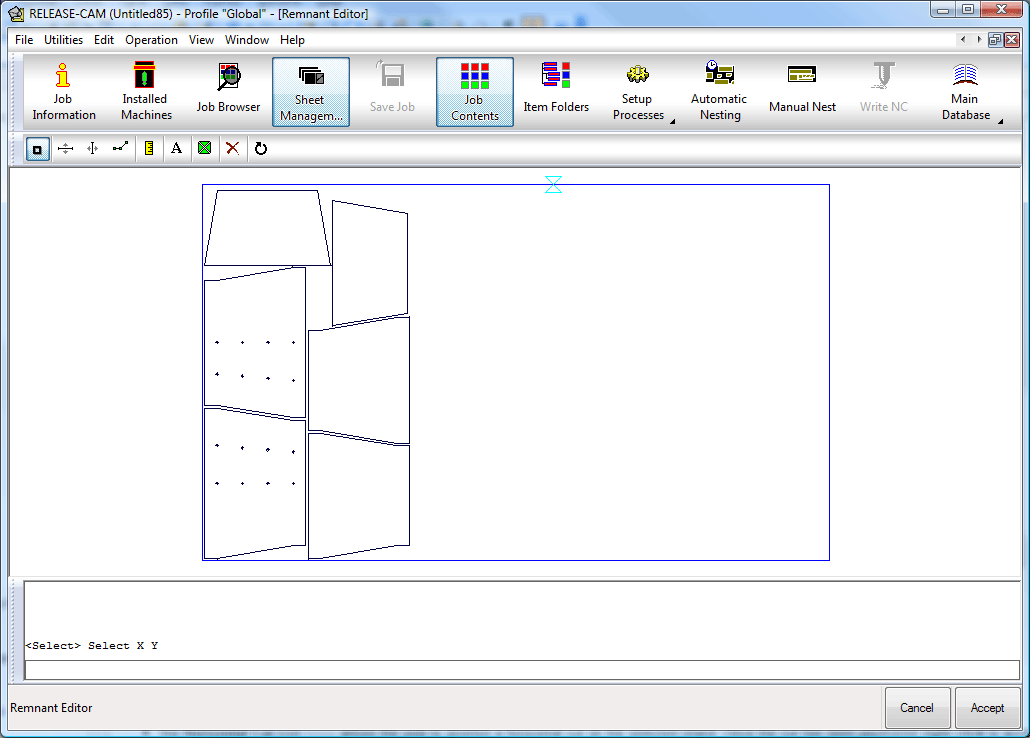
The toolbar offers the user several operations.

- The Select icon
 allows the user to select the island to be edited.
 - The Horizontal Cut icon
 allows the user to position a horizontal cut on the selected island. Once the cut has been positioned right click to accept the position. The command line towards the bottom now prompts the user to select the island or section of the part to be discarded as in the image below.. Left click in the relevant areas to define which areas will be discarded and then right click to accept the selection. The discarded section will now have gone and the part has been edited and the screen will change to reflect the changes.
- The Vertical Cut icon
 works in much the same way as the Horizontal option but makes a vertical cut instead.
 - The Edit Sheet icon
 allows the user to manually draw lines on a remnant at a desired location. This can be done using the mouse or by entering co-ordinates in the command line at the bottom. When the relevant lines have been drawn, right click and follow the same procedure used with the other 'line' options. Note: The co-ordinates entered in the command line should be in Absolute mode and should therefore be specific values from the origin point.
 - The Ruler icon
 when selected allows you to measure distances on the sheet. You can do this by holding down the left click and dragging between the two points wanting to be measured.
 - The Add Text icon
 allows the user to place text on the remnant. Click on the icon and the command line will now read as the image below.
- Right click anywhere on the remnant. and select New.
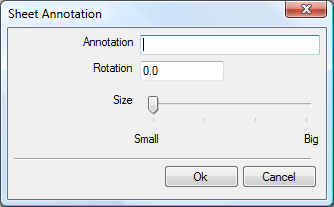
- In the Annotation field, type in the text required.
- The Rotation field allows the user to select the angular rotation of the text. Enter a value as required.
- The Size slide-bar allows the user to adjust the size of the text. Position as required.
- Click Ok when all of the options are set and the new text will be positioned on the remnant as in the image below.
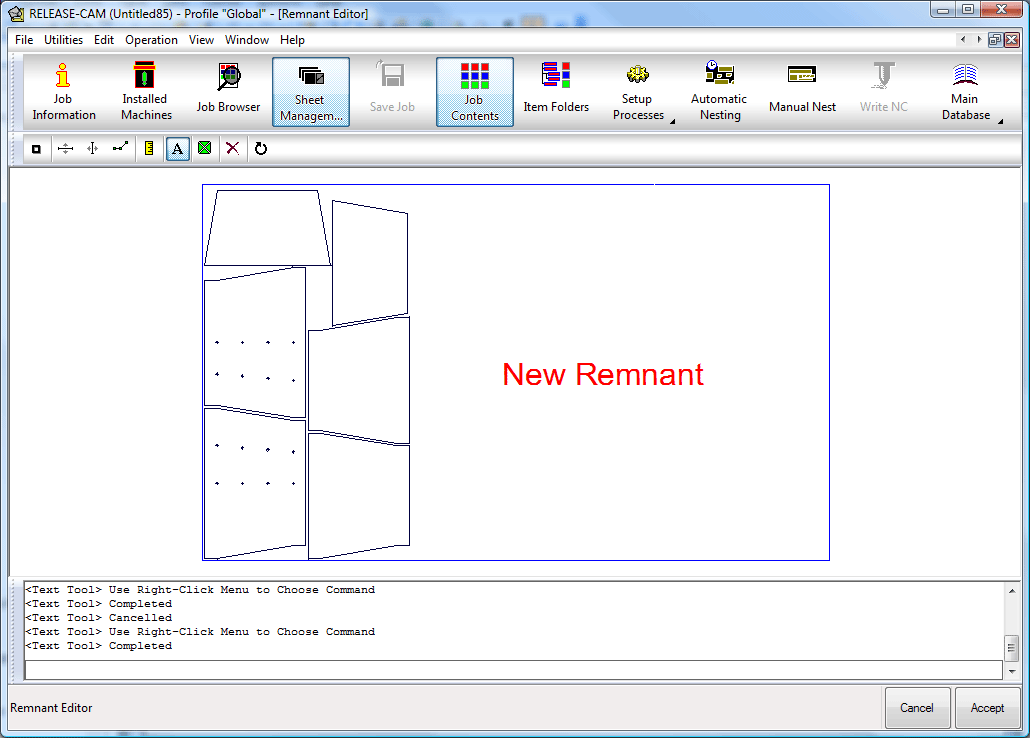
- Once the text has been placed on the remnant it is the possible to Move, Edit, Rotate and Delete the text. Right click on the text and choose the relevant command from the menu that appears.
- The Set Origin icon
 allows the change the position of the origin on the remnant. This is used define the origin point and therefore determine the position of the nest within the remnant.
 - Click on the icon and the current origin point will be displayed on the remnant. As in the image below. In this case the red cross is defined as the origin.
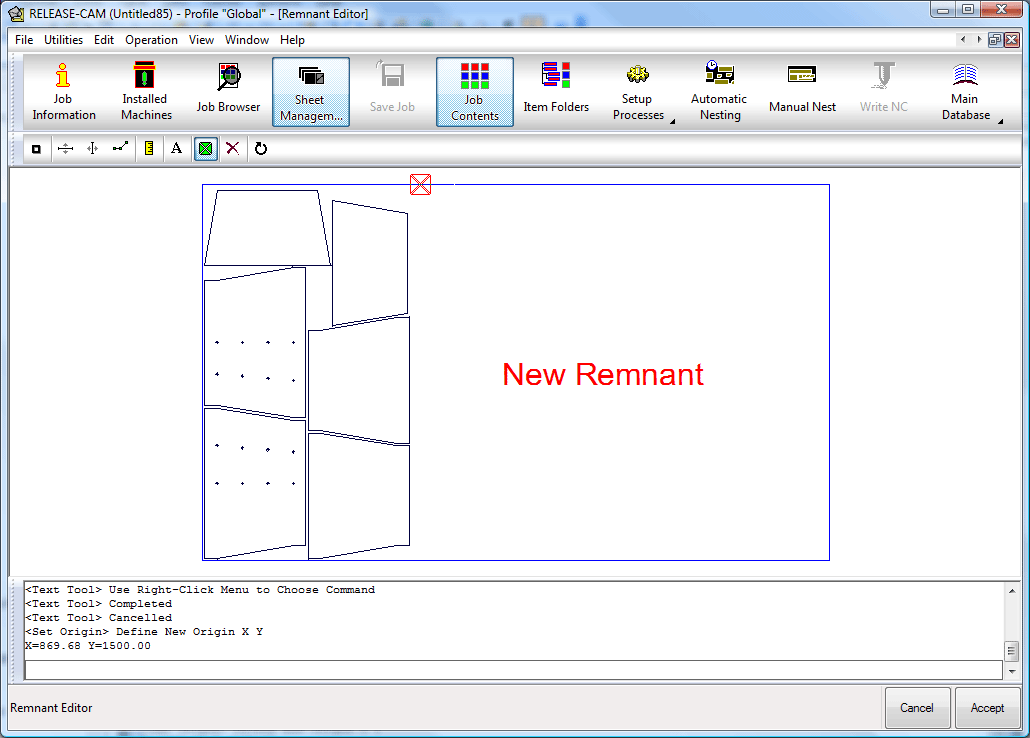
Also note that the command line at the bottom is asking the user to Define New Origin.
- Click on the new origin point. Then right click to accept the new position.
- The Define Remnant Home Point dialogue box will be displayed.
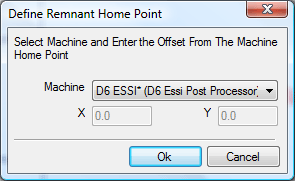
- From the drop-down menu, select the relevant machine and click OK and the new origin will be defined and used when the remnant is nested on.
- The Delete icon
 is used to delete active slice lines that have been placed on the remnant, but not yet acted upon.
 - The Rotate icon
 allows the user to rotate the remnant in increments of 90 degrees. Click on the icon to rotate the remnant. Note: All of the commands achieved by using the icons are available via the Operation menu along the top of the dialogue box.