After selecting Table composition from the left panel of the Table printout manager dialog, the right part of the dialog displays as shown.
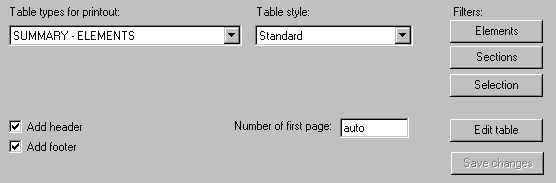
The following table types are available:
- Summary - elements
- Summary - costs
- Detailed - elements
- Detailed - openings.
For each table type, you can choose a table style defined previously.
Use the buttons on the right to further define the table:
- Elements - click this to open the Filters - element selection (by type) dialog, where you can define criteria of element selection (by element type).
- Sections - click this to open the Filters - element selection (by section) dialog, where you can define criteria of element selection (by element section).
- Selection - click this to switch to the graphical viewer in the element selection mode.
- Edit table - click this to indicate graphically a table to be edited. Changes made in a table may be saved after clicking Save changes.
Format page options for the printout:
- Number of first page - enter a number to display on the first printed page.
- Add header - if you select this, a defined header will display on the printout.
- Add footer - if you select this, a defined footer will display on the printout.