Use the Section list dialog to:
- define a new section shape using basic mechanisms of the AutoCAD program
- open external section databases (such as Robot databases) and use associated sections in Autodesk AutoCAD Structural Detailing - Formwork Drawings
- save defined sections in a database (an *.xml file).
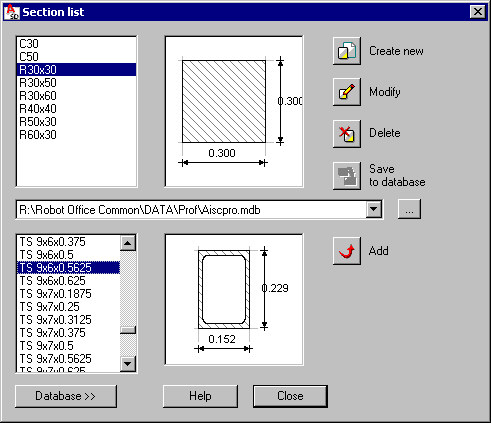
At the top left of the dialog is a list of defined cross-sections of structure elements. These sections will be presented on the selection lists of element cross-sections. When you select a section from the list, a schematic drawing displays with characteristic section dimensions.
Use the icons in the dialog:

|
Create new - opens the Section definition dialog where you can define a new cross-section. The section is added to the list of available sections in the current project. |

|
Modify - opens the Section modification dialog where you can modify parameters (such as name and dimensions) of a selected section. |

|
Delete - removes a selected section from the list of available sections in the project. |

|
Save to database - saves the section to an external database file. |
The options on the expanded dialog:
- field for selection of a cross-section database (an *.xml format file), or where you can browse to a file not on the list
- list of cross-sections defined in a database
- schematic drawing representing a section type and its dimensions.
To add a section from a database to the list of sections available in Autodesk AutoCAD Structural Detailing - Formwork Drawings, click  (Add). The section will be added to the list at the top left of the dialog.