The Object Inspector dialog is located to the left of the graphical model definition. The width of the dialog is adjustable to allow as much space as possible for the area of graphical model definition.
The Object Inspector dialog (shown below) is divided into three parts:
- Options that enable filtering model elements.
- Six tabs containing lists (set) of project elements depending on the stage of the design process (modeling / positions / printouts).
- A table presenting properties of selected objects.
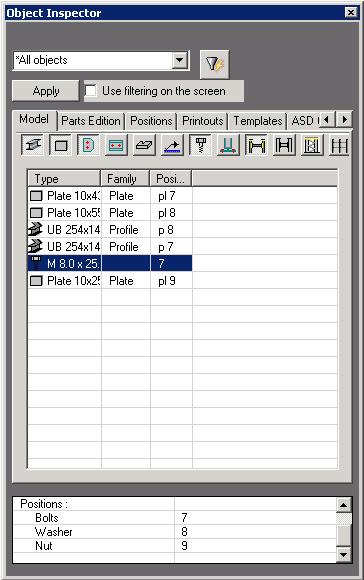
At the top of the dialog there are options for filtering the number of elements displayed on the tabs. Filters enable the user to decrease the number of model elements shown in the graphical editor viewer.
The selection list contains the list of filters defined by the user in the current project.
Open the filter by clicking  .
.
The filter list (defined in the Filter definition dialog) contains three default filters (which cannot be deleted):
- All objects - cancels any filter and displays all objects defined in the current project on the list.
- Current selection - an element list is limited to the elements that are currently selected in a model presented in the field of graphical model definition.
- Hide current selection - hides elements currently selected in a model presented in the field of graphical model definition (if there are no objects selected, then none of them can be hidden).
Click the Apply button to activate the filter. All objects defined by the filter are displayed on the list (even if they do not satisfy a filtering condition) until the next filtering operation.
Once the Filter definition dialog is closed, the list of filters defined is available in the Object Inspector dialog.
If the Use filtering on screen option is selected, the model graphical editor will display only the elements that are shown on the list in the Inspector dialog.
The dialog also includes the following tabs:
- Model
- Parts edition
- Positions
- Printouts
- Templates
- Structural Detailing Center.
The current list of objects defined in the project in Autodesk AutoCAD Structural Detailing - Steel display on successive tabs. Each of the tabs presents elements in different stages of a design process; therefore, each comprises different types of objects organized in a slightly different manner.
The bottom part of the dialog contains a table that displays properties of elements selected from the list. Table characteristics include:
- If one of the elements is selected, then the table presents all properties of a selected element
- If several objects of the same type are selected, then the table presents all the fields with properties relevant to the selected element type, however, only the values that are common for all the elements are presented; the remaining fields are empty (yet they may be changed)
- If several objects of different types are selected, the table presents only the fields with properties that are common for all object types.
The first table column displays the name of a property (information), while the second table displays its current value.
The table with object properties designed to present these object properties that are important from the engineering viewpoint. It usually shows only basic information (properties). Not all the pieces of information displayed in the table can be changed.
See also: