The following dialog displays, after selecting the Table: layout and components tab from the Definition/modification of reinforcement table style dialog.
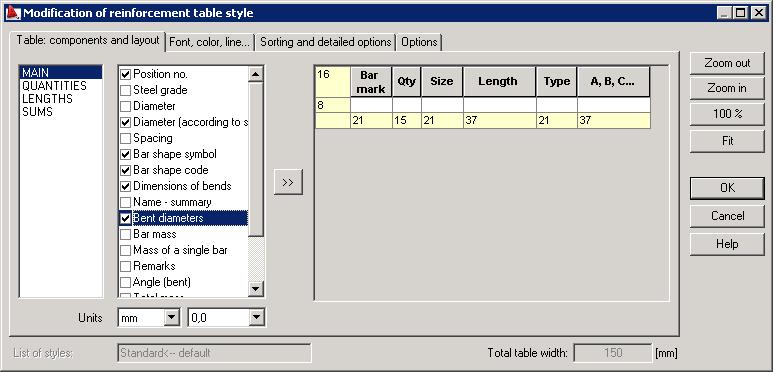
The bottom part of the dialog contains the Style name edit field; a name of the defined table style should be entered there (in case of modifying the table style, the Style name field is inaccessible).
To define/modify a table style:
- Select a set of table components (e.g. in the above dialog: Main, Quantities, Lengths, Sums)
- In the next field, select the components to be included in the table (the option is selected when
 symbol appears)
 - Click >>.
The right side of the dialog is used to define the table layout.
For example, for a bar symbol (shape) to be presented in the MAIN reinforcement table:
- In the Reinforcement tables - style manager dialog, select the MAIN table
- Click Modify
- On the Table: layout and components tab in the Modification of reinforcement table style dialog select the Bar shape symbol option
- Click >>, to add a new column to the main reinforcement table
- Set the added column with the bar symbol in the appropriate place in the table
- Click OK.
Use the same method to add the remaining components to the reinforcement table.
The following options are also available in the above dialog:
- Total table width - inaccessible edit field displays the defined table width.
- Buttons: Zoom in, Zoom out, 100% - allow zooming in/zooming out.
- Fit button - adjusts (fits) the width of table columns to the length of texts in column headings.
The order of individual table columns can be arranged by left-clicking the entire column, and moving the column to the selected position. In a table, the cell height can be increased and in the table heading, the descriptions or changed names of the existing columns can be entered.
The tables enable you to:
- Add blank lines at the beginning and end of a table
- Add blank columns in tables
- Define exact table dimensions (column width and line height) - dimensions of the column width and the line height are presented under the table and to the left of the table, respectively.