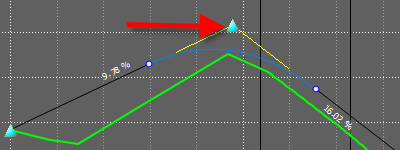
A vertical intersection point (VIP) on a design road can be moved in any of the following ways:
- Constrained by chainage or level
- Constrained by an incoming or outgoing gradient
- Specified by numeric input of chainage or level
- Unconstrained
Tip: To move multiple PVIs at the same time, use either Shift-click or Ctrl-click to select them on the Profile View panel.
Constrained by chainage or level
- Click
 Edit.
Edit. - Select the design road.
- Rotate and pitch the model so that the vertical manipulators are visible.
- Click the VIP you want to move.
Blue guides appear, indicating the directions along which movement is constrained.
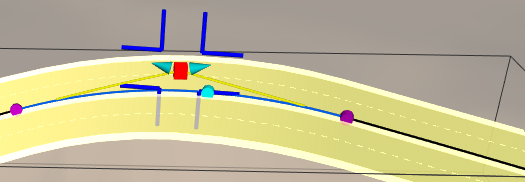
- Drag the VIP along the blue guides:
- Drag horizontally to change the chainage.
- Drag vertically to change the level.
Constrained by incoming or outgoing gradient
- Click Edit.
- Select the design road.
- Rotate and pitch the model so that the vertical manipulators are visible.
- Click the manipulator for the gradient you want to maintain.
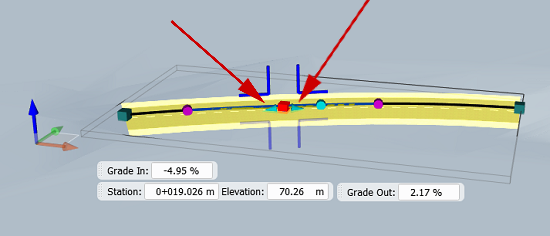
- Drag the manipulator along the straight.
The curve moves along the straight and its radius is maintained. The adjacent gradient is updated accordingly.
Specified by numeric input of chainage or level
- Click Edit.
- Select the design road.
- Adjust the rotation and pitch of the model so that the vertical manipulators are visible.
- Click the VIP you want to move.
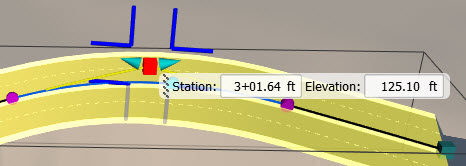
- Enter the desired values for the chainage and level in the mini toolbar.
Unconstrained movement
- Click Edit.
- Select the design road.
- In Profile View, click the VIP you want to move and drag it to the desired location. Ctrl+click or Shift+click to select multiple PVIs to move.