Text Plus

3dsMax now includes several new features that provide more creative control over the creation and editing of an expression. The new text tool in Max allows you to edit, extrude and bevel all in one place, simplifying the text workflow, while also providing a powerful tool for motion and info graphics.
Improvements:
- Copy and paste from word documents and retain font information and style
- Edit the text with global controls as well as local editing capabilities such as kerning, tracking, baseline shifting and scale
- Apply a powerful beveling tool that has several presets or create your own set of favorite bevel presets
- Create diagramming or custom information text using the value to string tool, allowing you to display any value you would like as text
- Add animation to your text using animation presets
- Create text as a vector based map that allows you to apply text to mesh surfaces.
See below:
Values as Strings

Text can be used to print an object's value, such as its radius, or any value that can be returned from a script or expression. The text in the scene will dynamically update when this value changes.
Manipulating Text
When in Manipulate text mode:
- Selecting a letter and holding CTRL + selecting another letter will select all the letters between the two.
- Holding SHIFT and selecting a letter will deselect all other letters and only select the letter you clicked on.
- The tracking symbol only shows up when you have more than one letter selected.
- Selecting the text in manipulate mode selects the letters, allowing you to change the font and font type.
- Selecting text in the text window will update the letters that are selected with manipulators.
Reset : Allows you to reset global parameters (spinners in the UI, size, tracking, H Scale, V scale) and local (manipulated text affects each character locally). You can choose what you want to reset with the reset dialog.
Layout
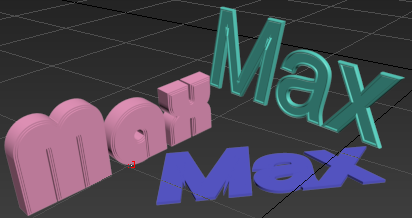
- Plane
- The default value is the XY plane. It is here you select a plane onto which you will type the text. Choice of XY, XZ, YZ planes.
Note: Alt+click to place a reverse flow pivot point (that is, the flow of text entered will be reversed from the pivot point).
- Region
- You can control the width and height of the text area by entering values into the Length and Width fields.
- Alternatively you can click and drag on the workspace to create a region box.
Global Parameters
You can select any portion of the text and apply the following parameters to that selection. The selection does not affect the align, tracking, size, Leading, V scale or H scale.
- Tracking
- You can control the space between letters to affect the density in a line or a block of text.
- Align
- You can control the setting of text flow relative to a region box. This control now includes the ability to align the text as follows:
- Left
- Center
- Right
- Justified Left
- Justified Center
- Justified Right
- Justified All
The text is aligned to the pivot point.
- Fonts
- Any character can now have its own font. The new large text editor provides selection to, and displays, all supported fonts.
- Open Large Text Window
-
A large text window to enter paragraph text. Displays text in the selected font.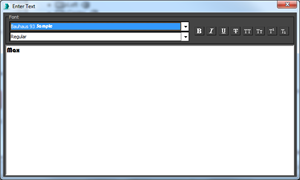
Geometry
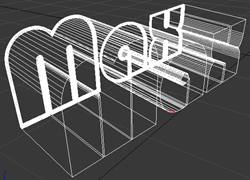
- Extrude
-
You can modify the width (three dimensionality) of the text (i.e. make the text thicker or thinner).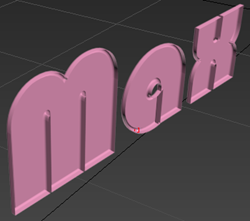
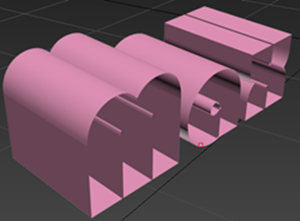
- Extrusion segments
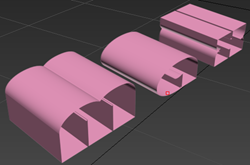
- You can change the amount of extrusion segments in the width dimension of the text. The more segments, the smoother the curve.
- Apply Bevel
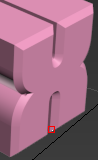
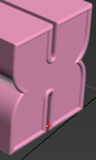
- You can choose the bevel curve for the text, thereby deciding on the slope type between the front and side, or the back and side surfaces of the text.
- The bevel is outwards, unless you turn on Constrain in the advanced parameters. Then the cap gets smaller with the bevel. You can use Outline Offset to manually tweak control over the size of the text face.
Types of bevel curves:
-
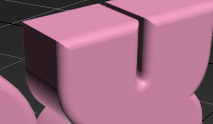 Convex
-
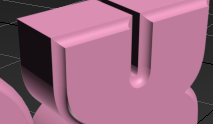 Concave
-
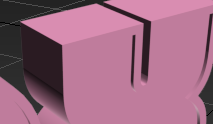 Engrave
-
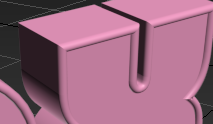 Half-circle
-
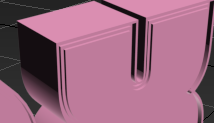 Ledge
Ledge
-
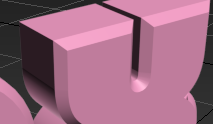 Linear
-
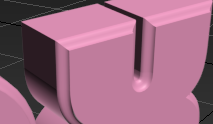 Ogee
Ogee
-
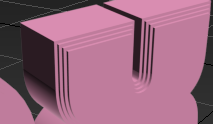 ThreeStep
-
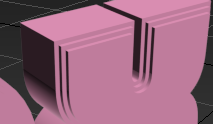 TwoStep
-
- Bevel Depth
- You can control both the bevel depth and width. When the checkbox beside Width is checked the depth and width values can be modified separately. When unchecked, the values are constrained, that is, the depth and width values are tied together.
- Bevel Push
-
You can affect the intensity of the slope of the bevel curve. As an example, using the concave bevel preset, a value of zero is a perfect linear edge, -1 is a convex edge, and +1 is a concave edge.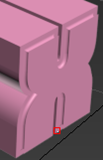
Advanced Parameters
- Capping
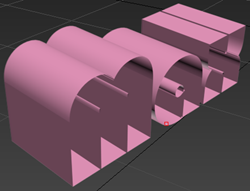
- You can now select the type of cap for either the start (front) or end (back) of the text;
-
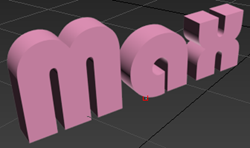 Cap: Simple cap, no bevelling.
-
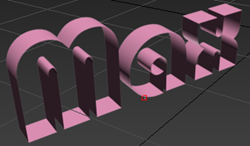 No Cap: No face to that side of the text.
-
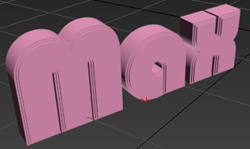 Bevel Cap: Edges that can be bevelled.
-
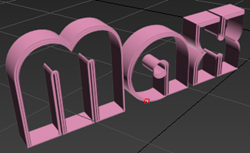 Bevel No Cap: Edges that can be bevelled, but no face to that side of the text.
-
- Start
-
The front face of the text. The default value is Bevel Cap.
- End
-
The back face of the text. The default value is Cap (non-bevelled).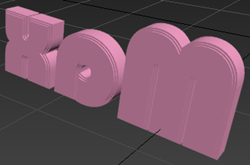
- Constrain
- When checked, selection constraints are used for that selected face of the text.
- Cap Type
- Morph: Creates a cap face created with triangles.
- Grid: Creates cap faces in a grid pattern. This cap type deforms and renders better than morph capping.
- Subdiv: Creates cap faces that will deform using a subdivision pattern.
- Material IDs
- You can apply individually selected materials to the Start Cap, Start Bevel, Sides, End Bevel, and End Cap surfaces.