Complete the following steps to make changes to a user asset in your asset library.
Note: The edit feature is only available for user assets. To make changes to a system asset, you must copy it first and save the copy to your user assets folder. To copy a system asset, right-click on the asset in the Asset Browser and select Copy Asset.
To edit a user asset:
- Click Factory Assets in the Palettes drop-down on the Factory ribbon.
- Open the User Assets folder.
- Locate the asset you want to edit, and right-click on the asset.
- Select Edit to open the Asset Editor tab.
- Make the necessary changes. The menu options that appear on the Asset Editor tab are similar to the options you see when you create an asset in Asset Builder. See How to Create Factory Assets for detailed information about the available options.
- Click Save. The Save Asset dialog appears:
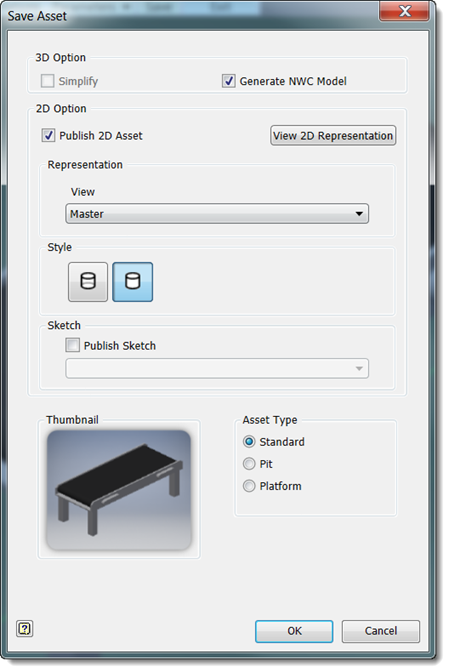
- Select the Simplify checkbox to publish an assembly as a single part. Selecting this option can improve performance and simplifies file management because fewer files are created during the convert process and when placing the asset in layouts.
- Select the Generate NWC Model checkbox if you use Navisworks and want to generate a Navisworks compatible model when publishing an asset.
- Select the Publish 2D Asset checkbox to publish a 2D drawing (in DWG format) of the asset. Publishing a 2D drawing of a 3D asset creates a 2D asset for use in AutoCAD Factory. The asset is automatically placed in the User Folder of the AutoCAD Factory Asset Browser. Click the View 2D Representation button to preview a 2D version of the asset.
- Select a saved view, or accept the default Master view, from the View drop-down list. Then click the appropriate Style button to choose between a hidden line or non-hidden line representation for the published drawing.
- Select the Publish Sketch checkbox if you want to publish a specific sketch from the part or assembly browser of the asset. Select the browser sketch name from the drop-down list.
- Select the Asset Type.
- Click OK to save changes and publish the asset.
- Click Finish Asset Editor.