Control the optimization of graphics and other settings in your model such as display detail, antialiasing, ambient occlusion quality, shadows, water reflections, realistic water, and backface display options.
- Click


 .
.
- Click
3D Graphics:
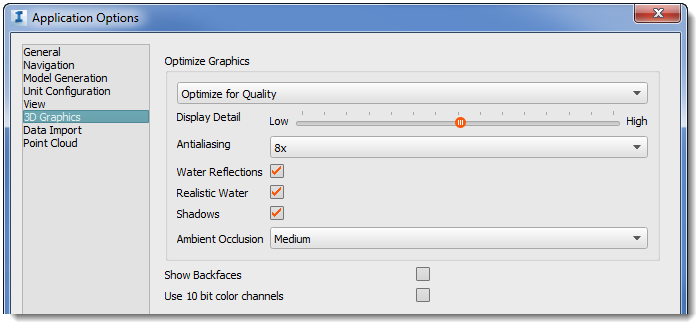
-
There are two methods for setting the Level of Detail, based on whether you want to modify LOD for the entire model or for a specific feature.
- Use Display Detail to specify LOD for the entire model (terrain, generated assets, 3D objects). These settings remain in effect across modeling sessions, but you can modify them for the current model, or for a particular feature class.
- Use the Model Explorer to modify LOD by feature type.
- Antialiasing
- Realistic styles are very effective, but they will slow down performance.
- Turn shadowing on or off.
- Ambient Occlusion.
- On high performance monitors, 10-bit channels can resolve gradations that are not smooth. However, if you enable this option, you cannot create screenshots or storyboards.
- Backface display.
-
Note: Shadows are not supported when viewing a model or scenario in a web browser, using
InfraWorks 360 web viewer, or on an iPad, using
InfraWorks 360 (iPad app).