Whenever Simulation mode is active, you can right-click in the graphics window to display the Simulation player marking menu. Six marking menu nodes duplicate the options found in the Simulation player. The options are:
- Go to Previous Operation
- Go to Next Operation
- Pause
- Play
- Go to Previous Move
- Go to Next Move
Note: Two additional marking menu nodes let you display the Home View and/or Close the simulation.
Several other options appear in the overflow menu located just below the marking menu.
- Loop - Selecting Loop plays the simulation in a continuous loop. To cancel the continuous loop playback, right-click in the graphics window and select Loop once again from the overflow menu.
- Go to Previous Event - An Event is defined as a collision detection displayed on the Simulation Player Timeline control at the bottom of the graphics window.
- Go to Next Event
About Toolpath Position Bookmarks
You can also add, view, and remove bookmarks to a toolpath position using other overflow menu options in the Simulation player marking menu. The options include:
- Go to Previous Bookmark - moves to the previous bookmark in the toolpath.
- Go to Next Bookmark - moves to the next bookmark in the toolpath.
- Add Bookmark - adds a bookmark at the current toolpath position. Keep in mind that any added bookmarks are automatically cleared when you regenerate an operation.
- Remove Bookmark - removes the current bookmark.
- Remove All Bookmarks - removes all the bookmarks.
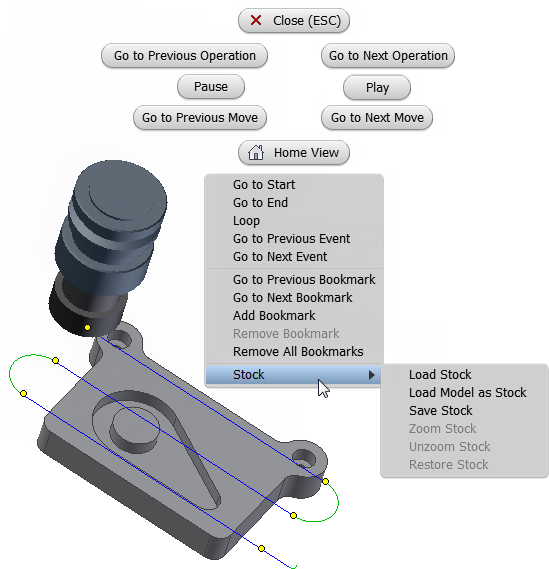
The bookmark options in the Simulation player marking menu. The six yellow circles on the toolpath indicate existing bookmarks.
Remember: Adding bookmarks to a toolpath can be very helpful before submitting feedback to the Inventor HSM Express team. We would very much appreciate that you do this if you have a question regarding a specific part of a toolpath.