For roughing the part, use an Adaptive Clearing strategy to remove the majority of the excess material.
- On the ribbon, click
CAM tab
 3D Milling panel
Adaptive
3D Milling panel
Adaptive
 .
.
 Tool tab
- On the Tool tab, click the
 button.
 - Select the tool #10 - Ø20 R1 mm bullnose from the Tutorial4 library just created.
- Click
 to close the Tool Library dialog.
 Geometry tab
By default, the Adaptive Clearing strategy removes all possible material from the stock and to the model. Also by default, the stock is a rectangular box slightly larger than the part, and the model is set to be the solid body in the part. Both stock and model were defined in the setup at the beginning of this tutorial.
The geometry tab allows you to override the default model and confinement settings, as well as the tool orientation. In this example the default stock, model, and WCS orientation as previously defined in the setup will work and we do not need to change anything.
 Heights tab
The default heights are set to relate to the geometry such that the entire depth of the part is machined. In this operation we will only machine down to the flat area of the part, omitting the rectangular base of the part.
- Click the Heights tab.
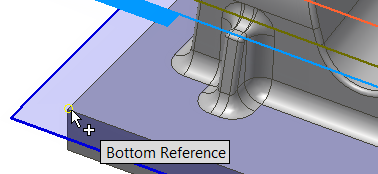
- From the Bottom Height drop-down menu, choose Selection.
- For the Bottom reference select one of the vertices along the bottom face.
 Passes tab
- Click the Passes tab.
- Enable the Machine shallow areas check box.
- Change Maximum shallow stepover to: 1 mm
- Change Maximum roughing stepdown to: 25 mm
- Leave Fine stepdown at: 2.5 mm (this parameter automatically updates with the Maximum roughing stepdown setting)
- Enable the Flat area detection check box.
- In the Stock to Leave group, set Radial stock to leave to: 0.3 mm Attention: Observe that the Axial stock to leave value is automatically updated to reflect the Radial stock to leave value.
Start the Calculation
- Click
 at the bottom of the Operation dialog box, or right-click in the graphics window and select OK from the marking menu, to automatically start calculating the toolpath.
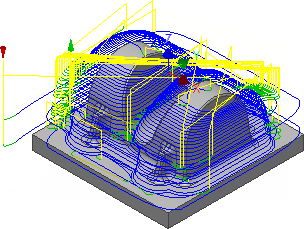
The toolpath is now calculated and a preview appears in the graphics window.
 Manage panel
Task Manager
Manage panel
Task Manager
 . You can either abort a task by pressing the Abort button in the Task Manager, or by choosing Abort Generation when right-clicking on the operation in the CAM Browser. For more information about the Task Manager, see the Help topic: About the Task Manager.
 Continue to To Rest Rough Using 3D Pocket...