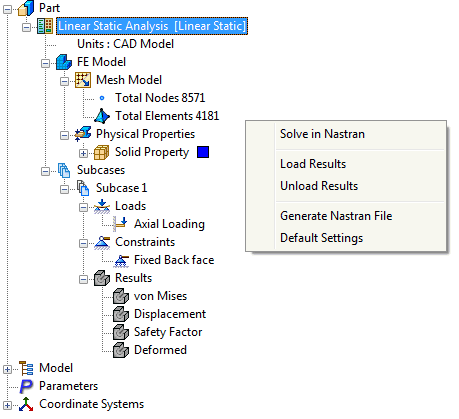
Autodesk Nastran In-CAD does not automatically load the results when a model is opened, even if they were imported before closing the model.
To reload the results, click on the Load button under the Results panel on the ribbon, or right-click on Analysis at the top of the tree and select Load Results.

Autodesk Nastran In-CAD will prompt to locate and select the results file (*.FNO).
The results are then loaded into the corresponding subcase as shown in the following figure.
Any result file can be loaded resulting in abnormal contour plots.
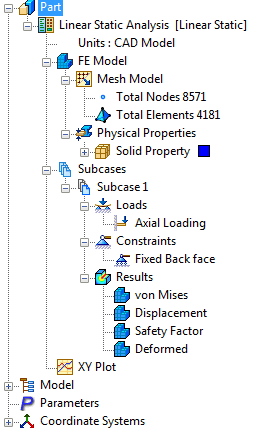
 You can also perform this command by right-clicking an empty space of the Autodesk Nastran Model tree and then selecting Load Results.