The Analysis tree item contains a collection of sub-level tree items as shown in the following figures:
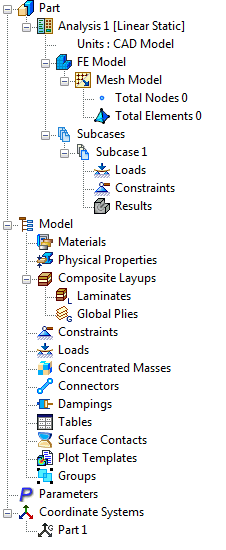
Part
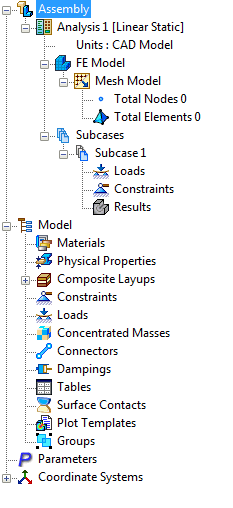
Assembly
Right-click on Analysis. The following options are available:
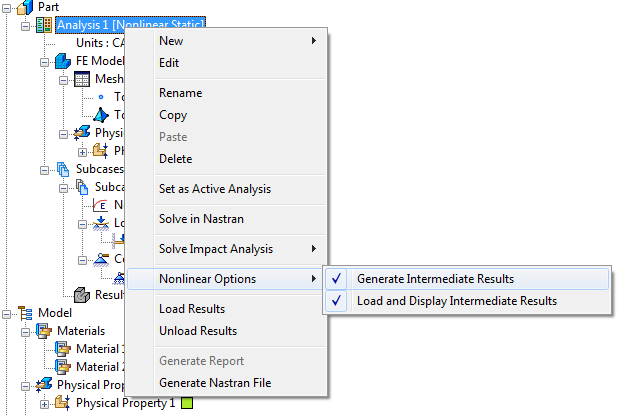
- New Subcase
- Edit
- Rename (Change the name of the analysis)
- Copy
- Paste
- Delete (Delete analysis)
- Set as Active Analysis
- Solve in Nastran
- Solve Impact Analysis:
- Setup Impact Analysis
- Solve
- Solve in Editor
- Generate Nastran File
- Nonlinear Options:
- Generate Intermediate Results: When this option is checked, the solver generates .FNO files for each increment that can be loaded while the analysis is running. When the analysis is completed, these intermediate .FNO files are compiled into one.
- Load and Display Intermediate Results: This option works in conjunction with Generate Intermediate Results and thus, is only available when that option is checked. The incremental results are automatically loaded into the tree under Subcases and can be viewed until the next increment has been solved. This is shown in the example below.
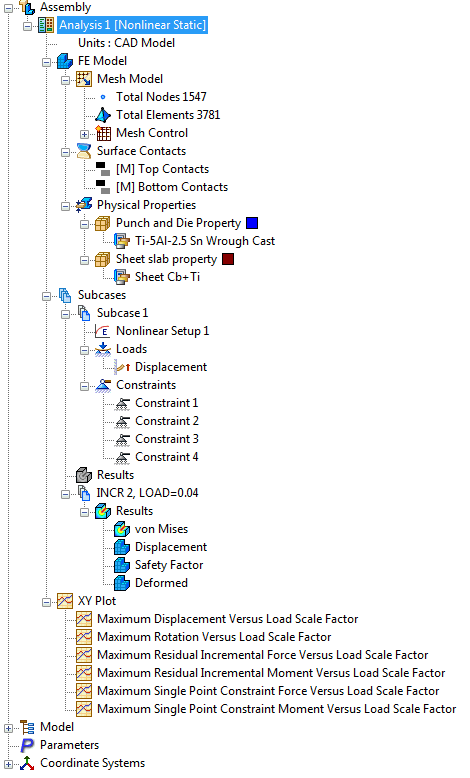
- Load Results
- Delete Results
- Generate Report
- Generate Nastran File
The sub-level tree entities under Analysis are:
- Units: Provides an option to define a unit system directly at Analysis level.
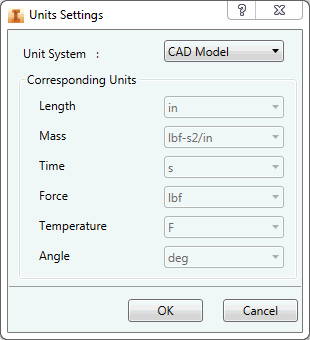
-
FE Model
- Mesh Model
- Total Nodes (Displays total number of Nodes in Mesh)
- Total Elements (Displays total number of Elements in Mesh)
- Mesh Model
-
Subcase
- Loads (Provides an option to define loads directly at subcase level)
- Constraints (Provides an option to define constraints directly at subcase level)
- Results (Default plot templates gets loaded under it directly once the solution is successful)
 Analyses can be dragged and dropped onto a part or assembly name to make a copy of the analysis. The copy is activated automatically.
You can select the generation of partial results for modal and transient analysis types to decrease the size of the results file and to decrease the calculation time required for solution.