Click on the Edit button under the Analysis panel on the ribbon or right-click on Analysis at the top of the tree and select Edit to open the window below.

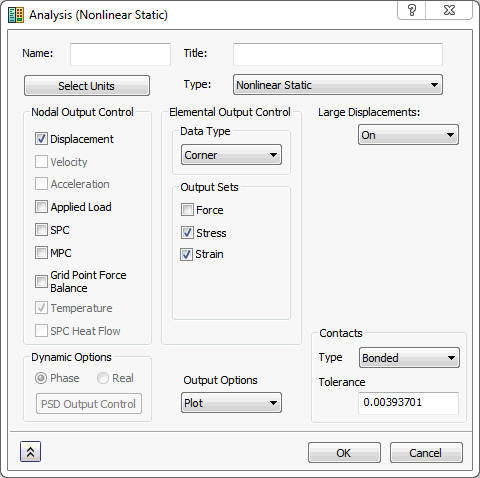
This will allow you to edit the features illustrated above (Name, Title, Units, Analysis Type, Nodal and Elemental Output Control, Large Displacements, Dynamic Options, Output Options, and Contacts).
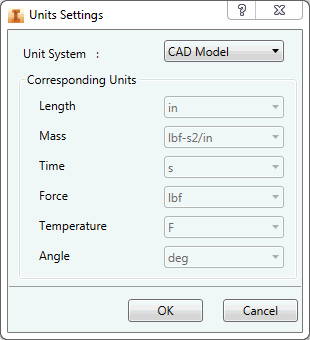
Select Units: Provides an option to define a unit system within the analysis dialog.
-
Unit System:
- CAD Model: It is the default unit system defined in Document Settings of the CAD Environment.
- SI: It is the MKS system (meters, kilograms, seconds, newton, kelvin and degree).
- Modified SI: It is the modified MKS system (millimeters, tonne, seconds, newton, kelvin and degree).
- English: It is the British / IPS unit system (inches, pounds seconds square per inch, seconds, pounds, Fahrenheit and degree).
- CGS: It is the system used to set the standard units as centimeter, grams, seconds, dyne, Celsius and degree.
Nodal Output Control: Allows you to request all the nodal results: Displacement, Applied Load, SPC, MPC, Grid Point Force Balance. For thermal analysis, you can request Temperature and SPC Heat Flow. Whereas for dynamic analysis, you can request Velocity and Acceleration.
Elemental Output Control: Allows you to request Force, Stress and Strain at the same time. For thermal analysis, you can request Heat Flux.
Large Displacements: It allows you to toggle ON and OFF. This option is used in all Nonlinear analyses (Nonlinear Static, Nonlinear Buckling, Nonlinear Transient Response and Automated Impact Analysis (AIA)).
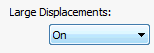
- ON: Large displacement and follower force effects and differential stiffness will be included.
- OFF: Large displacement and follower force effects and differential stiffness will not be included.
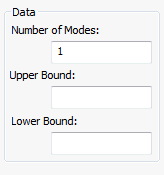
Data: Contains eigenvalue data for Linear and Nonlinear Buckling analyses.
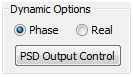
Dynamic Options: Contains Phase and Real radio buttons. These buttons only appear when the analysis type is set to a Frequency and Random Response. It also contains PSD Output Control button which will appear when the analysis type is set to Random Response.
Output Options: Allows you to define Plot, Print, Punch, Punch and Plot.
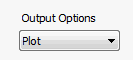
- Plot: Results will be output only to the results neutral file system.
- Print: Results will be output to both the model results output file and the results neutral file system.
- Punch: Results will be output additionally to the Model Results Punch File.
- Punch and Plot: It includes both Punch and Plot behaviors.
Contacts: Allows you to set the default settings for generating Automatic contacts.
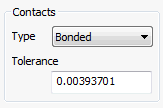
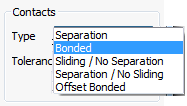
- Type: Separation, Bonded, Sliding/No Separation, Separation/No Sliding and Offset Bonded options are available to define automatic contacts using the CAD Model.
- Tolerance: It allows you to generate automatic contacts using the faces which are within the tolerance.