The Display Options section of the Constraints form allows you to edit the display options of the constraint.
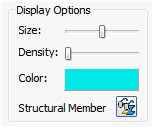
- Size: Changes the size of the constraint arrows.
- Density: Allows you to display a particular level of constraint arrows.
- Color: Allows you to pick the color of the constraint arrows.
- Structural Member: Allows you to hide or show the structural members if the model has any structural members so that you can easily select the end points to apply constraints. When the structural member is visible, the button is
 , i.e. Hide all structural members. If you click on the button that is in hidden mode, the button changes to
  , i.e. Show all structural members.
 - This is visible in the constraints dialog only when the model has structural members.