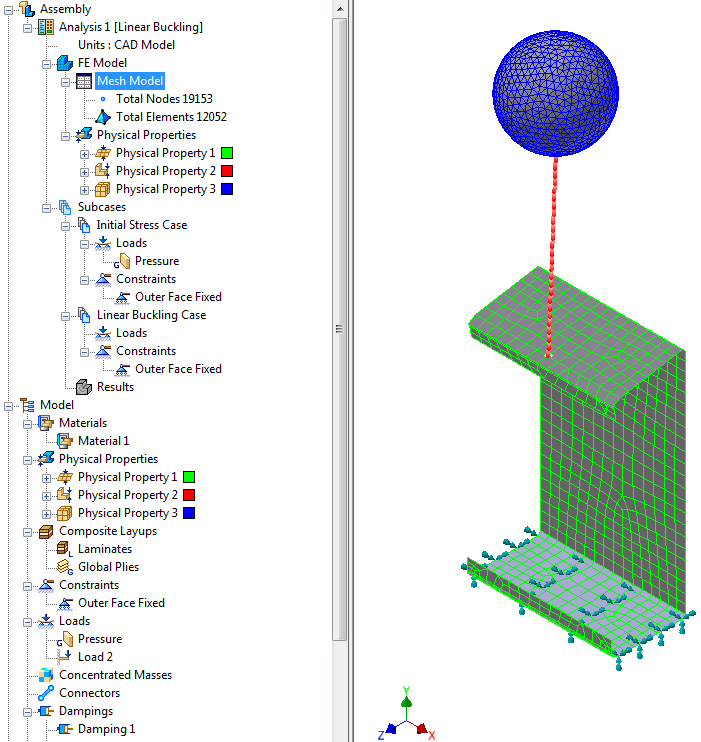
This is where all element physical properties created are grouped in the Model tree.
Click on the Physical button under the Properties panel on the ribbon or right-click on Physical Properties on the tree and select New to open to open the window below.

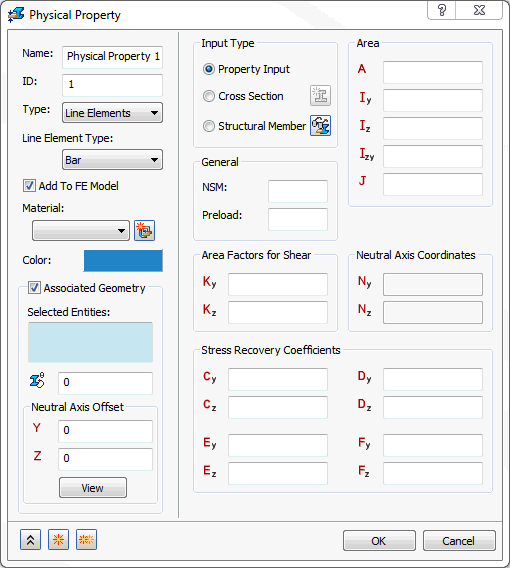
The following sections are available in the Physical Property form:
- Name: Enter a name for the property in this field, for example, Solid Property.
- ID: The ID of the property is automatically updated by Autodeski Nastran In-CAD, similar to Materials.
- Type (default is Solid Elements): Select the type of property for the part:
- Line Elements: 1D elements with 6 degrees of freedom.
- Shell Elements: 2D quadrilateral and triangular elements.
- Solid Elements: 3D linear and parabolic tetrahedral elements.
-
Element Properties/Data:
- Line Element Properties
- Shell Element Properties
- Solid Element Data
- Add to FE Model: This checkbox automatically puts this physical property under FE Model.
- Material: This allows defining the new material
 in the same physical property dialog, as well as assigns the defined material. It puts it automatically under physical property.
 - Color: Allows you to pick the color of the physical property which reflects as mesh color on the screen.
-
Associated Geometry:
- Line Elements
- Shell Elements
- Solid Elements (in Assembly Context)
The other sections in this form vary sightly depending on the Type of element selected and the Input Type chosen. Click the links at the bottom of the page to see more info on these topics.
Physical properties can be dragged and dropped from the Model tree onto the FE Model.
Once Physical Properties is added to the FE Model it creates a single node with all the physical properties. This will allow you to create a new physical property without going to Model tree. Physical properties can also be selected from here to be included in the analysis model.
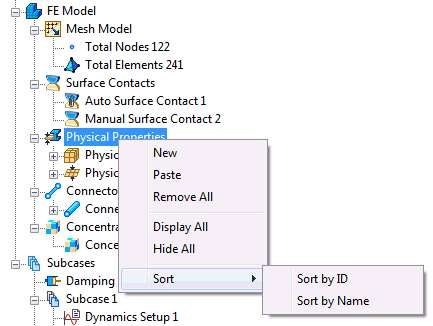
If you right-click on Physical Properties in the FE Model tree section, the following options are available:
- New
- Paste
- Remove All
- Display All
- Hide All
- Sort:
- Sort by ID
- Sort by Name