Sets the report types users can run on a project.
You have two options for creating reports: you can use the Data Manager or the Report Creator. Using the Data Manager, you can create quick reports and export them to Microsoft Excel. You can use the capabilities of Excel to format your reports. Using Report Creator, you can create formatted BOMs (Bill Of Materials), Material Lists, or other lists that require totals and component counts. Here are guidelines for using one option over the other:
| Use the Data Manager to . . . | Use Report Creator to . . . |
|---|---|
| Generate basic lists | Generate lists that include calculated fields, BOMs and Material Lists with totals and component counts |
| Create plain reports | Create formatted reports, complete with font selection, graphics, various layouts |
| Communicate internally | Deliver reports to customers |
| (CAD administrator can configure new reports as needed in Project Setup) | Configure new reports as needed (CAD administrator) |
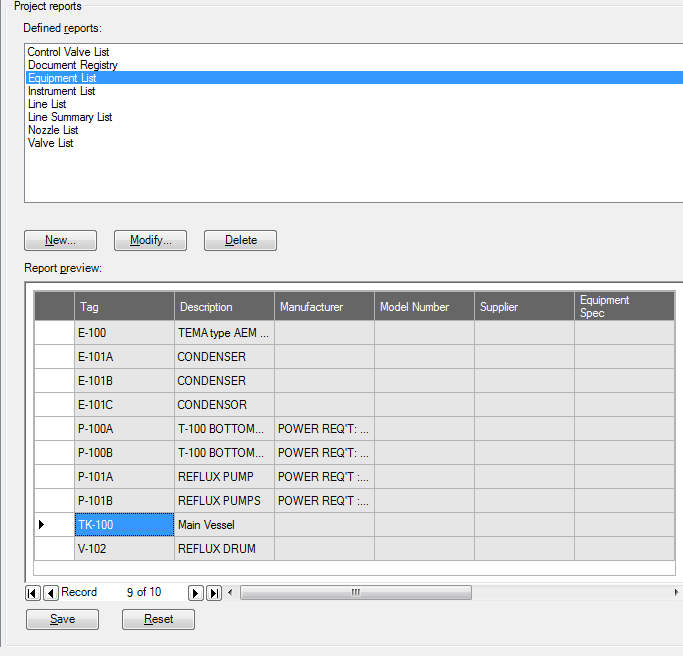
Defined reports
Lists the reports that users can view in the Data Manager.
- New
-
Displays the New Report dialog box, where you create a new report based on an existing one.
- Modify
-
Displays the Modify Report dialog box, where you can modify existing reports.
- Delete
-
Deletes a report.
Report Preview
Shows the specified report as it will be displayed in the Data Manager. You can sort by clicking the column headings. Using the right-click menu, you can filter by the selection, by excluding the selection, or by specifying values.
Note:
Surround a string entry with single quotation marks (‘). Entries are case-sensitive.
| Conditions (can be used cumulatively) | Purpose | Examples |
|---|---|---|
| Angle brackets (< >) | to display values not equal to your entry |
|
| Equal signs (=) | to display values that match your entry | = ‘Bosch’ displays only cells containing the string Bosch |
| IS NULL | to display only empty cells | Displays only rows with empty cells |
| IS NOT NULL | to exclude empty cells | Displays only rows with data |
- Save
-
Saves the preview filtering and sorting as the report view that the user will see.
- Reset
-
Restores the report preview to the default view.